How to view LinkedIn anonymously, and what private mode still gives away
Don't want them to know you looked? View LinkedIn anonymously by turning on Private mode; you show up only as a LinkedIn Member.


Anonymous viewing on LinkedIn is one setting. It hides your name from profile views, and not much else.
How do I view LinkedIn profiles anonymously?
Go to Me, Settings & Privacy, Visibility, then Visibility when viewing other profiles, and choose Private mode. Anyone whose profile you view afterwards sees only "LinkedIn Member", and the change saves automatically.
Below: the exact steps, what each setting shows, and the activity that stays visible even when you view LinkedIn anonymously.
Why anonymous on LinkedIn is narrower than it sounds
Most people switch on private mode and assume they've gone invisible. They haven't.
The setting controls one thing: what appears in someone's Who's Viewed Your Profile list when you open their profile. Your name is replaced with "LinkedIn Member", and that's the whole effect.
Everything else you do on LinkedIn works as normal. Likes, comments, connection invitations and messages still carry your name.
So the useful question isn't "am I anonymous?" It's "which of my actions can this person see?"
This article answers that one, action by action.
How to view LinkedIn profiles anonymously on desktop
LinkedIn's page on profile viewing visibility gives the current path:
- Click the Me icon at the top of your LinkedIn homepage.
- Select Settings & Privacy.
- Click Visibility in the left pane.
- Under Visibility of your profile & network, click Visibility when viewing other profiles.
- Select Private mode.
There's no Save button. LinkedIn saves the change automatically.
Older guides call this setting "Profile viewing options". The label has changed; the setting is the same one.
How to turn on private mode in the LinkedIn app
On iPhone or Android:
- Tap your profile photo.
- Tap Settings & Privacy, then Visibility.
- Tap Visibility when viewing other profiles.
- Choose Private mode.
The setting belongs to your account, not your device. Switch it on your phone and it applies on your laptop too.
What the other person sees under each setting
LinkedIn offers three options, and each shows a different amount:
- Your name and headline: the viewer's name, headline, location and industry.
- Private profile characteristics: a description such as your job title and company type, for example "Someone at Accenture".
- Private mode: "LinkedIn Member", with nothing else.
The middle option is semi-private. It hides your name but describes you.
LinkedIn's help page doesn't state which option is the default, so check yours. Unless you've changed it, assume your name and headline show.
What private mode hides
With Private mode on, a profile view no longer identifies you. The person sees that someone viewed their profile, listed as a LinkedIn Member.
That view still counts. It shows up in their viewer list, just without your details.
Private mode hides who viewed, not that someone viewed. If the person has few visitors, an anonymous view right after you met them at an event is not much of a mystery.
Reading the anonymous entries in your own viewer list
The same three settings explain what you see when you check who viewed you.
Your viewer list can hold three kinds of entry:
- A name and headline: a member who browses with their name showing.
- A description, such as "Someone at Accenture": a member using private profile characteristics.
- "LinkedIn Member": a member browsing in private mode.
The descriptions are worth a second look. Combined with timing, such as a meeting yesterday or an application last week, a job title and company type often point to one or two likely people.
"LinkedIn Member" entries are the dead end. There's nothing more to learn from them, on any plan.
What private mode doesn't hide
This is where most people slip up. The setting only covers profile views.
Your name still appears when you:
- React to or comment on the person's posts.
- Send a connection invitation, with or without a note.
- Message them, including InMail.
- Endorse a skill or write a recommendation.
Any of these tells them you've been looking. If you want research to stay quiet, keep it to viewing.
The search suggestion click that counts as a view
Here's an edge case few people know about. LinkedIn says clicking a member's name in search suggestions opens their mini profile, and that's treated as a profile view.
LinkedIn adds that it may result in a notification being sent.
In private mode, that view is anonymous like any other. With your name and headline showing, a quick look at someone through the search box can land in their viewer list as you.
Switch settings before you search, not after you click. The setting governs how you appear at the moment you look.
Why semi-private can still identify you
Private profile characteristics feels like a good middle ground. It often is.
But it can give you away.
LinkedIn describes the viewer with descriptors such as a job title and a company type, for example "VP of Marketing in Internet Industry". At a large company in a busy industry, that's a crowd.
At a small company, it isn't. If you're the only head of sales at a ten-person startup, "Head of Sales at a startup" is close to your name.
If the person you're looking at knows your company, use Private mode instead.
Can someone with Premium see who you are?
No. LinkedIn's page on private mode viewers is direct about it: nobody can reveal who's viewing in private mode, even with a Premium account.
Premium changes what a member sees about their named viewers and how far back the list goes. It doesn't unmask anyone who chose private mode.
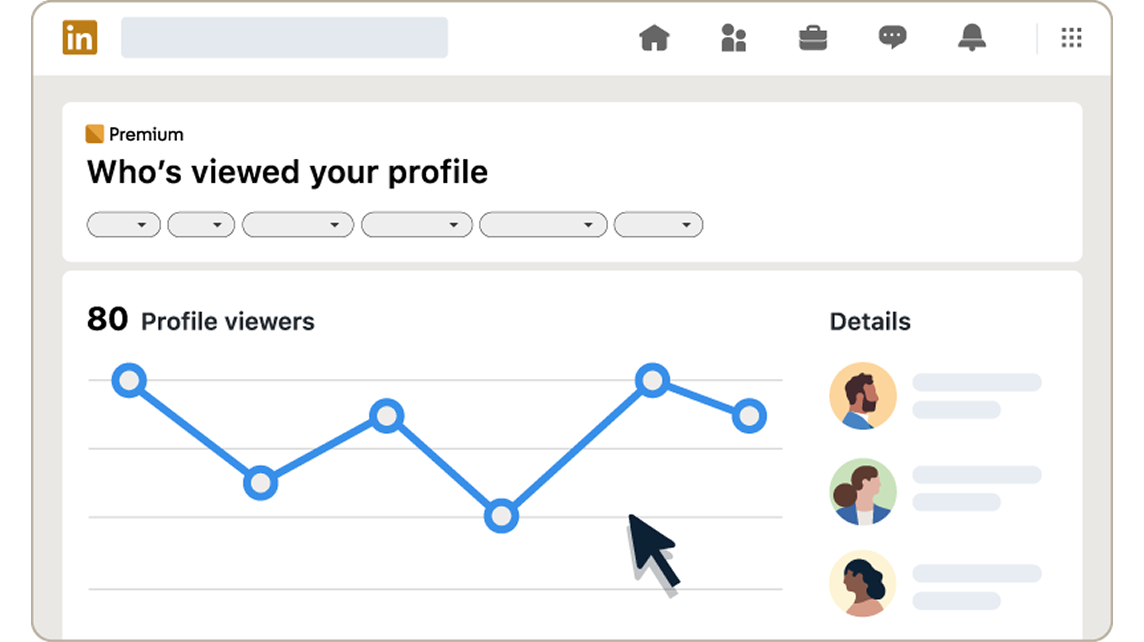
That's worth knowing from both sides. Your anonymous views stay anonymous whatever plan the other person pays for, and you can't unmask theirs either.
What anonymous browsing costs on a free account
Private mode has a price on a Basic account. LinkedIn says that with a free account, you must choose Your name and headline to see the viewer history on your own Who's Viewed Your Profile page.
Put simply, if you browse anonymously, you lose the ability to see who's viewed you.
For a job seeker, that list can be useful: a recruiter who looked at your profile is someone you might contact.
Decide which matters more to you right now.
The Premium exception to that trade-off
Premium members don't face the same choice. LinkedIn says Premium members can browse in private mode and still see their viewers from the last 90 days.
For context, LinkedIn's page on viewer features for Basic and Premium sets out the gap. Basic accounts see the three most recent viewers in the last 90 days. Premium Business and Career accounts see up to 365 days of viewer data.
If you research profiles every day, that difference may matter. For an occasional private look, a free account and a quick switch back usually cover it.
Can people block you if you browse privately?
Not while you're in private mode. LinkedIn says members can't block someone who viewed their profile in private mode, since they can't see who the viewer is.
That's one of the few protections private mode gives you on top of hiding your name.
Once you interact in any named way, such as a comment or an invitation, the person can find your profile and block you from there like any other member.
When anonymous viewing makes sense
LinkedIn itself notes that recruiters and business professionals often browse in private mode to find candidates, sales leads, potential clients or business partners.
Beyond that, common reasons include:
- Checking a hiring manager before an interview.
- Researching a competitor's team without signaling interest.
- Looking up an ex-colleague or former manager.
- Screening a stranger who contacted you, before you reply.
In each case the goal is information, not contact. That's what private mode is built for.
When your name should stay visible
Sometimes being seen is the point. A named profile view is a quiet hello, and on LinkedIn a hello can start a conversation.
If you're job hunting, a recruiter who sees you viewed their profile may look back at yours. If you met someone at an event, a named view reminds them who you are.
Anonymous views give none of that. For networking, keep your name and headline on, and save private mode for research.
A simple routine for private research
If you switch between modes, a short routine avoids mistakes:
- Turn on Private mode before you open the search box.
- Do your research by viewing profiles only.
- Switch back to your name and headline when you're done, if you want to keep seeing your own viewers on a free account.
The whole switch takes seconds each way, and it saves you from a named view you didn't mean to leave.
Before your next anonymous visit
Private mode protects one thing well: your name in someone's viewer list. It doesn't cover comments, reactions, invitations, messages or follows, and on a free account it costs you your own viewer history.
Check the setting before you look, stay on view-only actions, and switch back when you're finished.
Get the order wrong once, and the person you were researching knows exactly who came looking.
Anonymous browsing FAQ
What does "LinkedIn Member" mean in my viewer list?
It's someone who viewed your profile in private mode. LinkedIn doesn't reveal who they are, to free or Premium members.
Do I need to save the setting after I change it?
No. LinkedIn saves changes to Visibility when viewing other profiles automatically.
Do views from people I've blocked still show up?
LinkedIn says views from members you blocked after they viewed you still count, but their details are hidden.