
How to go live on Instagram, and who's allowed to start a broadcast
To go live on Instagram, swipe right, choose Live, add a title and tap Go live. You need a public account with 1,000+ followers.

Going live is a few taps once you're eligible.
The part most guides skip is the eligibility itself: Instagram only lets some accounts start a live broadcast, and knowing the rules saves a confusing search for a button that isn't there.
To go live on Instagram, swipe right from your feed, scroll to Live at the bottom, add a title and tap Go live.You need a public account with 1,000 followers or more to start a live broadcast.You can invite up to three guests, pin comments and turn commenting off during the stream.When you end, you can share the replay as a reel or download the video.
The full steps, how to schedule a live in advance, and what to do if the Live option doesn't appear are below.
Who can go live on Instagram
Instagram's page on starting a live broadcast sets the rule: only Instagram users who have a public account with 1,000 followers or more can start a live broadcast.
That's why the Live option simply isn't there for many accounts. A private account can't start one, and neither can a public account below 1,000 followers.
Instagram lists a few more conditions on the same page:
- The ability to broadcast live is off by default for teen accounts. Teens under 16 need a parent's or guardian's permission to turn it on; teens aged 16 or 17 can turn it on themselves.
- Newly created accounts may not be able to go live or co-broadcast.
- You may not be able to go live if you've previously posted something that was removed for going against Instagram's Community Standards.
To see where you stand, Instagram points to your account status, which shows your permissions.
If the Live option is missing, check your follower count and account privacy before anything else.
How to go live on Instagram, step by step
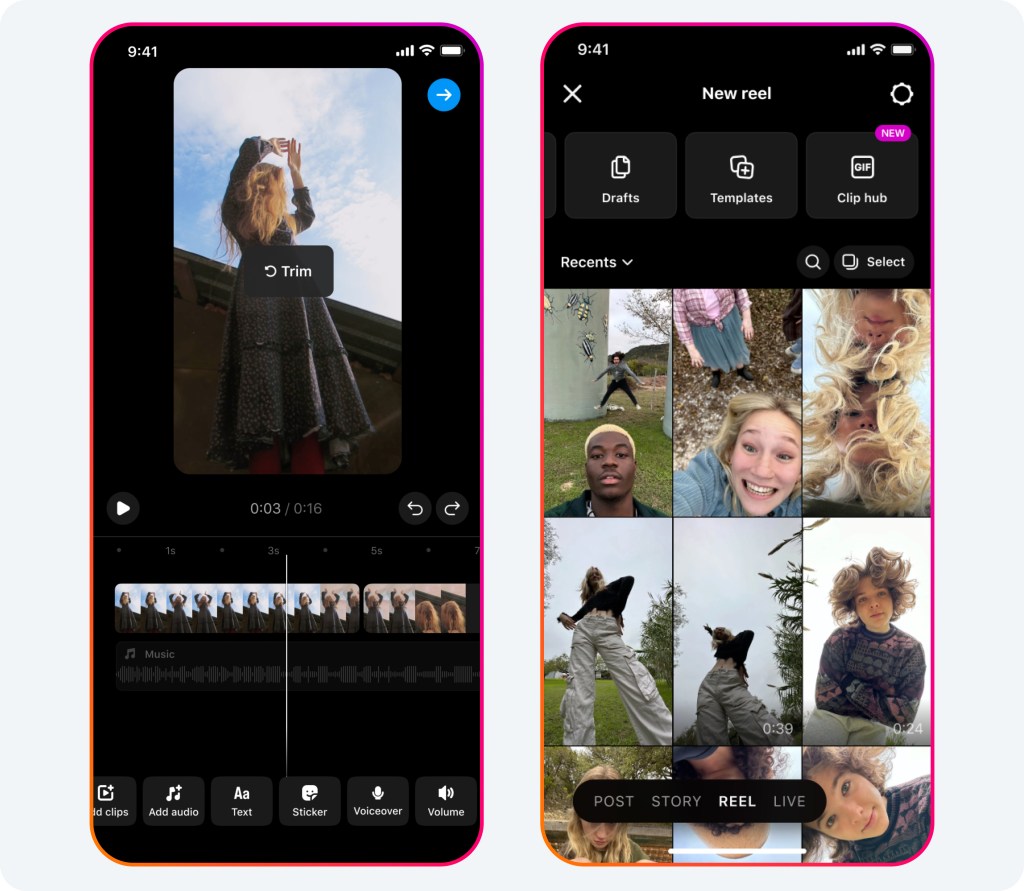
Once you're eligible, the steps are quick. Instagram's live page gives them in order.
Start the broadcast
- Swipe right anywhere in your feed to open the camera.
- Scroll to Live at the bottom of the screen.
- Tap Add a title, enter a title, then tap Done.
- Tap Go live.
Run and end the broadcast
- Watch the viewer count at the top and the comments at the bottom. Tap Comment to add your own, or tap a comment and tap Pin comment so viewers see it easily.
- Tap Close in the top right when you're done, then End Now to confirm.
A title helps more than it seems. It tells people in the stories tray what your live is about before they tap in, which is the difference between "someone's live" and "a Q&A about sourdough."
What your followers see when you're live
Going live puts your profile picture at the front of your followers' stories tray with a LIVE badge, which is the main reason live broadcasts pull in real-time viewers.
During the broadcast, people can comment, and you can pin a comment so it stays visible. You can also invite viewers to join you on screen.
Instagram adds one iPhone feature: tap Add from camera roll to show photos and videos from your camera roll during the live.
Only you can see your camera roll while sharing, and this option isn't available in a live room with guests.
How to go live with guests
Instagram's page on inviting guests explains that you can invite up to three guests to join your live using Live Rooms.
Guests must follow the broadcaster to be invited. To add one:
- Open the Live camera and start your broadcast.
- Tap the guest icon to see requests to join your room.
- Tap Invite next to a follower who's watching.
If they accept, they appear in your live room.
To remove a guest, tap the X in the top right of their video frame.
Viewers can also ask to join your live: they tap the join option, then Send Request, and you decide whether to accept.
How to manage comments and requests during a live
Live comments move fast, and Instagram gives you controls in the broadcast's Options menu:
- Turn off commenting to stop new comments during the stream.
- Turn off requests to go live so viewers can't ask to join.
Instagram notes that any keyword filters you've turned on for comments also apply to comments on your live broadcast.
Setting up hidden words before a big live saves you from moderating in real time.
How to schedule a live broadcast in advance
A scheduled live builds an audience before you start. Instagram's page on scheduling a live says you can schedule a broadcast from 1 hour to 90 days in advance.
- Open the camera and scroll to Live.
- Tap Schedule on the left.
- Enter a title, choose a start time and tap Done.
- Tap Schedule live video, then share it if you like.
Posts and stories you share about the scheduled live include its title and start time, plus an option for people to set a reminder. Your soonest scheduled live also appears on your profile below your profile picture.
Instagram sends you reminders 24 hours and 15 minutes before the time you chose.
You can change the start time until 45 minutes before it's due to begin, or cancel it from the same Schedule screen.
Practice before your first live
If you're nervous about your first broadcast, practice first.
Instagram's guide to Live Producer describes an audience option on the Go live screen: choose Practice to test without broadcasting to anyone, or Public to go live to your followers.
A practice run lets you check lighting, sound, framing and your title without anyone watching. It's especially useful before a live with guests, where timing matters.
Plan the shape of the live, too. A simple outline works well:
- A quick welcome while people join.
- The main topic.
- Time for questions from the comments.
- A clear goodbye.
People arrive late to lives, so repeat the topic every few minutes for newcomers, and pin a comment that says what the live is about.
What happens after you end a live
When you end the broadcast, you have two options. Instagram's page on sharing a replay explains them.
Share as reel. Tap Share as reel to open the reels publish screen, add a caption and tags, and post the replay to your profile and feed.
Instagram notes the replay won't include likes or comments from the original live, the viewer count restarts, and you can't trim the replay before sharing.
Download. Tap Download to save the video to your camera roll.
Instagram's page on saving a live video says you can only do this right after you end, and only the video is saved, not comments, likes or viewers.
Share a past live from your Live archive
Missed the moment? Instagram keeps past broadcasts in a Live archive.
Its page on the Live archive gives the route: open the menu on your profile, tap Archive, switch the dropdown from Stories archive to Live archive, tap the broadcast and tap Share.
That opens the same reels publish screen, so a live you ran last week can still become a reel today.
If the Live option doesn't appear
Work through these checks in order:
- Is your account public? Private accounts can't start a live.
- Do you have 1,000 followers or more? That's Instagram's threshold.
- Is it a teen account? Live is off by default and may need permission.
- Is the account new, or has content been removed? Check your account status.
- Is the app updated? Update from the App Store or Google Play.
If you're below 1,000 followers, you can still join someone else's live as a guest when they invite you or accept your request.
Guesting on a bigger account's live is also a good way to meet new followers while you grow toward the threshold.
Your first-live checklist
- Confirm you're eligible: public account, 1,000+ followers.
- Schedule the live and share the reminder a few days ahead.
- Set up hidden words for comments, and do a practice run.
- Go live with a clear title, and pin a comment that explains the topic.
- End by sharing the replay as a reel, or download it.
Instagram Live FAQ
Can I go live on Instagram from a computer?
Instagram's live help describes starting a broadcast from the app's camera. Its Live Producer tool is built for streaming from a computer with streaming software; check its guide for current eligibility.
How many people can join my Instagram Live?
You can invite up to three guests using Live Rooms, and they must follow you. There's no guest limit for viewers watching the broadcast.
Do my followers get notified when I go live?
Your profile shows a LIVE badge at the front of their stories tray. For scheduled lives, people who set a reminder get notified, and you get reminders 24 hours and 15 minutes before.