
How to tag someone on LinkedIn in a post or comment
Tag someone on LinkedIn by typing @ and their name in a post or comment, then picking them from the list; they get notified.


LinkedIn calls it a mention, and it takes one keystroke to start.
How do you tag someone on LinkedIn?
Type @ in a post or comment, start typing the person's name, and click their name when LinkedIn suggests it. The name turns into a link to their profile, and they get an email and app notification that you mentioned them.
Below: the steps on desktop and mobile, why a name sometimes won't appear, and how to keep your own name out of other people's posts.
Tagging on LinkedIn is called a mention
When people say "tag" on LinkedIn, the platform's own word is mention. The help center, the settings and the notifications all use it.
The two words describe the same action. You write a post or comment, add a person's name with the @ symbol, and LinkedIn links that name to their profile.
Knowing the official word helps when you go looking for settings. The controls for who can tag you sit under a heading about mentions, not tags.
How to tag someone in a LinkedIn post on a computer
LinkedIn's page on mentioning people in posts describes the flow:
- Click Start a post at the top of your homepage.
- Type @ where you want the name to appear.
- Start typing the person's name and watch the suggestions.
- Click the right name in the type-ahead list.
- Click Post when the rest of your post is ready.
The name changes appearance once it's linked.
If it still looks like plain text after you've typed it, you didn't select it from the list, and the person won't be notified.
How to tag someone in a comment
Comments work the same way. Click Comment on someone else's post, type @, start the name and pick it from the suggestions.
This is where most tagging happens in practice. Someone shares a job opening or a question, and you bring a colleague into the thread by mentioning them in a reply.
Keep the comment useful on its own. "@Name, this is the role we talked about" gives the person context. A bare name with no sentence around it tells them nothing about why they were pulled in.
How to tag someone in the LinkedIn app
On a phone, the steps are slightly different:
- Tap Post in the navigation bar.
- Tap the At icon on the keyboard.
- Choose the name from the suggestions.
- Tap Post to share it.
You can also type the @ character directly, as you would on a computer. The suggestion list appears the same way.
Finding the right person when the name is common
The type-ahead list can offer several people with the same name. Picking the wrong one sends a notification to a stranger and leaves your real contact untagged.
LinkedIn's tip is simple. Add the company to what you type, for example "Jane Doe LinkedIn," so the right person rises to the top.
Before posting, hover over or check the linked name. Tagging the wrong person is awkward to fix after they've already been notified.
What happens when you tag someone on LinkedIn
Two things happen as soon as the post goes live.
First, the person receives email and app notifications of the mention. They'll know where you mentioned them and can jump straight to it.
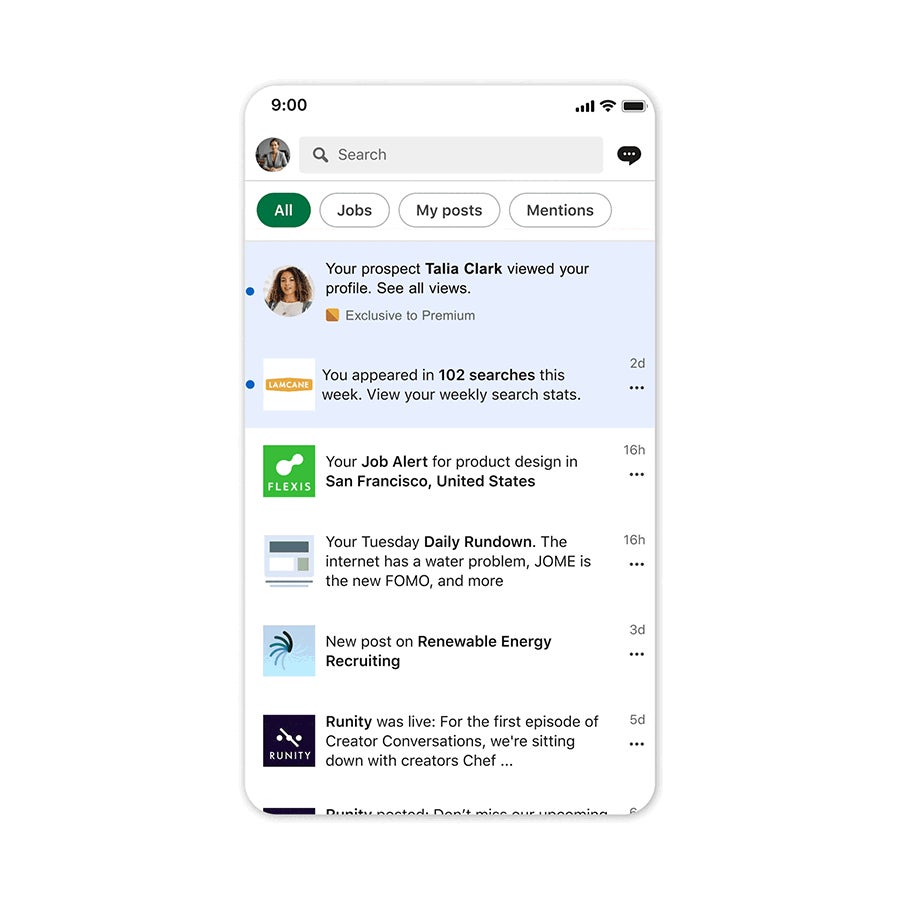
Second, their name in your post becomes clickable. Anyone reading can tap it and land on their profile.
That second effect is why tagging is useful beyond politeness. It turns a name into a doorway, and readers who liked your post can go straight to the person you credited.
How to check that your tag worked
A tag either links or it doesn't. There's no half-way state, so it's worth checking before you walk away from the post.
Look at the name in your published post. A working mention reads as a link, and clicking it opens the person's profile.
If the name sits in plain text, the tag didn't take. That usually means you typed the name without picking it from the suggestion list, so LinkedIn treated it as ordinary words.
The fix is quick. Edit the post, delete the plain-text name, type @ again and select the person this time. The notification goes out once the mention is saved.
Can you tag someone you're not connected to on LinkedIn?
Yes, usually. LinkedIn says the people you mention don't need to be your connections.
There's a catch, though. LinkedIn also says it may limit your ability to mention members you're not connected with. So a name you expect may not show up, even when you type it in full.
If you run into that, there's more on how tagging someone who isn't a connection works in practice.
For someone you'll mention regularly, the simplest fix is connecting first. A short invitation that explains who you are tends to be accepted.
Why a name won't appear when you try to tag it
When the suggestion list stays empty or LinkedIn stops you, there are three common reasons:
- The person has turned mentions off. LinkedIn tells you the member can't be mentioned.
- You're not connected, and LinkedIn is limiting mentions of people outside your network.
- The name didn't match, often because the person uses a different spelling or a shortened first name on their profile.
Only the last one is yours to fix. Try their surname alone, or add their company to the search.
Adding a tag after you've already posted
Forgot to tag the colleague who helped with the project? You don't have to delete the post.
LinkedIn lets you edit a post or comment afterwards to add a mention. Open the post, edit it, type @ and the name, and save.
That's the better option once people have started reacting. Deleting and reposting would throw away the reactions and comments the post already collected.
How to stop people from tagging you on LinkedIn
You control whether others can mention you. LinkedIn's page on controlling mentions and tags points to one setting.
- Click the Me icon, then Settings & Privacy.
- Click Visibility.
- Open Mentions, tags, and collaborations.
- Switch off Allow mentions, tags, and collaborations.
Once it's off, people who try to mention you are told you can't be mentioned. It's a sensible switch if your name keeps getting pulled into promotional posts.
Who can see a post you've tagged someone in
A mention tells the person about your post. It doesn't change who else can read it.
That's still decided by the audience you choose when you create the post: Anyone, Connections only, or a Group.
LinkedIn saves your choice as the default for next time, and you can't change a post's visibility after it's shared.
So think about both at once. If you're thanking a client for a project, a post shared with Anyone puts that thanks, and their name, in front of a wide audience. That's usually what you want, but it's worth a second of thought for anything more personal.
How to write the sentence around a tag
The name is the easy part. The words around it decide whether the person is pleased or puzzled by the notification.
A good mention sentence says what the person did, in plain terms:
- "Thanks to @Name for reviewing the first draft."
- "@Name ran the numbers behind this chart."
- "Congratulations to @Name on the new role."
Each one would still make sense to a reader who has never met the person. That's the bar. A mention with no reason attached makes readers wonder why the name is there at all.
When tagging someone helps your post
A mention works best when it's the honest answer to "who made this happen?"
Good reasons to tag someone:
- You're crediting their work, idea or help.
- You're congratulating them on a new role or milestone.
- You're sharing something they wrote or said, and they deserve the attribution.
- You're bringing them into a conversation they can genuinely add to.
In each case, the person would be glad to see the notification. That's the test worth applying before every mention.
How many people to tag in one LinkedIn post
LinkedIn doesn't publish a number to aim for. The useful limit is a human one.
Tag the people the post is actually about, and stop there. A post that tags a dozen people who had nothing to do with it reads as a bid for reach, and the people tagged notice.
Every mention is a notification you're sending on someone's behalf. If you wouldn't message them directly about this post, don't tag them in it.
Is tagging people on LinkedIn pushy?
Not when the tag is earned. Most people like being credited for their work, and a thank-you post that names them is one of the kinder things you can do on the platform.
It turns pushy when the mention serves only you. Tagging strangers or senior people who weren't involved, hoping their network will see your post, tends to be read exactly that way.
What if someone doesn't want to be tagged? They have a setting for that, as covered above.
If you're unsure, ask first. A quick message saying "Mind if I mention you in a post about the project?" costs nothing.
What if the tag lands on the wrong person? Edit the post, remove the wrong name, and add the right one. Then move on; everyone mis-taps a name occasionally.
Tagging FAQ
Why can't I tag my friend in a LinkedIn post?
Either they've turned off mentions, in which case LinkedIn tells you they can't be mentioned, or LinkedIn is limiting mentions because you're not connected. Connecting first usually solves the second case.
Does the person get notified when I tag them?
Yes. LinkedIn sends the mentioned member email and app notifications of the mention.
Can I tag someone in a comment instead of a post?
Yes. Click Comment on the post, type @ and the name, and pick the person from the suggestions, exactly as you would in a post.