How to download Instagram videos: reels, your own clips and lives
To download Instagram videos, tap the Share icon on a public reel and choose Download; the file saves with an Instagram watermark.

To download Instagram videos, tap the Share (paper plane) icon on a public reel and select Download. The video saves to your camera roll with an Instagram watermark.Creators can switch off downloading, so the option won't appear on every reel.Your own reels, lives and stories each have their own save option.When the Download button is missing, a browser-based downloader can save the public video from its link.
The steps for each kind of video, what the watermark includes and why some reels can't be downloaded are below.
How to download Instagram videos from a public reel
Instagram added a built-in download for public reels, so for most videos you don't need anything outside the app. Instagram's page on managing reels lists Download among the sharing options:
- Open the reel you want to save.
- Tap the Share (paper plane) icon, labeled Sharing options.
- Tap Download.
The video saves to your phone's camera roll. On a slow connection, longer reels take a few seconds to finish.
This works on reels from public accounts whose owners haven't turned downloading off. If you don't see Download in the share tray, the owner has disabled it, or the account is private.
What a downloaded reel includes
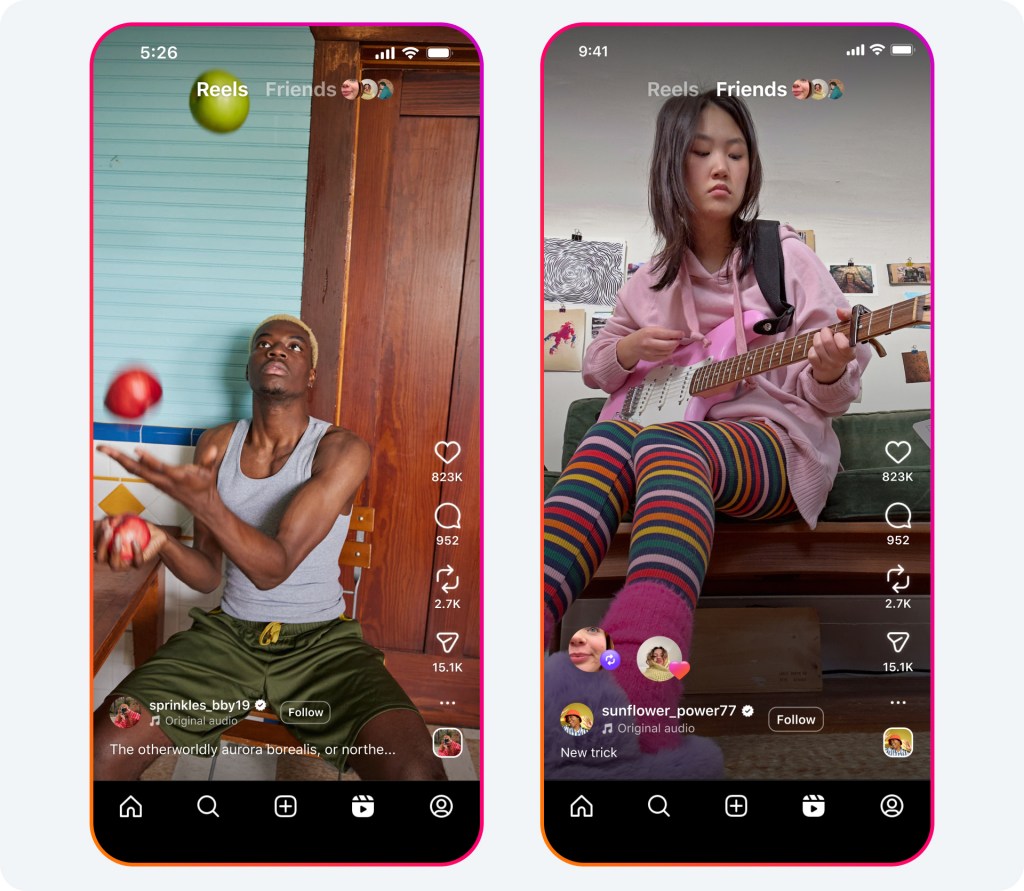
A downloaded reel isn't the raw file the creator uploaded. Instagram's page on who can download your reels says downloaded reels include:
- An Instagram watermark.
- The creator's username.
- Audio attribution.
That's a sensible design. When you share a downloaded reel with a friend or on another app, the creator's name travels with it.
Audio has a wrinkle. Instagram notes that original audio can be included in a downloaded reel if the reel that contained that original audio is downloadable.
Music from Instagram's library is handled differently, which is why some downloaded reels come out with different or missing sound.
Why some reels can't be downloaded
Two things decide whether you can download a reel: the owner's account type and their settings.
Instagram's page on reel downloads spells out the rules:
- Public accounts: anyone on Instagram can download their reels, unless the owner changes the download setting.
- Private accounts: no one can download their reels.
- Accounts of people under 18: downloading is off by default on public accounts, though the owner can turn it on.
Owners can turn downloading off for all their reels or for one reel at a time.
Instagram also notes that only reels created after downloading became available can be downloaded, unless the owner changes the setting.
So a missing Download button isn't a glitch. It's the creator's choice, or their account type.
When the Download option is disabled
If the in-app download isn't available, you can copy the reel's link from the Share menu and paste it into a browser-based video downloader. These sites process the public URL and let you save the MP4, often in high resolution, to your phone or computer.
This only works for videos from public accounts, because a private account's link doesn't open for anyone who isn't an approved follower.
Before using one, it's worth checking two things. The site shouldn't ask for your Instagram login, since a downloader only needs the public link. And it shouldn't push you to install apps or extensions you don't need.
How to stop other people downloading your reels
If you post reels on a public account, anyone can download them by default. Instagram's page on reel downloads gives you three places to change that.
For every reel, account-wide:
- Open the menu on your profile.
- Tap Sharing and reuse.
- Switch off Downloads, below "Allow people to share externally."
For one reel before you share it, tap More options on the final screen, scroll to "Allow people to download your reels," and switch it off. Instagram then asks whether the change applies to all reels or only the one you're uploading.
For a reel that's already posted, open it on your profile, tap Options, tap Manage, then tap Turn off downloading.
Instagram adds one honest caveat: copies of reels that were downloaded before you changed the setting aren't affected. Turning downloads off protects future downloads, not past ones.
If your account is private, you don't need to do anything. Instagram says no one can download reels from a private account.
How to save your own reels
Your own reels are easier to keep, and you have more options.
You can save a reel to your camera roll before sharing it. Instagram's page on reel drafts explains that you can record a reel and save it to your account or your camera roll before you post.
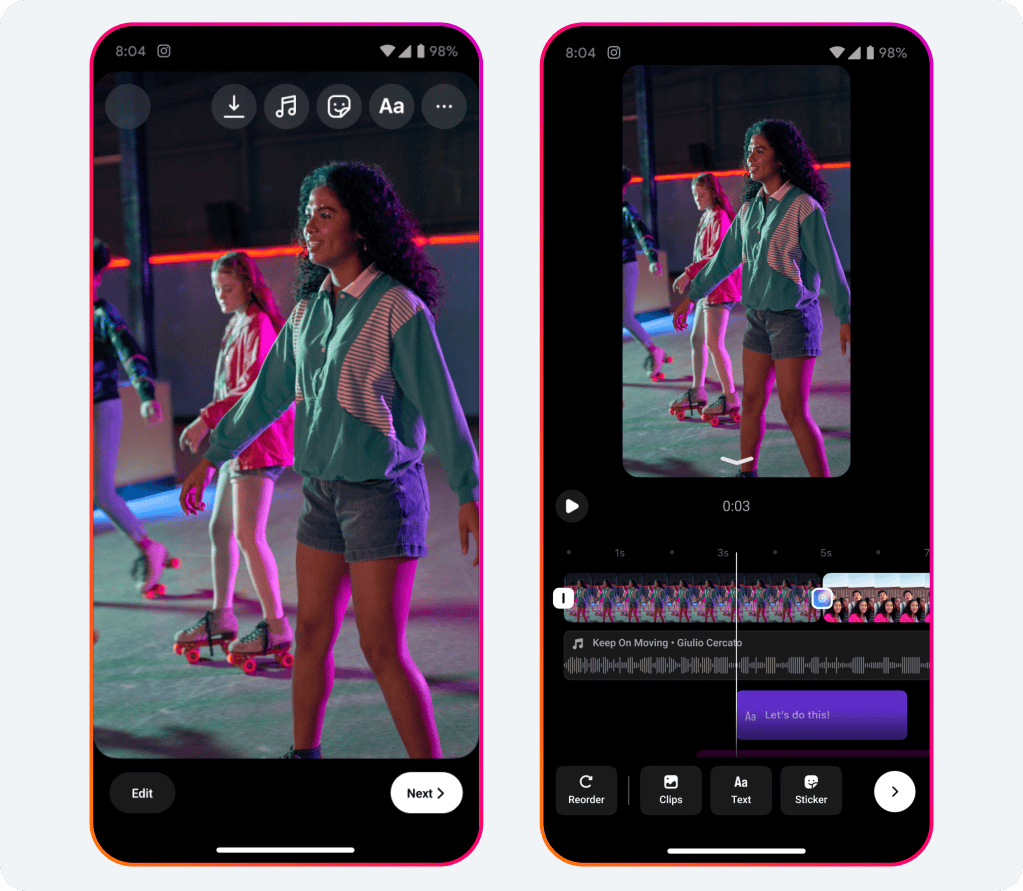
Instagram points out a limit here: downloading your reel won't save music you added from the Instagram music library. If the song matters, keep a copy of your edit elsewhere.
Drafts have a limit too. Instagram says drafts are saved on your device, can't be opened from another device, and are lost if you uninstall the app.
Save anything important to your camera roll before you delete or reinstall Instagram.
For a reel you've already posted, open it, tap the share icon and tap Download, the same as with anyone else's public reel.
How to download a live video after it ends
Live broadcasts have a narrow window. Instagram's page on saving a live video says you can tap Download Video right after you end the broadcast to save it to your camera roll.
Two limits to know:
- You can only save a live broadcast right after you've ended it.
- Only the video is saved, not the comments, likes or viewer counts.
Instagram also notes that saving can take a minute, especially for longer lives. Don't close the app while it's working.
How to save your stories as videos
Your own stories can be downloaded from the archive at any time. Instagram's page on the Stories archive lists the steps:
- Open the menu on your profile and tap Archive.
- Select the story you want.
- Tap Options in the bottom right.
- Tap Save video (or Save photo).
The file goes to your camera roll.
Instagram notes that some older stories may have been changed when archived, such as music being muted or videos frozen, so check the saved file before reusing it.
Getting copies of all your own videos at once
If you want everything you've posted, downloading one video at a time is slow. Instagram's page on exporting your information describes a bulk option in Accounts Center.
Open the menu on your profile, tap Meta Account (or Accounts Center), then Your information and permissions, and choose Export your information.
You can export to your device or to an external service, and Instagram says an export to an external service can include a copy of the original media you shared, such as photos and videos.
Instagram warns that an export link can take up to 30 days to arrive. It's a good option for backups, not for a video you need today.
Downloading versus saving to a collection
Many people don't need the file at all. They want to find the video again later.
For that, the bookmark icon under a post or reel saves it to your private Saved collection inside Instagram. It doesn't create a file, and nobody is told you saved it, but you can open it again any time from the Saved section of your profile.
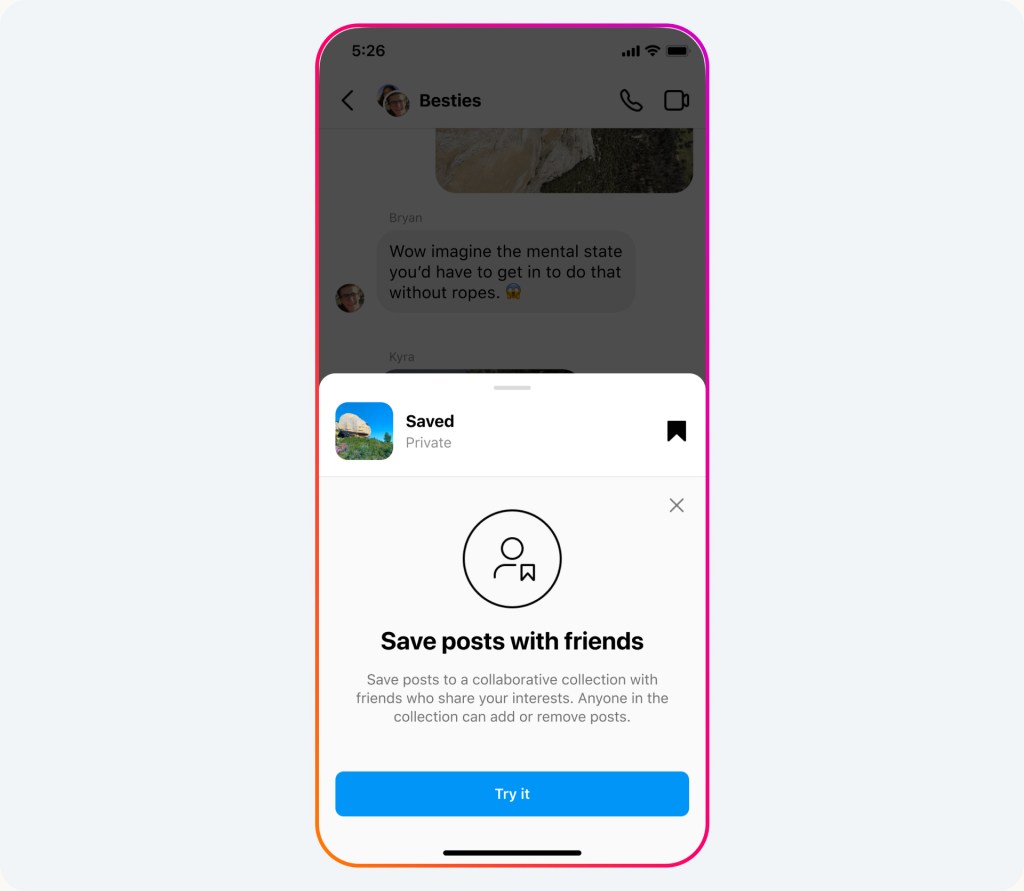
Download when you need the video outside Instagram: to watch offline, edit, or share somewhere else. Save to a collection when you just want to rewatch it in the app.
Keep the creator's name attached
A downloaded reel carries the creator's username in its watermark, and that's worth keeping. If you share a downloaded video on another platform, credit the creator in your caption as well.
Cropping out watermarks or reposting someone else's video as your own is a quick way to lose goodwill with creators, and Instagram itself says it's less likely to recommend reposts of existing reels or content with noticeable watermarks.
Your download checklist
- For public reels, tap Share and choose Download.
- If Download is missing, the owner turned it off or the account is private.
- For your own reels, save to your camera roll before posting, or download afterward.
- Download a live right after ending it, and stories any time from your archive.
- For everything at once, export your information from Accounts Center.
Instagram video download FAQ
Can I download Instagram videos in high quality?
The in-app Download keeps a good-quality copy with Instagram's watermark. For the best quality, upload and export your own videos at the highest resolution you can, since Instagram's copy can only be as sharp as the file it received.
Does the creator know when I download their reel?
Instagram's help pages don't describe any notification to the creator when someone downloads a reel. Downloading happens on your device.
Can I download videos from a private account?
No. Instagram says no one can download reels from a private account, and a private account's links don't open for people who aren't approved followers.