
Check Google Business verification: what verified means and how to confirm it
How do you check Google Business verification? Sign in and open the profile: editing controls mean it is verified.

Pull up one business on Google with two different people, and they can reach opposite conclusions about whether it is verified.
One sees a complete listing with photos and hours and assumes it is fine. The other signs in, finds no way to edit anything, and concludes it is not.
Your business is verified when the Google Account you are signed in with can edit the profile's business information directly on Google Search or Google Maps; an unverified profile shows a prompt to get verified instead.
That is the only reliable test, because Google does not display a public verification badge that customers can see next to a business name.
Below: the exact check, what to do when someone else holds the verification, how long a pending review runs, and why a verified profile can still be invisible.
Verified, claimed, complete: three words that get used as if they were one
Most confusion about how to check Google Business verification comes from three separate ideas sharing a vocabulary.
A profile can exist without anyone owning it, because Google can generate a listing from public information. Claiming is the act of saying the business is yours. Verification is Google confirming that claim.
Google's verify your business on Google documentation puts it directly: verifying gives you ownership of the profile, so you can make sure the business information is accurate.
Completeness is a fourth, unrelated thing.
A verified profile with no hours, no category and no photos is verified and useless.
An unverified listing can carry a full address and a phone number that Google assembled without you, which is exactly why owners assume everything is under control when nothing is.
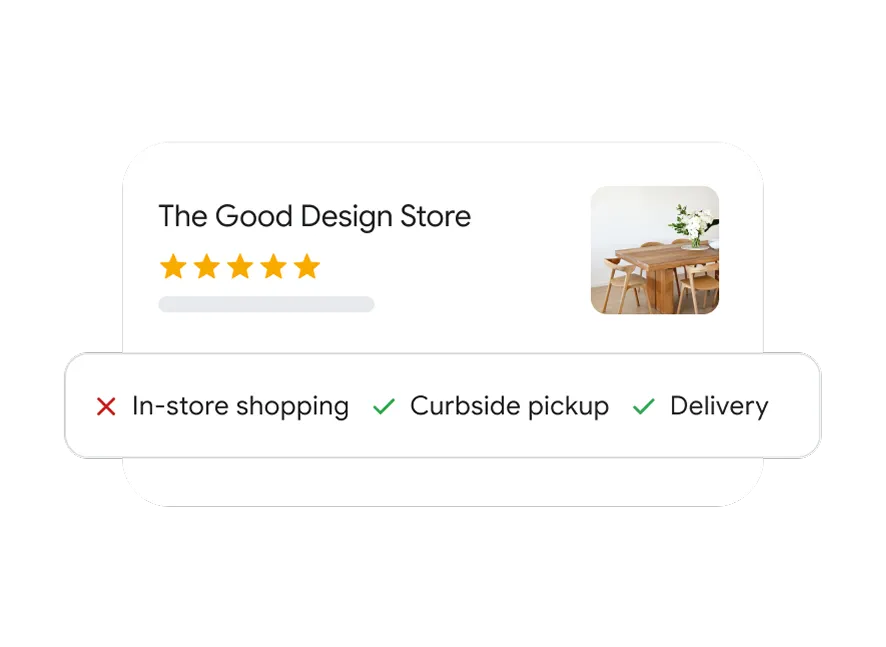
Google ties visibility to the first of those ideas, not the last. Its documentation states that only verified businesses can show their business information on Maps and Search, so verification is the gate rather than the decoration.
If the profile does not exist yet in any form, start upstream. This walk-through of setting up a Google Business Profile page covers the creation step that comes before any verification question.
How to check Google Business verification on Google Search
Google's find your business on Google documentation points owners at Search and Maps rather than a separate dashboard, which makes Search the shortest path to a status answer. One location needs nothing else.
- Sign in to the Google Account that owns the profile, which is often not the account your browser is already using.
- Search the business name together with its city, or open the business in Google Maps.
- Read what the result offers you: options to edit the business information mean the account you are signed in with holds a verified profile.
- Search that account's email for Google's verification confirmation message, which Google sends when a business becomes verified.
An invitation to get verified means the opposite.
The profile is either unverified, or it is verified under a different account and Google is offering you the claim route because it does not recognise you as the owner.
Run the Google Business verification check twice if the answer surprises you: once signed in, once in a private browsing window.
The signed-out view is what customers see, and comparing the two tells you whether the problem is verification or something the public simply cannot find.
Checking verification status from the Maps app
The check also works from a phone, which matters when the question comes up away from a desk.
Google documents finding and managing a Business Profile through Google Maps, and the signal there is the same one Search gives you.
Open the Maps app while signed in as the owner account, search the business name, and open its profile.
Management and editing options mean the profile is verified to that account. The ordinary customer view, with a route to claim or suggest an edit, means it is not.
Account confusion is the usual culprit when a phone and a laptop disagree. Many owners keep a personal Google Account on the handset and the business account on the computer, so the same profile reads as verified in one place and unclaimed in the other.
Confirm which account is active before drawing a conclusion from either device.
The profile is verified, but not by you
This is the most common dead end, and the fix is not another verification attempt.
When a profile is already verified to someone else, Google routes you into a request for ownership rather than a fresh verification, because two owners of one business is not a state Google supports.
It happens more than owners expect:
- An agency verified the profile during a website build.
- A franchise head office verified every location centrally.
- A manager who left two years ago used a personal address that nobody can open any more.
The one move to avoid is creating a second profile for the same business. Duplicates compete with each other, split reviews across two entries, and turn a straightforward ownership request into a cleanup job.
Google's guidance on suspended and removed profiles makes the same point about appeals: a new profile created while the original is under review makes recovery harder.
Reviews are worth a separate thought here. Reviews attach to the profile, not to the account that verified it, so an ownership transfer does not cost you review history.
A duplicate profile does, because new reviews start landing on an entry that nobody is watching.
For a business that genuinely has no listing anywhere, adding the business to Google is the right starting point instead of a claim request.
How long verification takes, and what pending looks like
Submitted is not verified, and the interface does not always make that obvious.
Google reviews the information you provide and states that verification reviews take up to 5 business days once you complete the steps.
Postcard verification adds mail time on top. Google sends a code to the business address, the code is 5 digits, you enter it on the profile to confirm the business is at that address, and codes expire after 30 days.
If the postcard never arrives, the expiry date is the thing to watch, because a code that lapses means starting that branch again.
You also do not choose the method. Google's documentation is explicit that verification methods are automatically determined and cannot be changed, so the phone, email, video or mail option you are offered is the one available to that business.
While a review is open, plan as though the profile is unverified.
Hours cannot be corrected, a new address cannot be published, and anything you promised a customer about updated information is not yet true. Owners who treat a pending review as finished tend to discover the gap through a complaint rather than a notification.
Verified and still invisible: the check nobody runs
A Google Business verification check answers "can I edit this." It does not answer "will anyone find this," and the second question is where local businesses quietly lose ground.
A profile in the wrong primary category is verified, editable and mismatched against the searches it should be winning. Category selection drives which queries a profile is eligible for, and it is the single most consequential field on the page.
This rundown of the full list of Google Business Profile categories is the reference to use when the current choice was a guess.
Service-area settings behave similarly. A business that serves customers at their locations but shows a storefront address, or the reverse, will look correct to its owner and wrong to the map.
Verification status has nothing to say about either mistake, which is why a status check and a content check are two different jobs on two different schedules.
Keeping verified status once you have it
Verification is not permanent by nature. Profiles are suspended or removed when information conflicts with Google's policies, and when that happens the public cannot reach the profile and the owner and managers cannot act on it either.
A few habits prevent most of it:
- Keep the business name matching real-world signage rather than a keyword-stuffed version.
- Change the address and category deliberately rather than experimentally.
- Make sure the owner account is one the business controls, not an individual's personal email.
Consistency outside the profile matters too, since Google cross-checks business information against what it finds elsewhere.
Put a Google Business verification check on a recurring schedule, roughly quarterly, and immediately after any change to name, address or category.
Owners almost never discover a lost profile through a notification. They discover it through a customer who could not find them.
Questions about verification status on a Google Business Profile
Does a verified business get a badge customers can see?
Google's Business Profile documentation does not describe a public verification badge on a profile. Verification is an ownership state that changes what the owner can do, so the reliable signal is whether the signed-in owner account can edit the profile, plus the confirmation email Google sends.
Where can I see my verification status if I manage many locations?
Google recommends Business Profile Manager for businesses with multiple locations, since it handles profiles in bulk. Comparing statuses across locations is faster there than opening each profile individually through Search.
My verification was rejected: what should I do next?
Read what was requested rather than resubmitting the same information. Rejections usually trace to a mismatch between the address, the business name and what Google can confirm elsewhere. Fix the mismatch first, then reverify, and keep proof of address and registration reachable before you start.
Can a business operate on Google without verification?
A listing can appear without verification, because Google builds listings from public information, but you cannot manage it and Google limits what unverified profiles can show. Treat an unverified listing as something to claim, not something to rely on.
Which next step matches what you found
Use what your check returned:
- Editing controls appeared: the profile is verified to your account, so shift attention to category accuracy and keeping information current.
- A prompt to get verified appeared: begin verification and accept the method Google assigns, then plan for a review of up to 5 business days.
- No claim route and no editing: the profile is verified elsewhere, so request ownership rather than building a duplicate.
- Nothing about the business appears at all: create the profile first, then verify it.
Run the check again the next time anything structural changes about the business.
A verification status is a snapshot, and the snapshot goes out of date the moment an address, a name or a category does.