
Change business hours on Google: main, special, more and closed
Wrong hours turn searchers away: change business hours on Google under Edit profile, then Hours, then save.
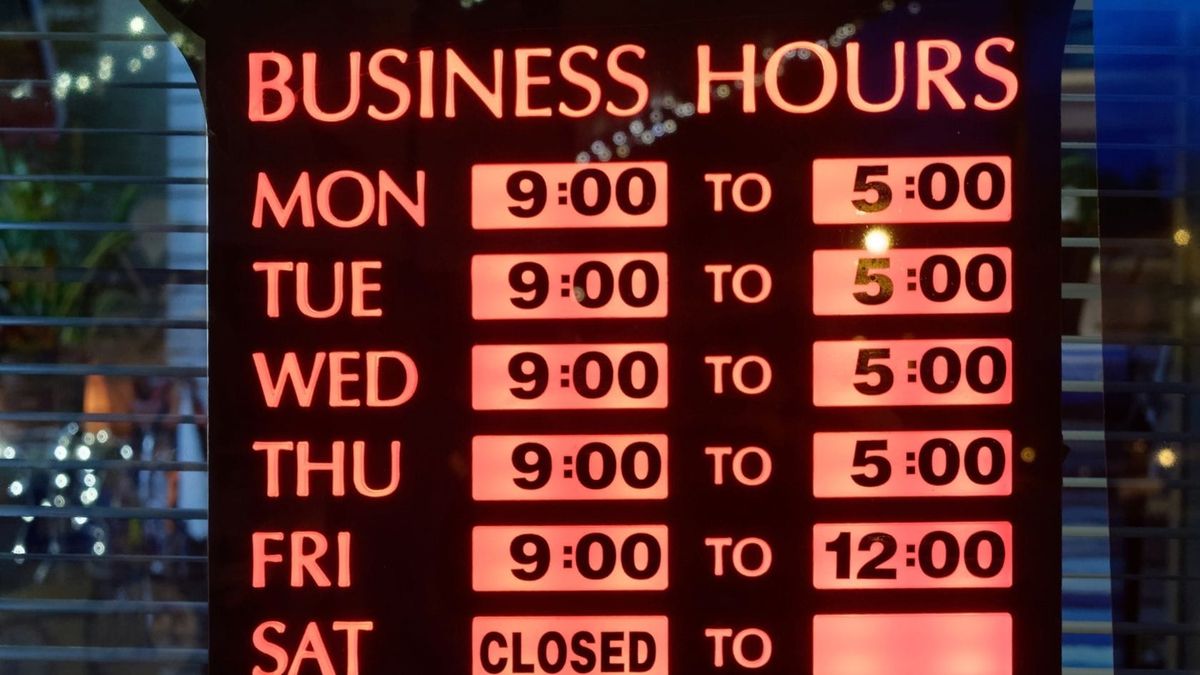
An outdated closing time is the one profile error a customer finds out about in person. They drive over, the lights are off, and the review they write afterwards is about the door, not the hours field.
Sign in to the Google Account linked to your listing, open the Business Profile from Google Search or the Google Maps app, select "Edit profile" and then "Hours," and set each day under "Open with main hours" before saving. Google reviews profile changes before they publish, so an edit may take a short while to appear.
The sections below separate the four kinds of hours a profile can hold, and explain which one your situation actually needs.
The four kinds of hours a Google Business Profile carries
A profile does not have one hours field. It has four, and they behave differently:
- Main hours are the weekly schedule a searcher sees first.
- Special hours override that schedule on specific dates.
- More hours describe a single service, such as delivery, running on its own timetable.
- Closure status replaces the schedule entirely while the business is shut.
Most "my hours are wrong" problems trace back to an owner editing one of these when they needed another.
A holiday entered into the weekly grid quietly becomes permanent. A seasonal shutdown entered as special hours expires before the season does.
Knowing which of the four you need takes about ten seconds and saves the second correction.
Before you open the editor, ask how long the change lasts and whether it applies to the whole business or to one service.
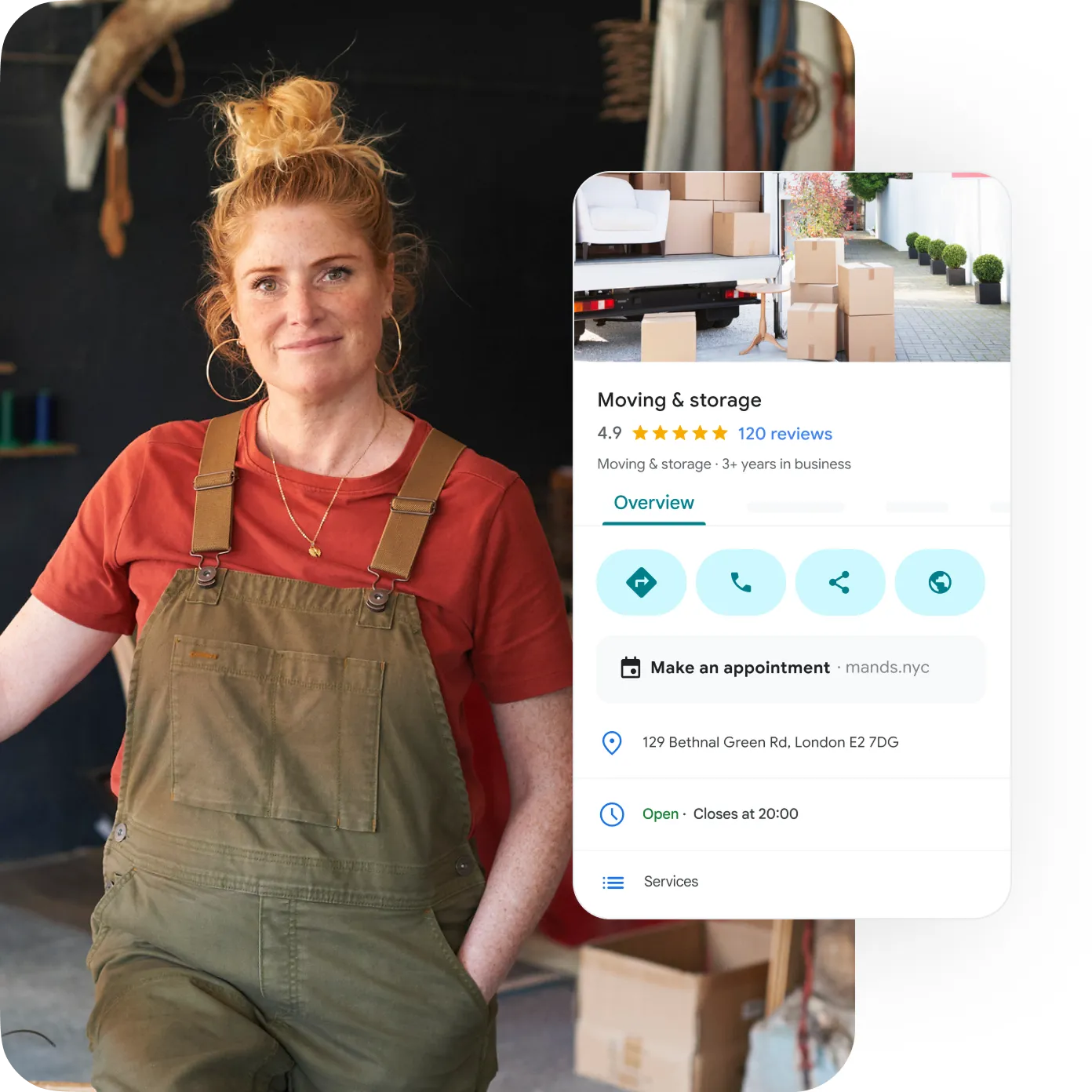
How to update your main hours on Google Search or Maps
To change business hours on Google, edit the profile directly from search results rather than looking for a separate management console. Google's documentation on editing your business hours describes the path from the profile itself.
Reach the editor from the surface you already use
- Sign in to the Google Account that is linked to the business.
- Search your business name on Google Search, or open the Google Maps app and tap "Business" at the bottom right.
- Select "Edit profile," then "Hours."
Enter the schedule day by day
- In the "Business hours" section, next to "Hours," select Edit and then "Open with main hours."
- Check the box beside each day the business is open.
- Set the opening and closing time for that day with the dropdowns.
- Add a second entry on any day with a midday break, so the closed window shows rather than disappearing inside one long block.
Save, then verify as a customer
- Select Save.
- Search the business again later and read the hours the way a stranger would, including the day you just edited.
Google states that it reviews changes before they go live on a profile, which is why step nine matters more than it looks.
The edit you typed and the hours a searcher sees are two different things until the review clears.
Hours are also one field among many that decide whether the listing earns a click.
Holiday and one-off hours: what special hours actually do
Special hours change a specific date without touching the weekly schedule.
Google's page on special hours places them at Edit profile, then Hours, then "Special hours" in the "Business hours" section.
They cover a business that temporarily adjusts its hours or closes for up to six days in a row.
There is a prerequisite that trips people up. For special hours to show on a profile, the business hours must be set to "Open with main hours."
A profile with no main hours can save special hours that nobody ever sees.
Google also suggests confirming hours for official holidays even when nothing changes. A confirmed public holiday tells a customer the schedule was checked, which is a different message from a schedule that merely has not been updated.
Enter holiday hours before the holiday, not on the morning of it. The review step means a same-day entry can miss the traffic it was written for.
Service hours for delivery, pickup and takeout
More hours describe when one service runs, separately from the main schedule.
They are added from Edit profile, then Hours, then "Add more hours," and Google's documentation on more hours lists categories including delivery, drive through, pickup, takeout and happy hours.
The dependency runs one way: more hours do not display until regular hours are set.
An owner who enters delivery windows into an otherwise empty schedule ends up with nothing showing at all.
In practice these sit inside the main hours. A kitchen open from 6 a.m. to 9 p.m. can run takeout from 10 a.m. to 6 p.m. and a happy hour from 5 p.m. to 8 p.m., all visible without contradicting the front-door schedule.
Closing for a season without looking permanently closed
A long closure is a status, not a schedule.
Google's guidance on marking your business as closed sets the threshold at seven days.
Seven days or less belongs in special hours. More than seven days, an off-season, or an indefinite closure belongs in "Temporarily closed."
The setting sits in the same editor: Edit profile, then Hours, then Edit next to "Hours," then "Temporarily closed," then Save. Reopening works the same way, by setting the profile back to "Open with main hours."
"Permanently closed" lives beside it and carries a heavier consequence, since Google notes that a permanently closed profile can still appear on Search and Maps while clearly showing the business is closed.
One documented exception is worth remembering. If a business was marked permanently closed because it moved or changed names, Google's advice is to add a new business rather than reopen the old profile.
A business that has not opened yet is a separate case, with its own label rather than a closure status. This explainer on adding an opening soon label covers where that setting sits.
Why an hours change sometimes does not show up
Four causes explain nearly every case, and none of them require support.
The first is the review queue. Changes are checked before publication, so a recent edit that has not appeared is usually still in process.
The second is a dependency. Special hours need main hours set to "Open with main hours," and more hours need regular hours to exist. Both fail quietly, without an error to warn you.
The third is expiry. Special hours run out after their window, and the profile returns to the weekly schedule whether or not the building reopened.
The fourth is scope. An owner edits main hours for a one-week change, forgets to change them back, and the temporary schedule becomes the permanent one.
If the profile still shows something you did not enter, check whether the change came from the business account or from public feedback about the listing, since those are corrected in different places.
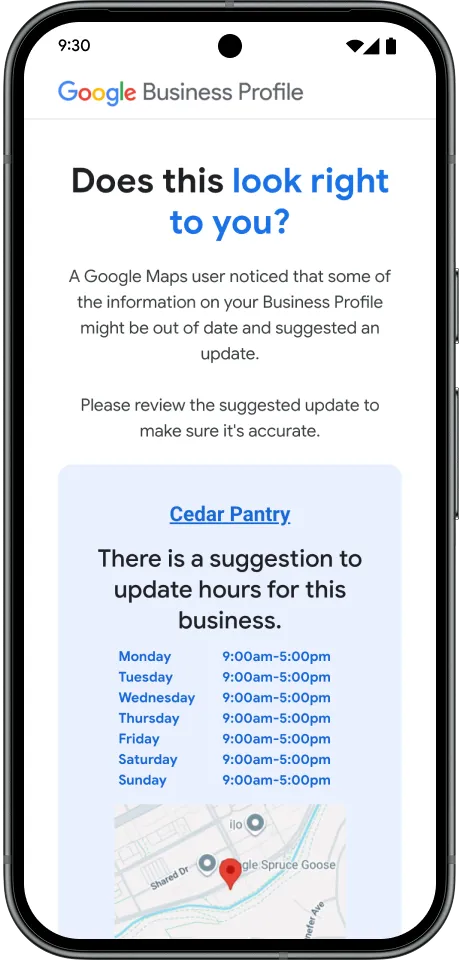
What to check once the new hours are live
A saved edit and a correct listing are not automatically the same thing.
Read the published profile on a phone first, since that is where most people meet it.
Check the day you edited, the day either side of it, and any service hours attached to the listing.
Then look at the week ahead. A schedule that is right today and wrong on Friday is the version customers will meet, because searches cluster around the moment someone plans a visit.
Watch for contradictions between fields, too.
Delivery hours that run past closing time, or a "Temporarily closed" status sitting above a full weekly grid, tell a searcher the listing is not maintained even when the hours themselves are accurate.
One last habit is worth keeping. After you change business hours on Google, note somewhere the date the change should be reverted, if it should.
Temporary schedules become permanent through forgetting, not through deciding.
Keeping the schedule honest between edits
Hours drift because businesses change faster than profiles do.
Two habits fix most of it.
Enter holiday hours for the coming quarter in one sitting rather than one date at a time, and reread the weekly schedule any time staffing or a season changes.
Accuracy also compounds. A profile whose hours are visibly maintained tends to carry other fields that are current, and searchers behave differently when a listing looks tended.
Hours questions that come up after the first edit
How long does an hours change take to appear on Google?
Google reviews profile changes before publishing them, so an update is not always instant. Save once, then check the live profile later rather than re-entering the edit, which only adds another change to the queue.
Can I set hours that differ for one location out of several?
Yes. Hours are stored per profile, so each location carries its own weekly schedule, its own special hours and its own closure status. A change made on one profile does not propagate to the others.
What happens to special hours after the date passes?
They expire, and the profile falls back to the main weekly schedule. That is why special hours are the wrong home for an off-season closure, which Google directs to "Temporarily closed" instead.
Do I need to remove more hours when a service stops?
Yes, because service hours stay visible until they are edited or cleared. Delivery hours left on a profile that no longer delivers produce a call you have to apologize for.
Can someone else change my business hours?
Anyone with access to the profile through the linked Google Account can edit hours, and the public can submit suggested changes about a listing. Checking the live profile after any change is the practical defense.
Your next ten minutes, if you want them
Open the profile, fix the weekly schedule, and save it. That alone puts the field customers rely on back in line with reality.
If you have a few more minutes, enter the holiday dates you already know about.
Then check whether any service hours still advertise something you stopped offering, and decide whether an upcoming closure belongs in special hours or in a temporary closed status.
None of it is urgent until the day it is, which is usually a holiday morning with someone standing outside. Do it while nobody is waiting.