How to turn off profile views on LinkedIn, and what private mode costs you
Don't want people to see you viewed them? Turn off profile views on LinkedIn with Private mode, but free accounts lose their viewer list.

Hiding your profile visits is one setting. What it costs you on a free account is the part most guides leave out.
To turn off profile views on LinkedIn, go to Settings & Privacy, then Visibility, then Visibility when viewing other profiles, and choose Private mode, so the people you view see only "LinkedIn Member". On a free account, the price is that you can no longer see who viewed your profile either.
Below: the steps on desktop and in the app, the middle option, and how to decide whether the trade is worth it.
What happens when you switch to private mode
The moment you choose Private mode, your visits stop carrying your name. Anyone whose profile you open sees "LinkedIn Member - This person is viewing profiles in private mode" in their viewer list.
That's the part people want. The part they don't expect comes next.
On a Basic (free) account, LinkedIn's viewer visibility settings page is plain about it: in private mode, you won't be able to see who's viewed your profile either. Your own viewer list goes dark.
So turning off profile views isn't a pure privacy gain.
On a free account, you give up your viewer list in exchange for anonymity.
Whether that's a good trade depends on how much you use the list.
How to turn off profile views on LinkedIn on desktop
The setting sits in your visibility settings:
- Click the Me icon at the top of your homepage, then Settings & Privacy.
- Click Visibility in the left pane.
- Under Visibility of your profile & network, click Visibility when viewing other profiles.
- Select Private mode.
There's no Save button. LinkedIn saves your choice automatically as soon as you select it.
To go back, return to the same screen and pick a different option. The change is just as quick in reverse.
How to turn off profile views in the LinkedIn app
On iPhone or Android:
- Tap your profile photo, then Settings & Privacy.
- Tap Visibility.
- Tap Visibility when viewing other profiles.
- Select Private mode.
The setting belongs to your account, not your device. Change it once and it applies wherever you're signed in.
That matters if you browse on your phone during the day and on a laptop at night. You don't need to switch it on both.
The trade-off on a free LinkedIn account
LinkedIn ties your view of others to their view of you. On a Basic account, the rule is strict: you must choose Your name and headline if you want to see the viewer history on your own Who's Viewed Your Profile page.
In other words, free members can see viewers only when they're visible themselves. The moment you go private or semi-private, the list is off for you.
Even when you're visible, a free account shows a short list. LinkedIn's page on basic and Premium viewer features says Basic accounts see the three most recent viewers in the last 90 days.
That short list is exactly what you'd be giving up. For many members it's a small loss. For a job seeker watching whether a recruiter looked back, it can be a real one.
How Premium changes the trade-off
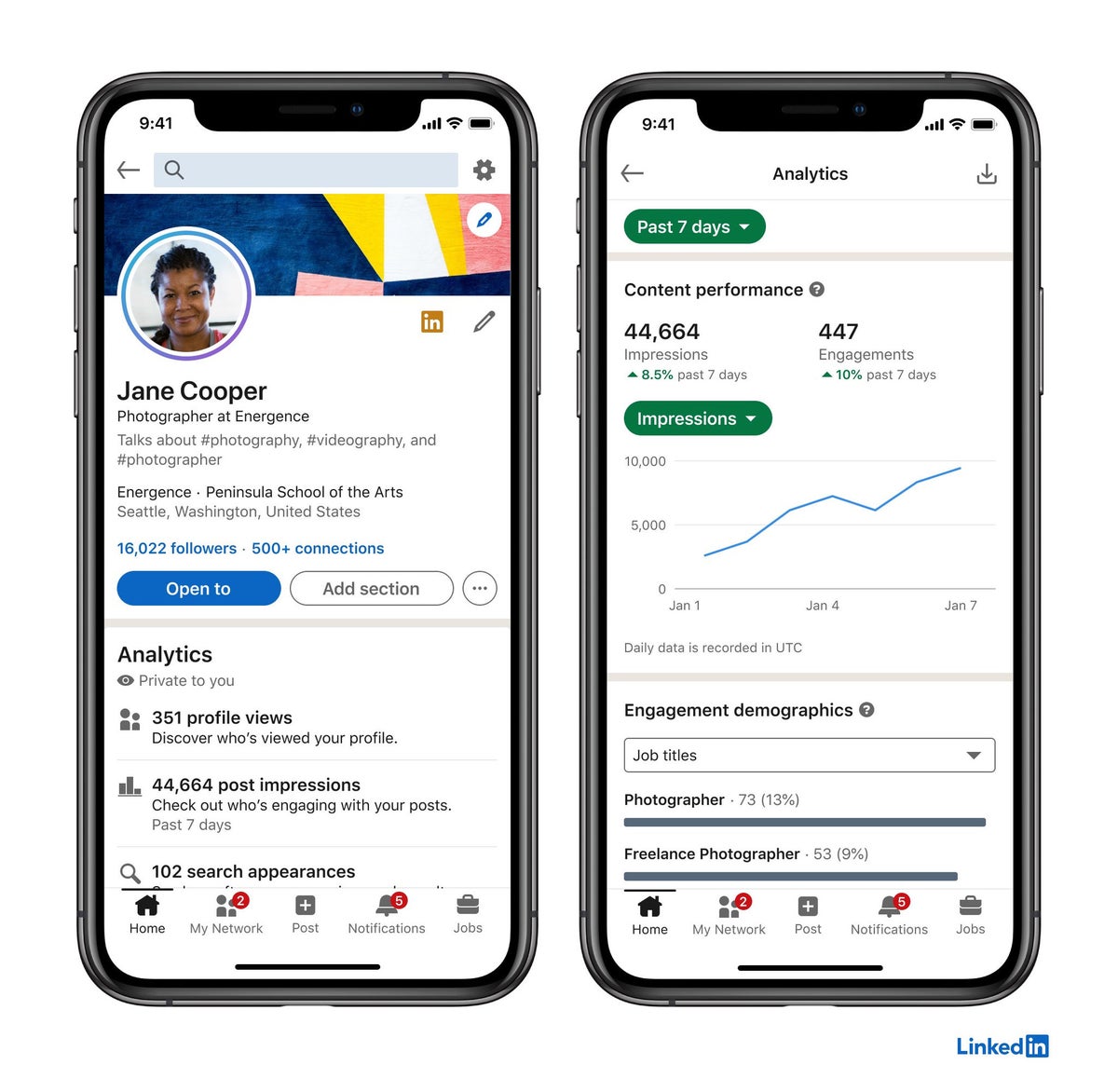
Premium removes the link between the two. Premium members can browse in private mode and still see who viewed their own profile.
The Premium viewer list is also much longer. LinkedIn says Premium Career and Business accounts get up to 365 days of viewer data, with filters and trend views on top.
So if you already pay for Premium, turning off profile views costs you nothing on your own list. You can research privately and still see who's looking at you.
If you're on a free account, don't upgrade only for this. It's worth it when you'd use the rest of Premium too, and the private browsing comes along with it.
The middle option: private profile characteristics
Between fully visible and fully private sits a third setting: Private profile characteristics.
Instead of your name, people see a description drawn from your profile, such as a job title and company or an industry. LinkedIn's examples include "Someone at Accenture" and "Consultant at State Farm".
It's a softer form of privacy. People get a sense of who looked without learning your name.
Two cautions apply:
- On a free account, it still switches off your own viewer list, just like private mode.
- At a small company or in a niche role, a description can be as good as a name. A "Head of Design" description at a ten-person startup points to one person.
If your title and employer are distinctive, full private mode is the only setting that actually hides you.
Choosing between the three settings
Each setting suits a different situation:
- Your name and headline suits networking, job hunting and sales. Being seen is often the point, and free members keep their viewer list.
- Private profile characteristics suits light research where a general description is fine and your role isn't easy to trace.
- Private mode suits sensitive research: a current employer's competitors, a confidential hire, or someone you'd rather not alert.
Many people switch depending on the task. Visible most of the time, private for a specific piece of research, then visible again.
There's no limit documented on how often you can change it, and the change is instant.
The setting's name has changed
If you're following an older guide, you may be looking for "Profile viewing options". That label is out of date.
The current name is Visibility when viewing other profiles, and it lives under Visibility of your profile & network in the Visibility section. The three choices inside are the same idea as before.
This is the most common reason people think the setting has disappeared. It hasn't. It was renamed.
LinkedIn's own guide to browsing in private and semi-private mode uses the current wording, so it's the safest reference if the menu changes again.
The search-suggestion catch
There's one way to trigger a profile view without meaning to, and it catches careful people.
When you type a name into the search bar, LinkedIn shows suggestions. Clicking a member's name in those suggestions opens their mini profile. LinkedIn says this is treated as a profile view that may result in a notification.
If you're visible, that person may see your name in their viewer list, even though you only glanced at a preview.
Switch to private mode before you start searching, not after you've found the person. The setting protects the views you make after you change it.
What private mode doesn't do
Private mode changes one thing: how you appear when you view someone else's profile. It doesn't do more than that.
It doesn't:
- Hide your own profile from other members or from search.
- Reveal anyone who viewed you privately.
- Stop LinkedIn's emails about who viewed your profile.
- Change what your connections see in your posts or activity.
If your goal is to make your own profile harder to find, that's a separate set of visibility settings. Private mode only covers your browsing.
Can you stop the "who viewed your profile" emails?
Yes, and it's a separate step from private mode. If what you really want to turn off is the notification emails about your viewers, use the Unsubscribe link in the footer of one of those emails.
That stops the messages without touching how you appear to others. You can still check your viewer list on LinkedIn whenever you like, within the limits of your account.
Many people searching for how to turn off profile views actually mean this. If the emails are the problem, unsubscribing is the lighter fix and keeps your viewer list working.
Private viewers on your own profile
Turning on private mode yourself makes you realize how many others use it. You'll see "LinkedIn Member" entries on your own viewer list too.
LinkedIn's page on private mode viewers is clear that nobody can reveal who they are, even with a Premium account. You also can't block a private-mode viewer, because you can't see who they are.
That works both ways. The same protection that hides them hides you.
If a private viewer worries you, the realistic step is to review what your public profile shows. You can control what they see, even if you can't see them.
When to switch back to your name and headline
Private mode is a tool for specific moments, not necessarily a permanent state. On a free account, switching back is how you get your viewer list back.
Good moments to switch back:
- When you start a job search and want to see if recruiters look back.
- When you're networking and want people to notice your visit.
- When the research that needed privacy is finished.
LinkedIn doesn't document whether visits you received while private reappear in your list after you switch back. Plan as if the list starts fresh from your current settings.
Objections people raise about private mode
"Isn't browsing privately a bit sneaky?" LinkedIn offers the setting openly, and many recruiters and business professionals use it to research candidates, leads and partners. It's a normal part of the platform.
"Won't I miss out if people can't see I visited?" Sometimes, yes. A visit can prompt someone to look back or connect. If that's what you want, stay visible.
"Can't I just stay private forever?" You can. On a free account, you'd simply never see your own viewers.
Decide which matters more to you this week, open Visibility when viewing other profiles, and set it to match.
Private mode questions
Does private mode hide my own LinkedIn profile from other people?
No. It only changes how you appear when you view someone else's profile. Your own profile stays as visible as your other settings allow.
How many profile viewers can I see on a free account?
LinkedIn shows Basic members the three most recent viewers in the last 90 days, and only when their own setting is Your name and headline.
Do members I blocked still show up in my profile views?
If they viewed your profile before you blocked them, they still count toward your total, but LinkedIn hides their details.