How to turn off Open to Work on LinkedIn, fully or partly
Turn off Open to Work on LinkedIn from the Edit icon on your profile's Open to Work box: pick Recruiters only, or Delete it.


To turn off Open to Work on LinkedIn, open your profile, click the Edit icon on the Open to Work box, and choose Delete.To hide only the green #OpenToWork frame, switch the visibility to Recruiters only instead.The photo Frames menu offers the same two choices: remove the feature, or share it with recruiters only.Deleting it is reversible, but LinkedIn doesn't save your old job preferences.
Below: every option short of deleting, the full removal steps, and how to pick the right one for where your search is now.
Open to Work has more settings than on and off
The green photo frame is what most people want gone.
But the frame is only one part of Open to Work, and removing it doesn't have to mean leaving the job market.
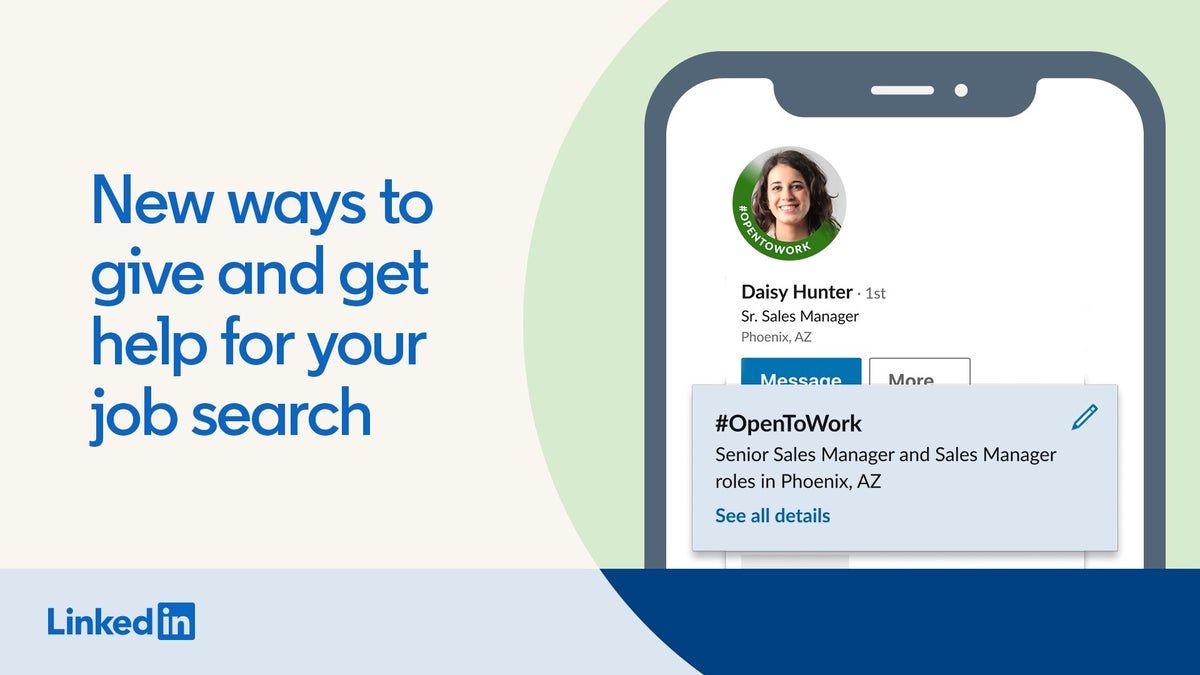
LinkedIn's page on Open to Work lists three visibility options while the feature is on:
- All LinkedIn Members: adds the #OpenToWork photo frame, and everyone can see you're open, including recruiters and people at your current company.
- Recruiters only: shows your status to people using LinkedIn Recruiter, with no frame.
- Visible only to you.
So "turning it off" can mean three different things. You can drop the frame, narrow who sees the signal, or delete the feature completely.
How to hide the Open to Work frame but stay visible to recruiters
This is the most common reason people search for this. The job search is still on, but the public frame feels too loud.
- Click the Me icon, then View profile.
- Click the Edit icon on the Open to Work box at the top of your profile.
- Change who can see it to Recruiters only.
- Click Save.
The frame disappears from your photo, and recruiters using LinkedIn Recruiter can still find you as open to opportunities.
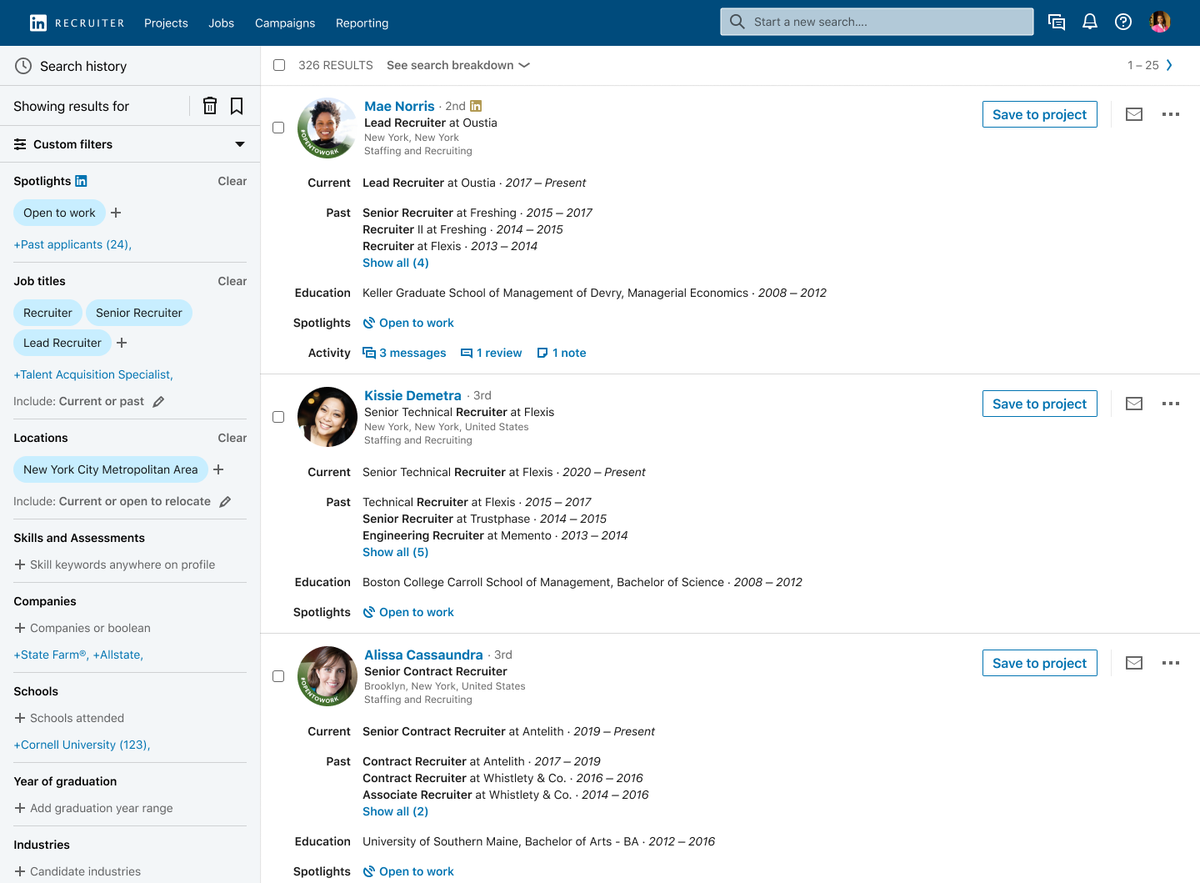
Your job preferences stay as they were. You're only changing the audience.
Turning off the frame from your profile photo
There's a second route that starts from the photo itself. LinkedIn's page on profile photo frames describes it.
On a computer, click your profile photo, then Frames. Under Remove existing frame, you'll see:
- Share 'Open to Work' with recruiter only, which removes the frame and keeps the recruiter signal.
- Remove 'Open to Work' from profile, which removes the feature completely.
Pick one and confirm with Save or Remove. In the app, tap your profile photo, then Frames, and choose from the same options.
This route is handy if you're already in the photo editor. The result is the same as changing the setting in the Open to Work box.
Keeping Open to Work visible only to you
The third option, Visible only to you, sits between recruiters-only and deleting.
It keeps the feature switched on without showing your status to anyone else. That's useful when you're pausing a search for a few weeks but don't want to lose the preferences you set up.
Deleting the feature throws those preferences away. This option keeps them ready for when you pick the search back up.
Editing your preferences instead of turning them off
Sometimes the problem isn't that you're open to work. It's that the wrong recruiters keep reaching out.
In that case, editing beats deleting. Click the Edit icon on the Open to Work box, change the details you entered, such as the roles and locations you're open to, and click Save.
A narrower set of preferences tends to bring fewer, better-matched messages. And unlike deleting, it keeps the feature working for the search you actually want.
How to turn off Open to Work completely on a computer
If your search is over, delete the feature. LinkedIn's steps:
- Click the Me icon, then View profile.
- Click the Edit icon on the Open to Work box.
- Click Delete.
That removes Open to Work from your profile, including the frame and the recruiter signal.
How to turn off Open to Work in the LinkedIn app
On iPhone or Android:
- Tap your profile photo, then tap it again to open your profile.
- Tap the Edit icon on the Open to work box.
- Tap Delete.
The change applies to your whole account. There's no separate step for desktop afterwards.
What you lose when you delete Open to Work
Deleting is reversible, but not free. LinkedIn says you can re-enable Open to Work at any time, but your previous preferences won't be saved.
That means the job titles, locations and other details you entered are gone. If you turn it back on later, you start the form from scratch.
If there's any chance you'll resume the search soon, switch to Recruiters only or Visible only to you instead of deleting. Those keep your preferences intact.
Recruiters only isn't a promise of privacy at work
Recruiters only is the setting people choose when they're employed and searching quietly. It's worth knowing its limit.
LinkedIn says it tries to hide your Recruiters-only status from recruiters at your own company. It also says it can't guarantee complete privacy.
So if your employer finding out would cause real problems, weigh that before switching it on at all.
For a truly discreet search, direct applications and personal networking carry less risk than any on-platform signal.
How to check that Open to Work is really off
A setting that looked saved isn't always what others see. It's worth checking once.
Open your own profile and look at your photo. If you chose Recruiters only or deleted the feature, the green frame should be gone.
Then look at the top of your profile. After a full delete, the Open to Work box shouldn't be there any more. After a switch to Recruiters only or Visible only to you, the feature is still on, and only the public frame should be gone.
If the frame is still showing, go back through the Frames menu on your photo and remove it there.
Why LinkedIn might turn off Open to Work for you
Sometimes Open to Work disappears without you touching it.
LinkedIn says that if you stop responding to recruiters' InMail messages, it emails you to check whether you're still looking. If you don't confirm, LinkedIn automatically removes the #OpenToWork feature.
So an Open to Work status that vanished isn't a glitch. Check your email for LinkedIn's message, and turn the feature back on if you're still searching.
Managing Open to Work from the Jobs tab
You don't have to go through your profile. Open to Work can also be managed from the Jobs tab, under Preferences, then Open to work.
That route is convenient when you're already browsing jobs. It opens the same Open to Work settings you reach from your profile.
In India, LinkedIn adds notice period and expected salary fields. Those are visible to recruiters only, not on your public profile.
When to turn Open to Work off
The right moment depends on where the search stands:
- You've accepted an offer: turn it off before your start date, so your new employer doesn't see the frame.
- You've started the new job: delete it, and update your Experience section.
- You're pausing for a while: switch to Visible only to you and keep your preferences.
- You're still looking, but quietly: switch to Recruiters only.
The first case catches people most often. A frame left on after accepting an offer can confuse your new manager and colleagues when they look you up.
Is it bad to leave Open to Work on?
Not while you're searching. The frame tells your network you're looking, and that can bring referrals from people you'd never think to ask.
The problem is leaving it on by accident. Once you've found a role, the frame sends the wrong message to your new team and to recruiters who waste time reaching out.
Some people also switch from the public frame to Recruiters only partway through a search. Once your network knows, the frame has done its job, and recruiters can still see you.
After you turn it off: tell people you found a role
Removing the frame is quiet. Nobody gets a notice that you've stopped looking.
If people in your network helped with referrals or introductions, a short thank-you and an update on where you landed closes the loop. A post announcing the new role does the same thing for everyone at once.
Update your headline and Experience section at the same time. Those are what people check first when they see the frame is gone.
Which Open to Work setting fits you now?
Decide in this order:
- Search over for good? Click the Edit icon on the Open to Work box and choose Delete.
- Still looking, just not publicly? Switch visibility to Recruiters only.
- Taking a short break? Choose Visible only to you and keep your preferences.
- Only the frame bothers you? Use Frames on your photo and pick the recruiter-only option.
- Worried about your current employer seeing it? Remember recruiters-only can't be guaranteed private, and consider leaving it off.
Choose the option that matches this week, not last month, and check your profile photo afterwards to confirm the frame is gone.
Common questions about turning off Open to Work
Does anyone get notified when I turn off Open to Work?
LinkedIn doesn't document a notification for turning it off. The frame and status simply disappear from your profile.
Can I turn Open to Work back on after deleting it?
Yes, at any time. LinkedIn doesn't save your previous preferences, though, so you'll fill them in again.
Why did my Open to Work frame disappear on its own?
LinkedIn removes the feature automatically if you stop responding to recruiter InMails and don't confirm you're still looking when it emails you.