How to post on LinkedIn from your computer or phone
Post on LinkedIn by clicking Start a post, choosing who can see it, writing up to 3,000 characters, adding media, then clicking Post.


To post on LinkedIn, click Start a post at the top of your homepage, write your update, and click Post.Set who can see it first: Anyone, Connections only, or a Group.Add photos, video, a poll, a document or an event from the icons below the text box.Keep it under 3,000 characters, or write an article for anything longer.
The walkthrough below covers the app, visibility rules you can't undo, scheduling, and what limits a post's reach.
How to post on LinkedIn from a computer
Posting takes under a minute once you know the order. The one step people skip is the audience setting, and it's the one you can't fix later.
Open the post box and pick your audience
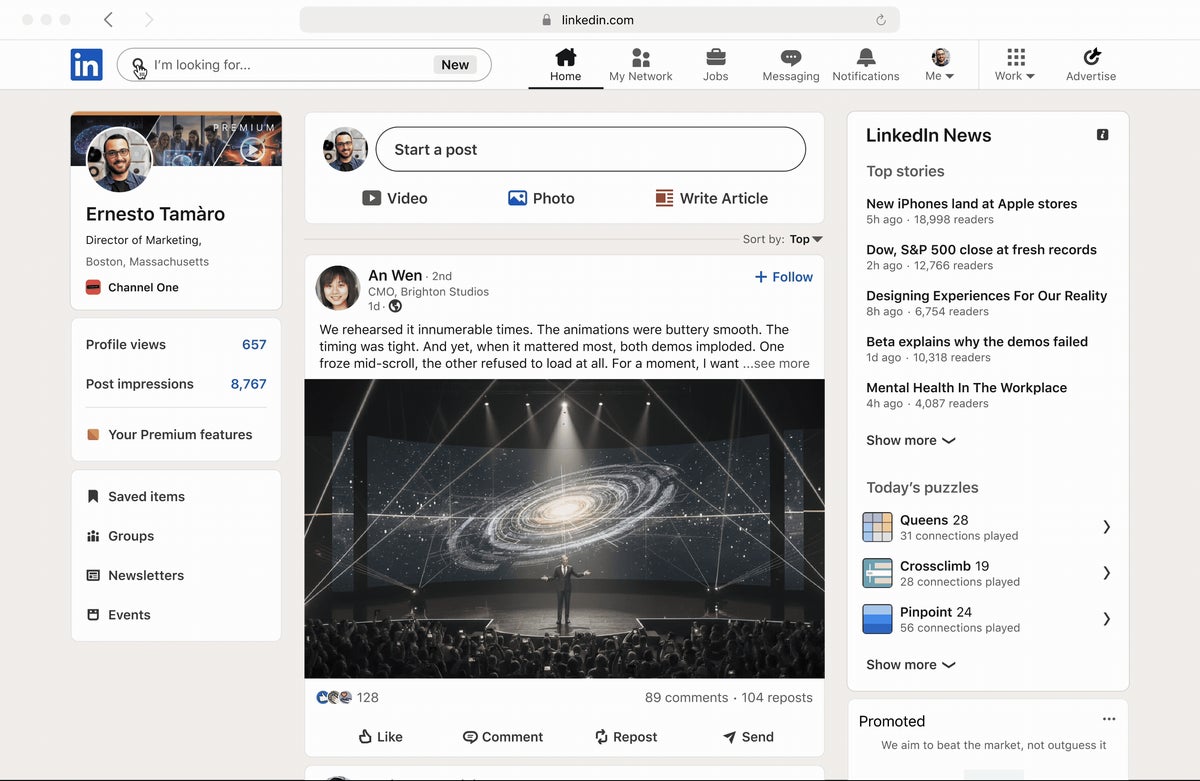
- Click Start a post at the top of your LinkedIn homepage.
- Click the dropdown with your name to set Who can see your post? and Who can comment on your post?
Write and publish
- Type your update in the What do you want to talk about? box.
- Add extras from the icons below the text: media, an event, a celebration, a poll, a document, and more.
- Click Post, or click the Clock icon to schedule it for later.
LinkedIn's help page on posting and sharing updates lists the same steps and icons.
How to post on LinkedIn from the app
On iPhone or Android, the entry point sits in the navigation bar rather than the top of the feed.
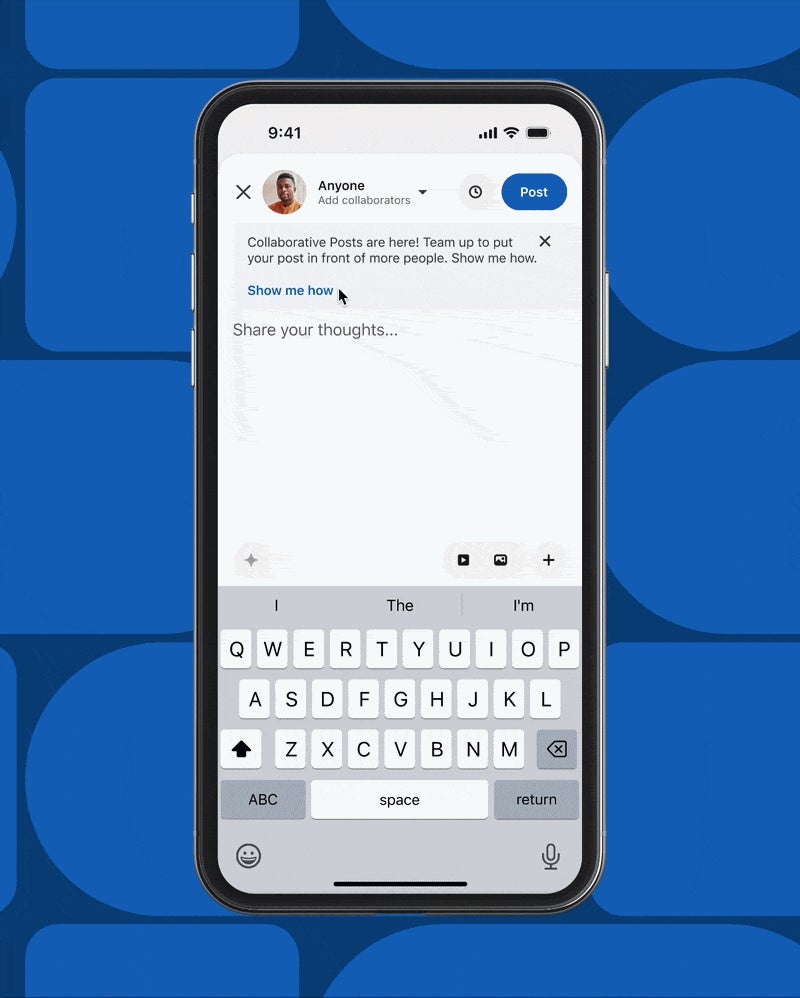
- Tap Post in the navigation bar.
- Tap the Anyone dropdown next to your photo to set who can see and comment.
- Write in the Share your thoughts… box, then add media or tap the Plus icon for an event, celebration, job, poll or document.
- Tap Post, or the Clock icon to schedule.
The app and desktop publish the same post to the same places. Use whichever is closer; many people draft on desktop and reply to comments on their phone.
Who can see your LinkedIn post
Every post has one of three audiences:
- Anyone: visible on and off LinkedIn.
- Connections only: limited to your connections.
- Group: shared inside a LinkedIn group you belong to.
LinkedIn says you can't change the visibility option after you've shared your post. If you pick the wrong one, the only fix is deleting and posting again, which loses any reactions it already had.
That's why the audience step comes first in the walkthrough above. Check it every time, especially before anything personal.
Your last audience choice becomes the default
LinkedIn saves your visibility choice as the default for your next post. That's convenient, until it isn't.
The classic slip goes like this: you post something to Connections only, forget, and your next post meant for everyone reaches far fewer people. Or the reverse, with something you meant to keep small.
A two-second glance at the dropdown before you click Post prevents both.
Where an Anyone post can appear
An Anyone post travels further than people expect. LinkedIn's page on the visibility of shared posts lists where it can show up:
- The feeds of your 1st-degree connections and your followers.
- The feeds of 2nd- and 3rd-degree connections, when your connections engage with it.
- LinkedIn content search and the Activity section of your profile.
- Your public profile, and places off LinkedIn.
In short, treat an Anyone post as public. Write it as if a future employer, client or journalist might read it.
Who can comment on your post
The same settings panel controls comments. You can allow comments from Anyone, from Connections only, or turn them Off.
Most posts are better with comments on. Replies are part of what makes a post worth reading, and they're how people who don't know you yet start a conversation.
Turning comments off makes sense for announcements that don't need discussion, or for a post that's attracting the wrong kind of attention.
The panel also includes a Brand Partnership toggle. Leave it alone unless your post is part of a brand arrangement.
What you can add to a LinkedIn post
Text alone works, but LinkedIn gives you several extras under the text box.
On desktop you'll find:
- Add media, for photos and video.
- Calendar, to create an event, and Celebrate, for a milestone.
- Plus, which opens a hiring post, a Poll, a Document and a Find an expert option.
- Emoji, for the odd one where it fits.
Pick one extra per post. A photo plus a poll plus a document tends to split attention rather than add to it.
Sharing a PDF on LinkedIn as a document
The Document option under the Plus icon lets you attach a file to your post. It's how slide decks, checklists and short reports usually get shared.
A clean PDF works best, with large text readers can take in on a phone screen.
For the specifics, posting a PDF on LinkedIn goes into the format in more depth.
LinkedIn's 3,000-character limit
LinkedIn says the character limit for a post is 3,000 characters. That's roughly a long page of text, plenty for most updates.
If you need more, LinkedIn points you to writing an article instead. Articles suit tutorials, reports and anything readers may want to come back to.
Most posts don't need anywhere near the limit. The first two or three lines matter most, because they're what people see before deciding to read on.
How to schedule a LinkedIn post
Scheduling uses the Clock icon in the post box, on desktop and in the app. Choose a date and time instead of clicking Post.
One detail matters: a scheduled post publishes with the visibility you chose when you created it. Changing your default later doesn't change what's already queued.
Scheduling is handy for posting at a time your audience is active while you're busy elsewhere. Write it once, check it, and let it go out on its own.
Posting as your company page
If you're an admin of a LinkedIn Page, LinkedIn lets you choose to post as the Page instead of as yourself.
Get into the habit of checking which identity is selected. A company announcement posted from your personal profile, or a personal opinion posted as the company, is an awkward mistake to fix.
When in doubt, post as the Page and reshare from your profile with a line of your own.
Using hashtags in LinkedIn posts
You can type hashtags straight into your post text, the same way as on other networks: a # followed by a word or phrase. LinkedIn's posting help page doesn't set out rules for them.
Practical use keeps them few and relevant. A couple of tags that name your topic or industry help people browsing that subject; a long string of them makes a post look like spam.
Put them at the end of the post, so they don't break up the sentences people actually read.
Why LinkedIn may limit a post's reach
LinkedIn says it may limit the visibility of posts in some situations, including excessive posting and the use of automation tools. It may also cap the number of posts in a period of time.
In plain terms, flooding the feed backfires. So does handing your account to software that posts on your behalf in bulk.
A steady rhythm you can keep up, written by you, is the safe pattern. It's also the one readers tend to respond to.
What to write in your first LinkedIn post
A first post doesn't need to be clever. It needs to be useful or specific to you.
Easy starting points:
- A lesson from a recent project, in three or four short paragraphs.
- A question you're genuinely trying to answer, asked to your network.
- A short note on a new role, course or certification.
End with something that invites a reply. Then stay around for an hour to respond to the first comments, since early replies keep the conversation going.
Posting on LinkedIn, in summary
To post on LinkedIn, click Start a post, set your audience, write your update, add one extra if it helps, and click Post.
The rules worth remembering are short.
Choose visibility before you post, because it can't be changed after.
Stay under 3,000 characters, use the Clock icon to schedule, and keep your posting steady rather than frantic.
Open LinkedIn now and draft one post using the steps above.
LinkedIn posting FAQ
Can I change who sees a LinkedIn post after publishing it?
No. LinkedIn says the visibility option can't be changed after you've shared a post. If the audience is wrong, delete the post and share it again with the right setting.
Can I post to a LinkedIn group from the post box?
Yes. Group is one of the three options under Who can see your post?, alongside Anyone and Connections only.
Why is my LinkedIn post limited to Connections only?
LinkedIn saves your last visibility choice as your default. If your previous post was Connections only, the next one starts that way until you change it in the dropdown.