
How to post a job on LinkedIn, free or promoted
Post a job on LinkedIn from the Jobs icon: click Post a free job, add a title and description, set job settings, then publish.

To post a job on LinkedIn, click the Jobs icon, choose Post a free job, add the title and description, set your job settings, then post it free or promote it.Enter the job title and click Continue.Write the description yourself or use Draft with AI, then click Continue.Set screening questions and choose how you'll manage applicants.Promote the job, or post it without promoting.
The full walkthrough below adds the app steps, the limits on free posts and when promoting is worth it.
How to post a job on LinkedIn from a computer
LinkedIn's free job posting help page lays out the desktop flow in three stages: start the post, write the description, then choose your settings and publish. The whole thing runs from the Jobs icon at the top of your homepage.
Start the job post
- Click the Jobs icon at the top of your LinkedIn homepage.
- Click Post a free job.
- Enter the job title and click Continue.
Write the job description
- Choose Draft with AI to get a first draft, or enter your own description.
- Add skills if LinkedIn shows you the option, then click Continue.
LinkedIn notes that you may or may not see the skills option, so don't worry if it's missing.
Set your job settings and publish
- Add screening questions and review the rejection settings.
- Choose how to manage applicants: by email updates, or by sending them to an external website.
- Decide on the #Hiring frame for your profile photo.
- Click Continue, then promote the job or post it without promoting.
How to post a job on LinkedIn in the app
The mobile flow covers the same ground with slightly different labels:
- Tap the Jobs icon.
- Tap Post a job.
- Enter the job title and tap Continue.
- Fill in the Job Details, Job Description and Job Settings.
- Tap Promoted or Free to publish.
The app groups the fields into those three sections rather than walking you through them one screen at a time. If you're writing a long description, the desktop version is usually easier to edit.
Either way, the settings and limits are the same. The device only changes how the form is laid out.
What Draft with AI does, and when to write your own
Draft with AI generates a first version of the job description from the title and details you've entered. LinkedIn lists it as a Hiring Pro feature on its help page.
A generated draft is a starting point, not a finished post. It can't know the things that make your role different: the team, the real day-to-day work, the reason someone would leave a good job for this one.
Edit every AI draft before you publish. Cut generic phrases, add the specifics only you know, and check that the requirements match what you'll actually screen for.
If you already have a strong description from a previous hire, paste that in instead and update it. It will usually read more like your company than a fresh draft does.
How to set up screening and applicant settings
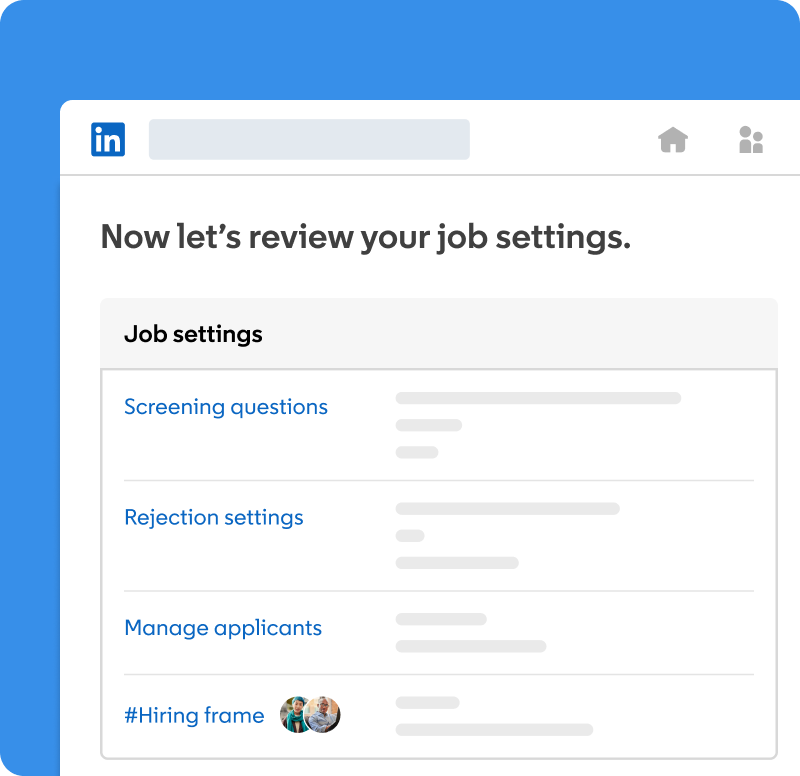
The job settings page is where you decide how applications reach you. LinkedIn lists four settings there:
- Screening questions, which applicants answer when they apply.
- Rejection settings, for the applicants you decide not to move forward.
- Manage applicants, where you choose email updates or an external website.
- #Hiring frame, which adds the frame to your profile photo.
Screening questions do the most work. A few well-chosen ones, such as work authorization or a required certification, save you from reading applications that were never going to fit.
Keep the list short. Every extra question is another reason for a strong candidate to close the tab.
Should you use the #Hiring frame?
The #Hiring frame puts a visible signal on your profile photo that you're recruiting. It's offered as part of the job settings, so you can switch it on while you post.
It's useful when you're the hiring manager and you want your network to know. People who see your photo in comments, posts and search results get a quiet prompt to look at the role.
It's less useful if you're posting on behalf of someone else, or if you'd rather keep a search discreet. In that case, leave it off.
The frame is a signal about you, not the job. Use it when you're happy for people to come to you directly about the role.
How job seekers in your network hear about the job
Posting the job also puts it in front of people you already know. LinkedIn's social hiring feature notifies job seekers when a 1st- or 2nd-degree connection posts a relevant job or adds a #hiring frame to their profile picture.
Relevance here means the job matches the seeker's current title, industry or open-to-work preferences. That's one more reason to use a plain, searchable job title.
Job pages also carry a Meet the Hiring Team section. LinkedIn says members can connect with and message the whole team listed there, including the job poster.
So expect some direct messages as well as applications. A short, friendly reply that points people to the application keeps things fair for every candidate.
The limits on free job posts
Free posts are genuinely free, but LinkedIn's page on free and promoted jobs sets clear limits:
- One free job active at a time, and a limited number per 30 days.
- Active for up to 14 days, after which the job is paused until you promote or close it.
- Closed automatically after 30 days if you don't promote it.
- A capped number of applicants, which LinkedIn says typically ranges from 10 to 30.
Those limits shape how you should use a free post. It suits a single role where a small, relevant pool of applicants is enough.
If you need to hire several people at once, or you expect a large pool, the limits arrive quickly.
Why LinkedIn might ask you to promote or verify
Not every free post goes live exactly as submitted. LinkedIn's free job eligibility page says it may require you to promote the job or verify your identity.
It also says a free job must be associated with your company's LinkedIn Page. If your company doesn't have one, or you aren't connected to it properly, that's worth sorting out before you post.
Treat a verification request as part of the process. Complete it promptly so the post isn't held up.
If you're asked to promote a job you intended to post for free, you can still decide not to. The post simply won't go live on the free terms.
What promoting a job changes
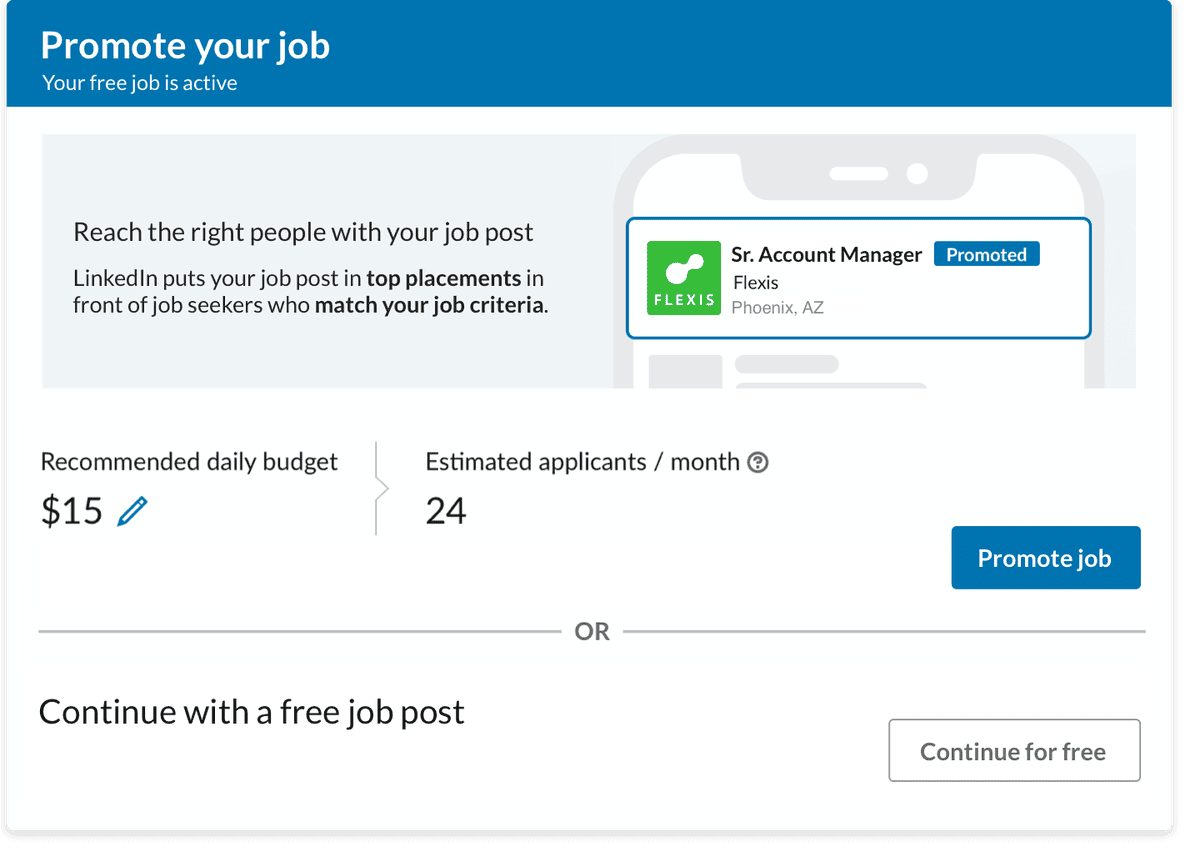
Promoting a job means paying for more visibility and fewer limits. LinkedIn lists what a promoted job gets:
- Placement at the top of search, with a Promoted tag.
- Unlimited applicants, instead of the free cap.
- Active until you close it, or for up to 6 months.
- Up to 350 invites to apply, plus 5 InMails per post.
- 40 AI video interviews.
You set a daily average or total budget for the job. That budget controls what you spend, rather than a fixed price per post.
Before you commit, it helps to understand how LinkedIn job pricing adds up for a role like yours.
Free or promoted: how to choose
The right choice depends on the role and how fast you need to fill it.
A free post is usually enough when:
- You're hiring for one role.
- You'd be happy with a small shortlist.
- You have time to wait a week or two for applications.
Promotion makes sense when:
- The role is hard to fill.
- You need a large or specialized pool.
- A free post has already paused at the 14-day mark without the applicants you need.
Many employers start free and promote only if the first two weeks don't produce a strong shortlist. That approach costs nothing to try.
What to put in the job description
LinkedIn's form handles the structure. What goes inside it is up to you, and it decides who applies.
Strong descriptions tend to share a few traits:
- A plain job title that people actually search for, not an internal nickname.
- A clear first paragraph saying what the role does and who it reports to.
- Honest requirements, split into must-haves and nice-to-haves.
- Practical details like working arrangement and location.
Keep it readable. Short paragraphs and a few bullet points beat a wall of text, especially for candidates reading on a phone.
What happens after you post
Once the job is live, applications arrive according to the setting you chose: as email updates, or on your external website.
Check in regularly during the first days. Early applicants are often the most motivated, and a quick reply keeps them interested.
Watch the timeline on a free post. At 14 days it pauses, so decide by then whether to promote it, close it or leave it. If you do nothing, it closes after 30 days.
When you've filled the role, close the job rather than letting it run. Candidates notice listings that stay open long after they've stopped being real.
Mistakes that slow down a LinkedIn job post
A few errors come up again and again:
- Posting without a company Page, which a free job needs.
- Publishing an unedited AI draft, which reads like every other listing.
- Adding too many screening questions, which drives good candidates away.
- Forgetting the 14-day pause and wondering why applications stopped.
Each one is easy to avoid once you know it's there.
Check your company Page first, write or edit the description yourself, keep screening tight and put the pause date in your calendar.
Your job posting checklist
Work through this before and after you post:
- Before: confirm your company Page exists and you know whether you'll post free or promoted.
- Writing: use a searchable title and edit any AI draft into your own words.
- Settings: add two or three screening questions and choose how you'll receive applicants.
- Publishing: post free, or set a daily average or total budget to promote.
- After: reply to early applicants, note the 14-day mark and close the job once it's filled.
Open the Jobs icon, click Post a free job, and start with the title.
Job posting questions
Can you post a job on LinkedIn anonymously?
LinkedIn's job posting help pages don't describe an anonymous option. Every free post is tied to a company's LinkedIn Page, so plan on the employer being visible.
Do I need a company page to post a job on LinkedIn?
For a free job, yes. LinkedIn says the post must be associated with your company's LinkedIn Page.
How many free jobs can I post at once?
One. LinkedIn allows one free job active at a time and a limited number of free posts in any 30-day period.