How to make LinkedIn private: hide your profile and browse unseen
Want to make LinkedIn private? Turn off your public profile's visibility, then switch to Private mode for viewing other profiles.

Your LinkedIn profile can be read by people who never sign in, and every profile you open can tell its owner you stopped by.
How do you make LinkedIn private?
To make LinkedIn private, turn off Your profile's public visibility in your public profile settings, which hides your profile from people outside LinkedIn and from search tools. Then set Visibility when viewing other profiles to Private mode, so the people you look at see only "LinkedIn Member."
Below: the steps for both settings, what each one does not hide, and the smaller controls that close the remaining gaps.
Making LinkedIn private takes two separate settings
LinkedIn has no single "private account" switch. Privacy is split across two settings that solve different problems.
The first controls who can see your profile from outside LinkedIn. That's your public profile, the version shown to people who aren't signed in and to search tools.
The second controls what other members see when you view them. That's your profile viewing mode, and it decides whether your name shows up in someone's viewer list.
Most people only need one of the two. The rest of this walkthrough treats them separately, so you can pick.
How to hide your public LinkedIn profile on a computer
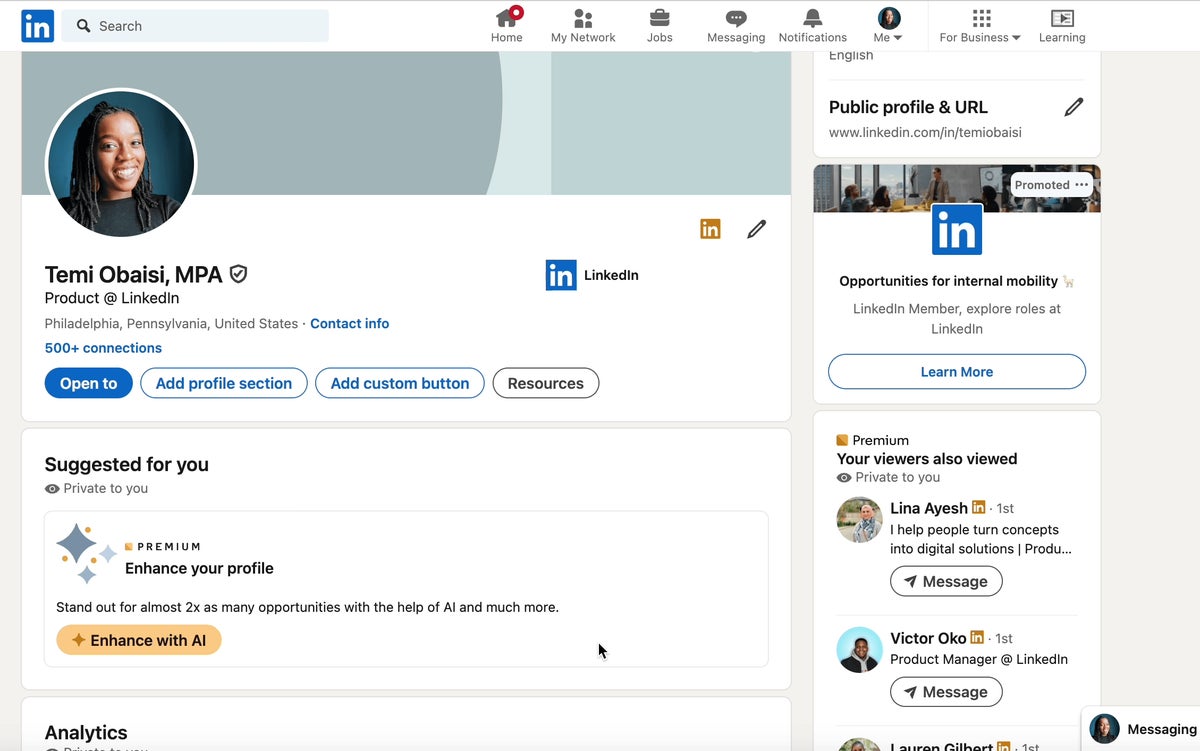
LinkedIn's page on controlling your public profile puts this setting on your profile page, not in the main settings menu.
- Click the Me icon at the top of your LinkedIn homepage, then View Profile.
- Click the Edit icon next to Public profile & URL in the right pane.
- Switch Your profile's public visibility to Off, or switch off individual sections instead.
There's no Save button to hunt for. LinkedIn saves the change automatically.
How to hide your public profile in the LinkedIn app
On a phone, the same toggles sit in Settings:
- Tap your profile photo, then Settings.
- Tap Visibility.
- Tap Edit your public profile under Visibility of your profile & network.
- Switch the toggles off for the whole profile or for the sections you want hidden.
The setting belongs to your account, not the device. Change it once on your phone and your desktop profile follows.
What hiding your public profile actually does
LinkedIn's help page on public profile visibility states the scope plainly. Turning it off hides your public profile from non-LinkedIn members and from search tools' results.
That's the whole effect. It does not hide your profile from signed-in members.
Anyone logged into LinkedIn can still find you, open your profile and see what you've shared. If your worry is a specific colleague or an ex-employer who uses LinkedIn daily, this setting won't stop them.
What it does stop is the casual lookup: someone who types your name into a search engine, or a person without an account following a link to your profile.
Why search engines may still show your LinkedIn profile
Turning off public visibility doesn't remove your profile from search results the same afternoon.
LinkedIn warns that search engines may take several weeks or even months to reflect the change. Those search engines cache pages on their own schedule, and LinkedIn doesn't control it.
So expect a lag. An old snippet with your headline or photo can keep appearing for a while after you've hidden everything.
If you're making LinkedIn private because of a job search or a safety concern, change the setting as early as you can. The sooner it's off, the sooner the cached copies age out.
The account-recovery risk nobody mentions
There's one cost to a hidden public profile that most privacy guides skip.
LinkedIn notes that disabling your public profile could also prevent you from recovering your account if you lose access to your primary email address.
That matters most for people whose LinkedIn email is an old work address.
If you're about to hide your public profile, check that your account email is one you'll still control next year. Add a personal address first if it isn't.
Hiding parts of your profile instead of all of it
The public visibility switch isn't all or nothing. The same settings page lets you switch off individual sections and keep the rest visible.
That's often the better choice. A freelancer or job seeker usually wants to be found by name, but may not want every detail readable by strangers.
A sensible way to decide, section by section:
- Keep on whatever helps the right people recognize you and land on your profile.
- Switch off anything you'd hesitate to hand a stranger in person.
- Leave the whole-profile toggle on, so the sections you kept stay reachable.
Try your public profile in a signed-out browser window afterwards. What you see there is what an outsider sees.
How to browse LinkedIn profiles privately
The second half of making LinkedIn private is how you appear when you look at other people. LinkedIn covers this on its page about browsing in private mode.
On a computer:
- Click the Me icon, then Settings & Privacy.
- Click Visibility in the left pane.
- Click Visibility when viewing other profiles, under Visibility of your profile & network.
- Select Private mode.
In the app, tap your profile photo, then Settings & Privacy, Visibility and Visibility when viewing other profiles, and pick the same option. Older guides call this "Profile viewing options"; the current label is the one above.
The three ways you can appear when viewing profiles
LinkedIn gives you three viewing options, not two:
- Your name and headline: the person you view can see exactly who you are.
- Private profile characteristics: you show as a description, such as a job title and company type, without your name.
- Private mode: you show as "LinkedIn Member - This person is viewing profiles in private mode."
The middle option is the compromise. It keeps your name hidden while still telling people what kind of professional looked, which can make the view feel less anonymous and odd.
What private mode costs on a free account
Private mode has a price, and it's paid in information.
On a Basic account, LinkedIn says that browsing in private mode means you won't be able to see who's viewed your profile either. The anonymity runs both ways.
Premium members are treated differently. They can browse in private mode and still see their viewers from the last 90 days.
So if you rely on your viewer list to spot recruiters, think before you switch.
On a free account, you can't hide from others and still watch who visits you.
Many people switch to private mode for a specific research session, then switch back.
Can you make your LinkedIn profile completely private?
No. LinkedIn doesn't offer a locked profile that only approved people can open, the way some social networks do.
The two settings above are as close as it gets. Your public profile disappears for outsiders, and your browsing becomes anonymous, but signed-in members can still search for you and see your profile.
If you need one person out of the picture completely, that's what blocking is for. A blocked member loses access to your profile, can't message you, and stops being suggested to you in features such as People You May Know.
Blocking has limits too. LinkedIn notes that your public profile and public posts can still be seen, and you can't block private-mode viewers.
Keep your posts to your connections
Your profile isn't the only thing people see. Every post has its own audience, set before you share it.
When you start a post, LinkedIn lets you choose Anyone, Connections only, or a Group. You can also control who can comment.
Two details matter here. LinkedIn saves your choice as the default for your next post, and you can't change a post's visibility after you've shared it.
So check the audience before you click Post, not after. A post shared with Anyone can appear in search results and off LinkedIn.
Stop other members from mentioning you
Mentions pull your name into other people's posts, which can put you in front of an audience you didn't choose.
LinkedIn lets you turn that off. Go to Me, Settings & Privacy, Visibility, and open Mentions, tags, and collaborations, then switch off Allow mentions, tags, and collaborations.
After that, anyone who tries to mention you is told you can't be mentioned. Your name stays out of their post.
Keep a job search private
Job searching is one of the most common reasons people want LinkedIn private, and the Open to Work feature has its own visibility setting for it.
Sharing it with All LinkedIn Members adds the #OpenToWork photo frame, which people at your current company can see too. Recruiters only limits it to people using LinkedIn Recruiter.
LinkedIn says it tries to hide Recruiters-only signals from recruiters at your own company, but it can't guarantee complete privacy. If discretion really matters, weigh that before switching it on.
When you want to step away from LinkedIn for a while
Sometimes privacy settings aren't the real goal. You want your profile out of view for a few months, not just tidied up.
Hiding your public profile won't do that, because signed-in members can still find you.
Taking the whole account out of view is a different step. Before you choose it over the settings above, read what happens when you hibernate your LinkedIn account.
Hibernation is the bigger step. Settings keep you active and discreet; stepping away takes you out of the network for a while.
Which LinkedIn privacy setting do you need?
Start from what's worrying you:
- Strangers finding you through a search engine? Turn off your public profile's visibility, and expect the change to take weeks to reach search results.
- People seeing that you viewed them? Switch to Private mode, knowing a free account then hides your own viewers too.
- One specific person? Block them.
- Your job search showing at work? Set Open to Work to Recruiters only, or leave it off.
- Wanting out of view entirely for a while? Look at stepping away from the account rather than changing settings.
Pick the one that matches, change it today, and check the result from a signed-out browser.
Privacy settings questions
Does private mode hide my profile from other people?
No. Private mode only changes how you appear when you view someone else's profile. Your own profile stays visible to signed-in members.
Will people know I made my LinkedIn profile private?
LinkedIn doesn't document any notification for these changes. Both settings save quietly, and the viewing option changes take effect as soon as you select them.
Can I see who viewed my profile while I'm in private mode?
On a free account, no. On Premium, you can still see viewers from the last 90 days while browsing privately.