
How to find recruiters on LinkedIn and get their attention
Find recruiters on LinkedIn with People search, Current company and Locations filters, or the Meet the Hiring Team section on job posts.

Find recruiters on LinkedIn by searching recruiter job titles in People search, then filtering by Current company and location, or by checking the Meet the Hiring Team section on job posts.Search a title such as recruiter or talent acquisition, then select the People filter.Narrow the results with Current company and Locations under All filters.Open job posts that fit you and look for Meet the Hiring Team.
The full walkthrough below adds the Premium Actively hiring filter, network hiring alerts and how to write to a recruiter.
Where recruiters show up on LinkedIn
Recruiters are easy to find on LinkedIn once you know the three places they appear:
- People search, where recruiters appear like any other member and you find them by job title, company and location.
- Job posts, where many listings show the people behind the role.
- Your own network, where LinkedIn can alert you when connections are hiring.
Each suits a different stage of a job search. Search is best for building a list of recruiters at companies you want to join. Job posts are best when you've found a specific role. Network alerts help you catch openings you weren't looking for.
Use all three together and you'll rarely wonder who to contact.
How to find recruiters on LinkedIn with people search
LinkedIn's People search help page covers the filters. On desktop:
- Type a recruiter job title or a plain-language query in the Search bar.
- Click See all results.
- Select the People filter.
- Open All filters and set Current company and Locations.
That gives you recruiters at a specific company, in a specific place. It's the fastest way to build a short list for the employers you care about.
If you want to search across many employers, skip the Current company filter and use Locations and Industry instead.
Search terms that bring up recruiters
LinkedIn doesn't have a "recruiter" category. You find recruiters by the titles they give themselves, so the words you search decide what you see.
Titles worth trying:
- Recruiter, or technical recruiter for tech roles.
- Talent acquisition, which many in-house teams use.
- Sourcer, for people who find candidates before recruiters speak to them.
- Hiring manager titles in your field, such as engineering manager.
Try a few variations for each company. Teams label the same job differently, and one search rarely catches everyone.
You can also describe what you want in plain language. LinkedIn supports natural-language queries, so a description of the recruiter you're looking for can work too.
Narrowing recruiters by company and location
Filters turn a list of thousands into a handful. The two that matter most for recruiters:
- Current company limits results to people who list that employer now.
- Locations keeps results to the city or region you're targeting.
Add Industry if you're open to several employers in one sector. Add Degree of connections if you'd rather start with recruiters who are 2nd-degree connections, since a mutual contact makes your first message warmer.
For large employers, combine Current company with a specific title such as technical recruiter. That points you to the people who handle roles like yours, not the whole talent team.
The Actively hiring filter (Premium)
LinkedIn has a People search filter built for this job: Actively hiring. LinkedIn's page on searching for people actively hiring marks it as a Premium feature.
On desktop, search a keyword or query, click See all results, select People, then choose Actively hiring. You can refine further with All filters or a job title.
LinkedIn says the recommended roles in this filter are based on the Open To settings of the people you're searching for. In other words, it draws on what those members have said about their hiring.
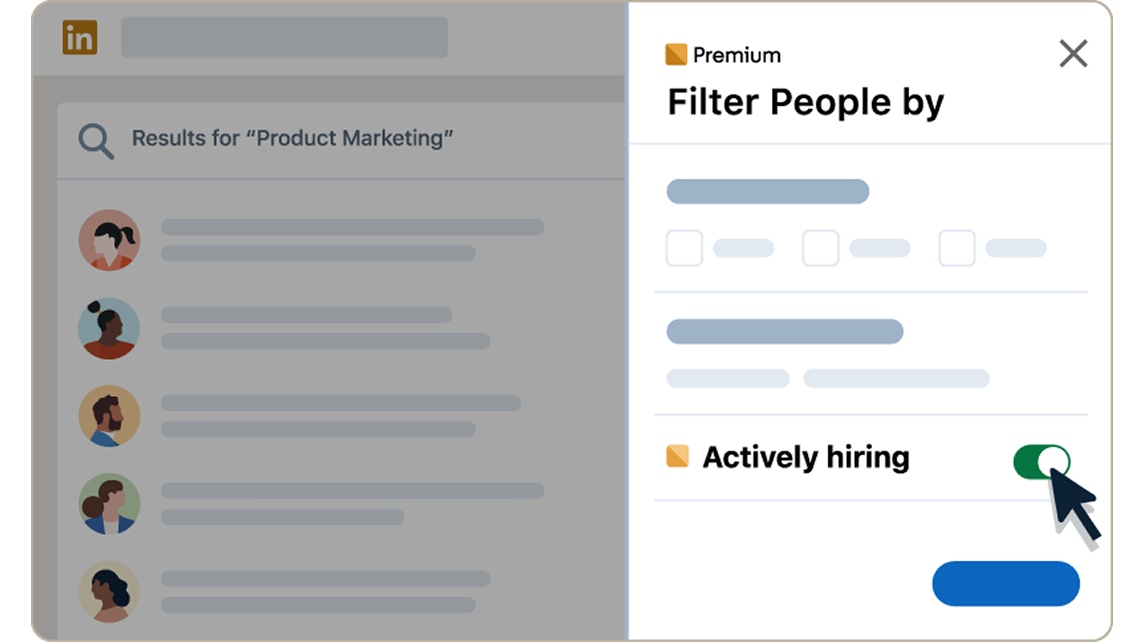
If you already have Premium, it's the most direct route. If you don't, the free search above still works well.
Using the Actively hiring filter in the app
The same Premium filter is available in the LinkedIn app:
- Tap the Search bar.
- Type your query and tap Search.
- Tap People.
- Tap Actively hiring.
From there, open the profiles that fit and send connection requests to the most relevant people.
On a phone, it's easiest to use this for quick checks, such as seeing who's hiring at a company after a conversation or event, and to do longer research on a computer.
Meet the Hiring Team on job posts
When you've found a role, the job post itself is often the best place to find the recruiter.
Many job pages include a Meet the Hiring Team section. LinkedIn's page on social hiring and meeting the team says members can connect with and message the entire team listed there, including the job poster.
That's a direct line to the people involved in the hire. A note that mentions the specific job gives your message immediate context.
If a job post doesn't show a hiring team, fall back to People search with the company and a recruiter title.
Find jobs posted by people you know
The jobs search has a filter worth knowing: Hiring in your network. It shows jobs posted by your connections.
This flips the usual search. Instead of looking for recruiters and then jobs, you start with jobs where you already know the person who posted them.
A job posted by a connection is one of the easiest openings to act on. You can message them directly, since you're already connected, and ask a specific question about the role.
Check this filter regularly during a job search. It shows roles that might not reach you through keyword searches alone.
Let LinkedIn alert you when your network is hiring
LinkedIn can do some of the searching for you. Through what it calls social hiring, LinkedIn notifies job seekers when a 1st- or 2nd-degree connection posts a relevant job or adds a #hiring frame to their profile picture.
Relevant here means the job matches your current job title, your industry or your open-to-work preferences.
These notifications are automatic. If you're job hunting, keep them on and make sure your job preferences are up to date so the matches are accurate.
When an alert arrives, act on it quickly. A connection who has just started hiring is often most responsive in the first days.
Spotting the #Hiring frame
The #Hiring frame on a profile photo is a visible sign that someone is recruiting. Recruiters and hiring managers add it themselves; LinkedIn's #Hiring frame help page describes how it's applied through the Frames option on the profile picture.
You'll see it in search results, comments and posts. It's a useful cue when you're scanning a list of people at a company.
Some hirers also post about open roles using the share box's Share that you're hiring option. When one of those posts matches your field, the poster is a natural person to contact.
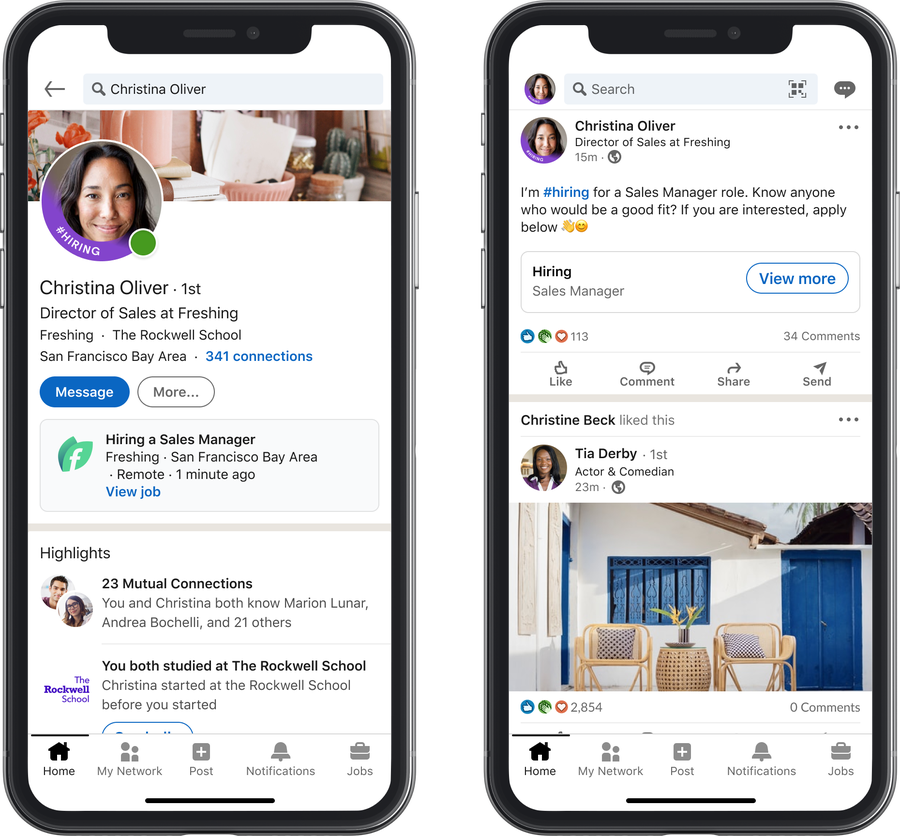
Treat the frame as an invitation, not a guarantee. It means they're hiring, not necessarily for your kind of role.
Agency recruiters vs in-house recruiters
The recruiters you find fall into two broad groups, and it helps to know which you're talking to.
In-house recruiters work for the company itself. Their Current company is the employer, and they hire only for that organization.
Agency recruiters work for recruitment firms and place candidates with several client companies. Their Current company is the agency.
Both are worth contacting. In-house recruiters are best when you're set on a particular employer. Agency recruiters are useful when you want access to roles across many companies in your field.
Check the profile to see which you're dealing with before you write.
How to reach out to a recruiter
On a free account, the way to contact a recruiter you're not connected to is a connection request with a note. LinkedIn's page on personalized invitations sets the limits:
- Each note can be up to 200 characters.
- Free members can personalize up to three connection requests per month.
- Premium members can send unlimited personalized invitations.
InMail lets you message people you're not connected to, but it's a Premium feature. On a Basic account, you can only message members you're already connected to.
With three notes a month, pick the recruiters most relevant to you. A recruiter who hires for your exact role is worth a note; a general talent team contact may not be.
What to write in your first message to a recruiter
Recruiters read a lot of messages. The ones that get replies are short, specific and easy to act on.
Within 200 characters, cover three things:
- The role or type of role you're targeting.
- One or two skills or credentials that fit it.
- A clear, small ask.
For example: "Hi Priya, I saw the data engineer role on your team. I have five years in Python and cloud pipelines. Could I send you a short summary of my background?"
Avoid attaching your life story. The goal of the first message is a reply, not a full application.
Mistakes that put recruiters off
A few habits reduce your chances with recruiters:
- Sending a blank connection request with no context.
- Asking for "any job" instead of naming a role or field.
- Following up daily when a recruiter hasn't replied.
- Sending the same note to everyone at a company.
Recruiters are busy, and a single follow-up after about a week is plenty. If there's no reply, move on to another contact or apply directly and mention your earlier note.
Your recruiter search checklist
Work through these five steps:
- Search: People search with recruiter titles, then Current company and Locations.
- Check job posts: look for Meet the Hiring Team on every role you want.
- Watch your network: keep social hiring alerts on and use Hiring in your network.
- Choose carefully: spend your three personalized notes on the most relevant recruiters.
- Write well: name the role, one strength and a small ask, in 200 characters.
Pick one target company today, search its recruiters, and send your first note.
Recruiter search questions
Do I need Premium to find recruiters on LinkedIn?
No. People search and its filters are free. The Actively hiring filter and InMail are the Premium extras.
How do I stop LinkedIn's hiring notifications?
Click the three dots on the notification and choose Turn off.
Is "I'm hiring" a LinkedIn feature?
Not as a label. The documented options are the #Hiring profile frame and the share box's Share that you're hiring option.