
How to find saved jobs on LinkedIn and keep the list useful
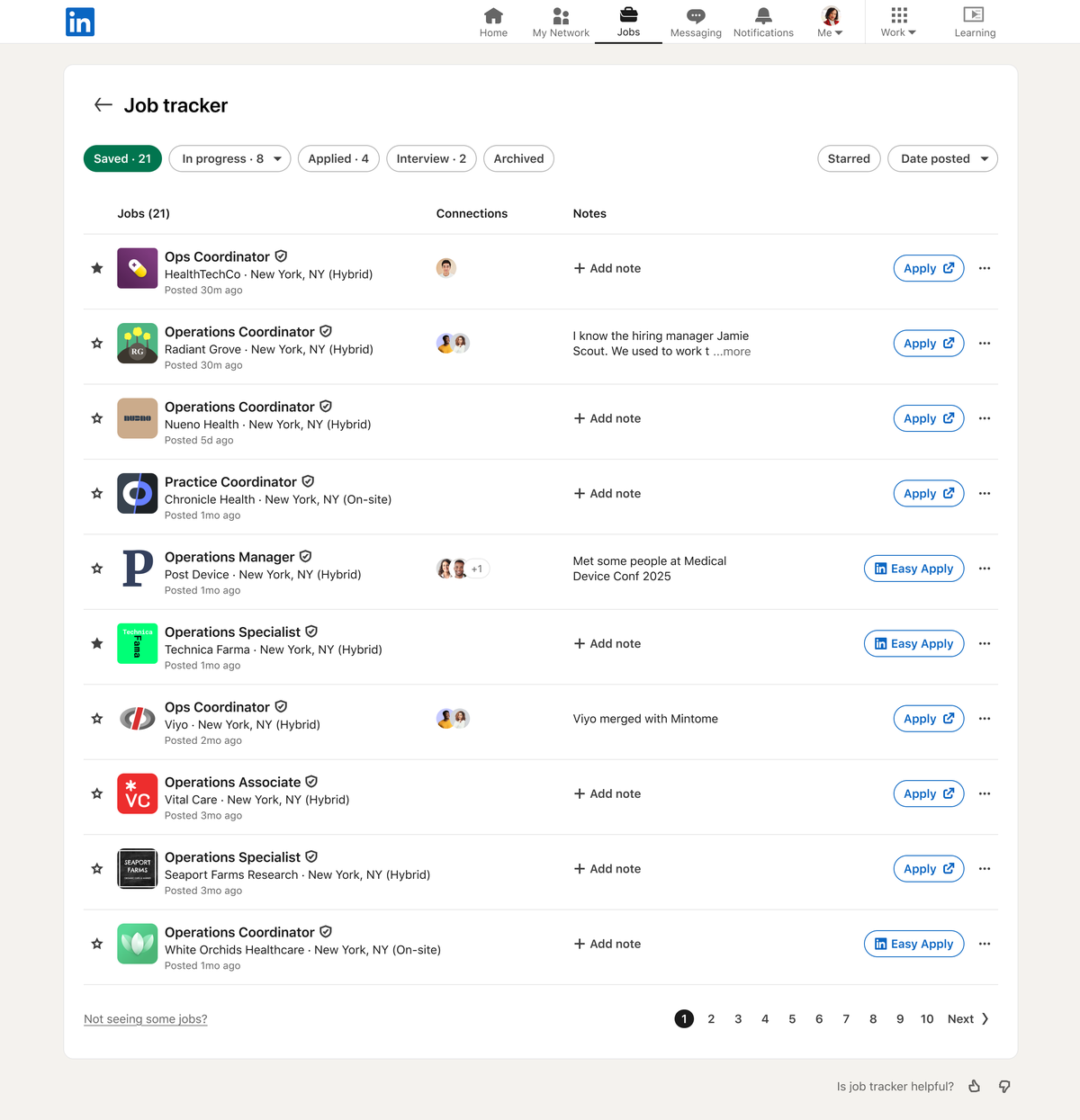
Find saved jobs on LinkedIn under Jobs, then Job tracker, then the Saved tab. Older guides call it My Jobs; the Saved tab is the same.


Your saved jobs on LinkedIn are under Jobs, then Job tracker, then the Saved tab, on desktop and in the app. "My Jobs", the name older guides use, is now called Job tracker, and jobs you've applied for sit in the Applied tab beside it.
Below: the exact steps, what you can do with each saved job, and the limits worth knowing.
Where LinkedIn keeps your saved jobs
Every job you save on LinkedIn lands in one place: the Job tracker. It's part of the Jobs section, and it holds your saved jobs, the jobs you've applied for and anything you've archived.
The Saved tab is what you want most of the time. It's your shortlist of roles you meant to come back to.
LinkedIn's page on managing saved jobs describes the tracker and what you can do from it.
If you've looked for "My Jobs" and couldn't find it, that's why. The name changed, and the saved list moved with it.
How to find saved jobs on LinkedIn on desktop
- Click Jobs at the top of your LinkedIn homepage.
- Click Job tracker in the left-hand rail.
- Open the Saved tab.
Your saved jobs appear as a list. Click any job to open its full details and apply.
The whole route is three clicks. If you check your shortlist often, it's worth bookmarking the page once you're on it.
How to find saved jobs in the LinkedIn app
On iPhone or Android:
- Tap the Jobs icon.
- Tap Job tracker.
- Open the Saved tab.
The list is the same on every device, because it's tied to your account. Save a job on your phone during your commute, and it's waiting in the Saved tab on your laptop.
Why older guides point to a menu that's been renamed
For a long time, LinkedIn called this area My Jobs. Many articles and videos still use that name.
It's now Job tracker. The Saved and Applied tabs inside it keep their names, so once you're in the right place, everything looks familiar.
If a guide tells you to click My Jobs, look for Job tracker in the same spot: the left-hand rail on desktop, or from the Jobs icon in the app.
What you can do with a saved job
Each saved job has a More icon next to it. Clicking it gives you four options:
- Apply: open the application.
- Change stage: move the job along as your application progresses.
- Archive: move it to your Archived list.
- Unsave: remove it from your saved jobs.
The same options appear in the app, through the More icon beside each job.
These turn the Saved tab from a simple bookmark list into a light tracker for your whole search.
Using stages to track where you are
Change stage is the option most people overlook. It lets you record where each opportunity stands, instead of keeping that in your head or a separate spreadsheet.
That matters once your search grows past a handful of roles. When a recruiter calls about a job you saved three weeks ago, you can see at a glance where you left it.
A good habit is to update the stage the moment something happens: you apply, you hear back, you book an interview. It takes seconds, and your tracker stays accurate.
Archiving vs unsaving a job
The two options look similar, but they do different things.
Archive moves the job to your Archived list. It's out of your Saved tab, but you can still find it later.
Unsave removes it from your saved jobs entirely.
Archive roles you've finished with but may want to look back on, such as a job you interviewed for or one you declined. Unsave roles you saved by accident or no longer care about.
When in doubt, archive. It keeps your Saved tab clean without losing the record.
One thing to remember: archived jobs still count toward LinkedIn's saved jobs limit, covered below.
Archiving tidies the view; only unsaving frees up space.
How to find jobs you've applied for
Applications have their own tab in the same tracker. LinkedIn's page on viewing jobs you've applied for gives the route.
On desktop:
- Click the Jobs icon.
- Click Job tracker.
- Open the Applied tab, then click a job to see its details.
In the app, tap the Jobs icon, then Job tracker under the search bar. Use the dropdown to choose Applied, then tap Update.
Before you apply to a saved job, check the hiring team
A saved job is a good moment to look for a person, not just a posting. LinkedIn's page on social hiring and meeting the team describes two features that help.
Some job pages show a Meet the Hiring Team section. LinkedIn says members can connect with and message the whole team listed there, including the job poster.
The job search also has a Hiring in your network filter, which shows jobs posted by your connections. If a saved role came from someone you know, that's a warmer route in than a cold application.
Open each saved job before you apply and check both. A short, specific note to the right person can make your application stand out.
Choose those notes carefully on a free account. LinkedIn's page on personalizing invitations says free members can add a personalized message to up to three connection requests per month, each up to 200 characters. Save them for the saved jobs you want most.
How to save a job on LinkedIn
To add a job to your Saved tab, open the job's details page and click Save. In the app, tap Save on the job details page.
Save generously while you search. It's quicker to save a role and discard it later than to hunt for it again after it's slipped out of your search results.

A saved job is only a bookmark. It doesn't apply for you; applying is a separate step, from the Saved tab or the job page.
The 2,000 saved jobs limit
LinkedIn puts a ceiling on saved jobs. Its help page says: "The maximum number of jobs that a member can save at any given point is 2000."
That count includes saved and archived jobs together.
Most people never get close. If you've been saving roles for years without clearing them out, though, you could.
When you hit the limit, unsave jobs you no longer need to make room.
There's no way to unsave jobs in bulk
LinkedIn is clear on this: "There is no way to unsave multiple jobs at once."
So a big clean-up means removing jobs one at a time, using the More icon next to each one.
That's a good reason to keep the list tidy as you go. A quick weekly pass through your Saved tab takes minutes; clearing hundreds of old jobs in one sitting takes much longer.
If most of your saved jobs are old, start with the oldest and work forward. Archive anything you might want to remember, and unsave the rest.
If a saved job seems to be missing
Start with the other tabs. If you archived the job, it sits in your Archived list rather than under Saved. If you applied, it may be easier to find under Applied.
Then check the account. Saved jobs belong to the LinkedIn account you were signed in to when you saved them. If you use more than one account, the job may be in the other one.
Job listings also change. An employer can close or remove a posting, so a job you saved long ago may no longer be open to apply for.
Save the details you care about, such as the company and title, if a role matters to you.
A simple routine for your saved jobs
A saved list only helps if you use it. Once a week works for most searches:
- Open Job tracker and go to the Saved tab.
- Apply to the roles you're ready for, and update their stage.
- Archive roles you've decided against.
- Unsave anything you saved by mistake.
Ten minutes a week keeps the list short enough to be useful, and you'll never lose a role you meant to apply for.
Your saved jobs checklist
To find and manage your saved jobs on LinkedIn:
- Go to Jobs, then Job tracker, then the Saved tab.
- Use the More icon on each job to apply, change stage, archive or unsave.
- Check the Applied tab for roles you've already applied to.
- Stay under the 2,000-job limit by clearing old roles as you go.
Open Job tracker now and apply to the best role on your list.
Saved jobs questions
Do jobs I've applied for count toward the 2,000 limit?
No. LinkedIn counts saved and archived jobs toward the limit, but applied jobs aren't included.
Can I see which resume I used for an application?
Yes, if you applied on LinkedIn. Open the job from the Applied tab in your Job tracker to review the resume you submitted.
Can I apply to a saved job straight from my saved list?
Yes. Click the More icon next to the job and choose Apply, or open the job and apply from its details page.