
How to share your LinkedIn profile by message, link or QR code
Share your LinkedIn profile with Resources, Send profile in a message on desktop, Share via in the app, or your QR code in person.

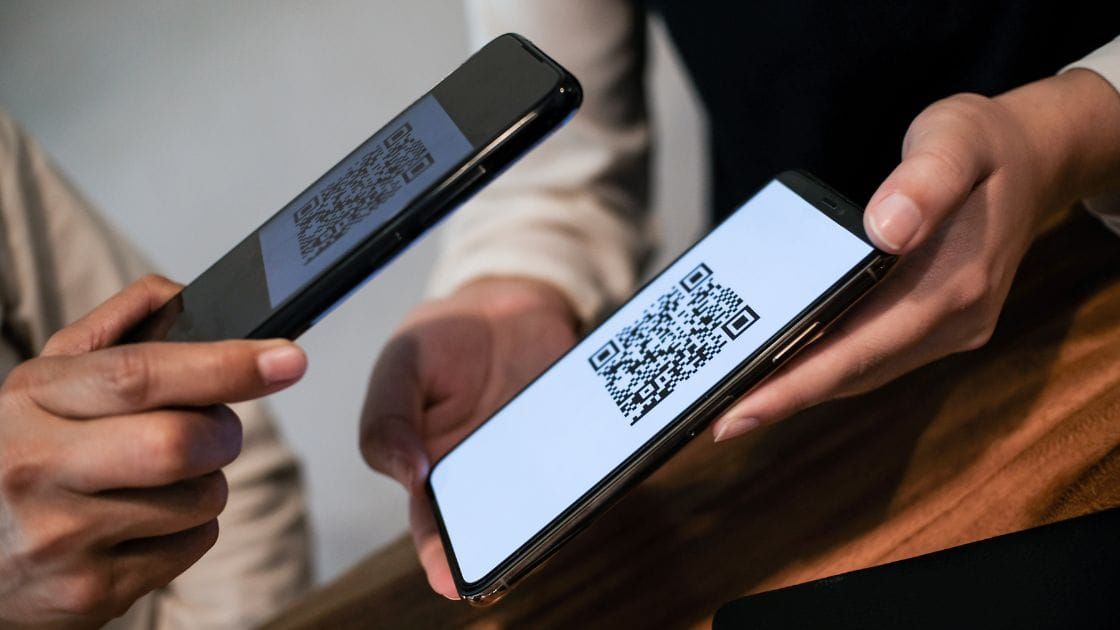
To share your LinkedIn profile, pick the method that fits where the other person is.On a computer, click Resources on your profile, then Send profile in a message.In the app, open your profile's Contact section, tap Your Profile, then Share via….In person, open the QR code in the app's search bar and let them scan it.
Below: step-by-step instructions for each, plus how to share someone else's profile.
Three ways to share a LinkedIn profile
There's no single share button that covers every situation. LinkedIn gives you three routes, and each suits a different moment:
- A LinkedIn message, for sending your profile to a connection or coworker.
- Your profile link, for email, text, resumes and other apps.
- A QR code, for meeting someone face to face.
LinkedIn's profile sharing page documents the first two, and its QR code page covers the third. Pick based on where the person you're sharing with will open it.
How to share your LinkedIn profile from a computer
On desktop, sharing your own profile happens through the Resources button, not the More button most people look for first.
- Click Me, then View Profile.
- Click Resources in your profile's introduction section.
- Select Send Profile in a message.
- Type the names of the people you want to send it to.
- Add a short note if you like, then click Send.
LinkedIn fills in your public profile URL in the new message window automatically. You don't need to copy anything.
This route sends to your first-degree connections and coworkers. For anyone else, share the link instead.
How to share your LinkedIn profile in the app
On iPhone or Android:
- Tap your profile picture, then View Profile.
- Scroll to the Contact section.
- Tap Your Profile.
- Tap Share via… and choose where to send it.
The share sheet lets you pick the LinkedIn app or another messaging app on your phone. That covers text messages, email and chat apps in one step.
Sharing your profile link anywhere
Sometimes you don't want to send a message at all. You want the link itself, to paste into an email signature, a resume or an application form.
Your link lives on your profile. On a computer, it's under Public profile & URL on the right side of your profile page. In the app, it's under Your Profile in the Contact section.
It starts with www.linkedin.com/in/ followed by your name or a set of characters. If it looks messy, you can edit the last part to something cleaner from the same Public profile & URL panel.
Anyone who opens the link sees your public profile. Depending on your visibility settings, that may show less than your connections see.
How to share your LinkedIn profile with a QR code
The QR code is the fastest option in person. LinkedIn's page on using a QR code to connect says each member has their own unique code.
On an iPhone:
- Open the LinkedIn app and tap the QR code in the search bar.
- Go to the My code tab.
- Let the other person scan it, or tap Share my code to send it by message, email or another app.
You can also tap Save to photos to keep the code in your camera roll.
On Android, the QR code sits in the same place, with a My code tab and an option to save the code to your gallery.
Scanning someone else's code
The same screen works in reverse. When someone shows you their LinkedIn QR code, you don't need to search for their name.
Open the QR code in your search bar and switch to the Scan tab. Point your camera at their code and LinkedIn opens their profile. On iPhone there's also an option to scan a code from a photo you've saved.
At events, this is much faster than spelling names, especially common ones with hundreds of matches.
Putting your QR code to work at events
A QR code saved to your photos is useful before you even arrive.
A few ways people use it:
- Print it on a name badge or the back of a business card.
- Add it to the last slide of a talk, so the audience can connect.
- Keep it as a phone lock screen for the day of a conference.
The code opens your profile, so make sure your headline and photo are current before you hand it out. People decide whether to connect in the first few seconds of looking.
How to share someone else's LinkedIn profile
You can also share another member's profile, for example to introduce two people or recommend a candidate.
On a computer:
- Go to their profile.
- Click More.
- Select Share Profile, add recipients and an optional note, then click Send.
In the app, open their profile, tap More, then choose Share via private message to send it on LinkedIn, or Share via… to use another app.
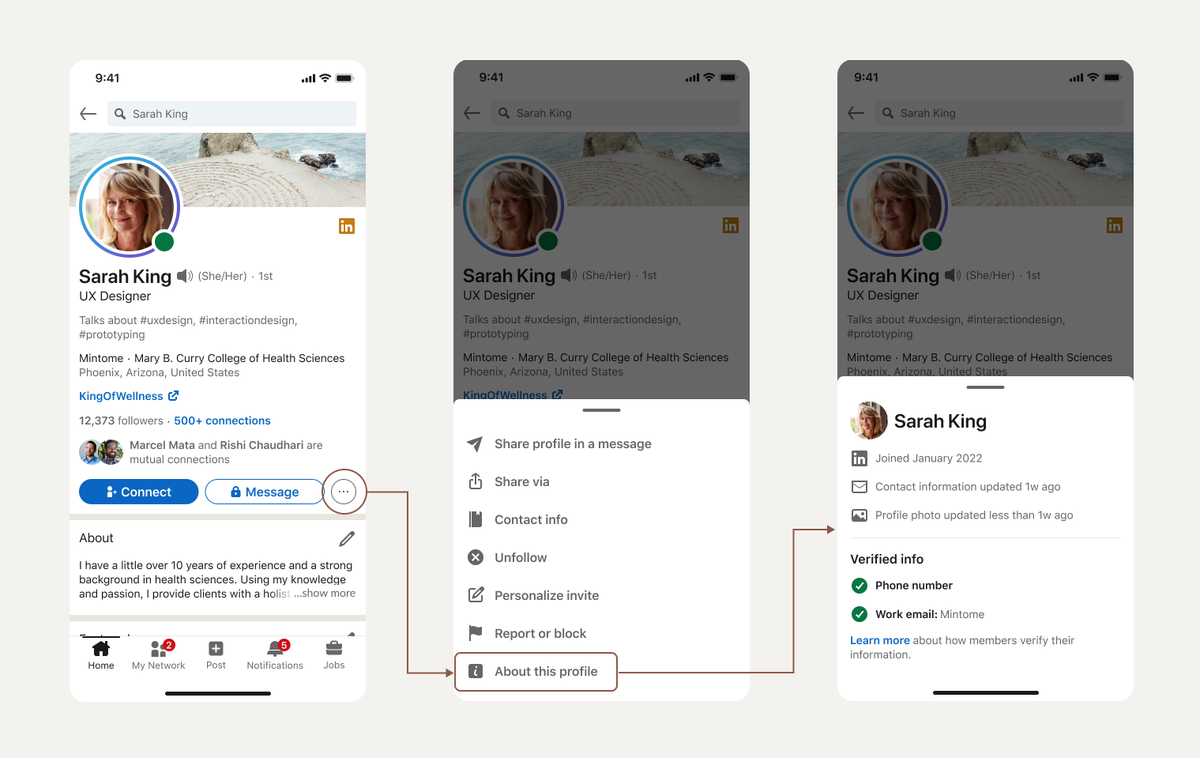
Add a line of context when you do this. "Thought you two should talk about the Berlin office" turns a link into an introduction.
Which sharing method to use when
A quick guide:
- Following up after a call: send your profile in a LinkedIn message, so they can connect in one tap.
- Applying for a job: paste your profile link into the application form.
- Networking in person: show your QR code.
- Introducing a colleague: share their profile with a note explaining why.
Matching the method to the moment saves the other person a step, and that's what gets the connection made.
Write a note that goes with the link
A profile sent with no message asks the other person to work out why they got it. A single sentence of context fixes that.
Good notes say where you met and what you'd like to happen next:
- "Great talking at the design meetup last night. Here's my profile, happy to share the case study I mentioned."
- "Following up on our call about the analyst role. My profile has the full project history."
- "We spoke briefly after your talk. I'd like to stay in touch as your team grows."
Keep it short enough to read in the preview. The recipient should know who you are and why you're writing before they open anything.
Avoid attaching a request that's too big for a first message. Asking for a job, a referral or a meeting in the same line as your profile link tends to go unanswered.
Send the profile, start the conversation, and ask later.
Sharing your profile vs sending a connection invitation
Sharing your profile and inviting someone to connect aren't the same thing.
A shared profile is a message with a link. The other person can look at your profile and choose whether to connect. An invitation asks them to join your network directly.
For people you just met, sharing your profile or showing your QR code gives them the choice, which many prefer. For people you already know well, a direct invitation is simpler.
What people see when you share your profile
Sharing sends the same profile, but not everyone sees the same version of it.
People already connected to you see your full profile. People who open your public link while signed out see your public profile, which shows whatever sections you've made public.
Before sharing widely, it's worth checking what that public version looks like. Open your link in a private browser window and read it the way a stranger would.
If key parts are hidden, such as your current role or your photo, adjust your public profile settings. A shared link only helps if it shows enough to make someone want to connect.
Make your profile worth sharing
The share itself takes seconds. What earns a response is what's on the other end of the link.
Before a job search, a conference or a round of introductions, check three things:
- Your headline says clearly what you do.
- Your photo is recent and looks like you.
- Your About section opens with a sentence worth reading.
These are the first things anyone sees after tapping your link.
Sharing your LinkedIn profile, in short
On a computer, use Resources, then Send profile in a message. In the app, go to Contact, then Your Profile, then Share via…. In person, use your QR code.
Your profile link works everywhere else: emails, resumes and application forms. And when you share someone else's profile, use More, then Share Profile, with a sentence of context.
Whichever route you use, the goal is the same: one tap from the other person's side to your profile.
Profile sharing questions
Can I share my LinkedIn profile with someone who isn't on LinkedIn?
Yes. Send them your profile link by email or text, using Share via… in the app or the URL from Public profile & URL. They'll see your public profile.
Does LinkedIn tell people when I share their profile?
LinkedIn's sharing page doesn't say the member is notified. The profile goes to the people you choose as a message.
Is my LinkedIn QR code the same every time?
Each member has their own unique QR code, so the one in your My code tab always points to your profile. You can save it once and reuse it.