
How to see scheduled posts on LinkedIn and edit or delete them
See scheduled posts on LinkedIn from the post editor: click Start a post, the clock icon, then View all scheduled posts.


Your scheduled posts on LinkedIn live inside the post editor, not on your profile.Click Start a post, as if you were writing something new.Click the clock icon at the bottom of the editor.Choose View all scheduled posts to open the list.
Below: the same path in the app, how to edit, reschedule or delete a post, and the limits LinkedIn puts on scheduling.
Where are scheduled posts on LinkedIn?
Scheduled posts are one of the harder things to find on LinkedIn, because they don't have a menu of their own.
The list sits behind the scheduling button in the post editor. You reach it the same way you'd schedule a new post, then step sideways into the queue.
LinkedIn's page on scheduling posts documents the route on desktop and mobile.
Once you've opened it, the Scheduled posts page shows every post waiting to go out, with options to change or remove each one.
How to see scheduled posts on LinkedIn on a computer
- Click Start a post at the top of your LinkedIn homepage.
- Click the clock icon at the bottom of the post editor.
- Click View all scheduled posts in the Schedule post pop-up.
- Review the Scheduled posts page, which lists everything queued.
You don't need to write anything in the editor first. Opening it is just the way in.
LinkedIn's own page describes the clock icon in two positions, lower-right in one place and lower-left in another. Look along the bottom edge of the editor and you'll find it.
How to see scheduled posts in the LinkedIn app
The mobile route follows the same idea:
- Tap Post in the navigation bar.
- Tap the clock icon.
- Tap View all in the Schedule pop-up.
- Open the Scheduled posts screen to see the queue.
Scheduled posts belong to your account, not your device. A post you scheduled on your laptop shows up in the app's list too, and the reverse.
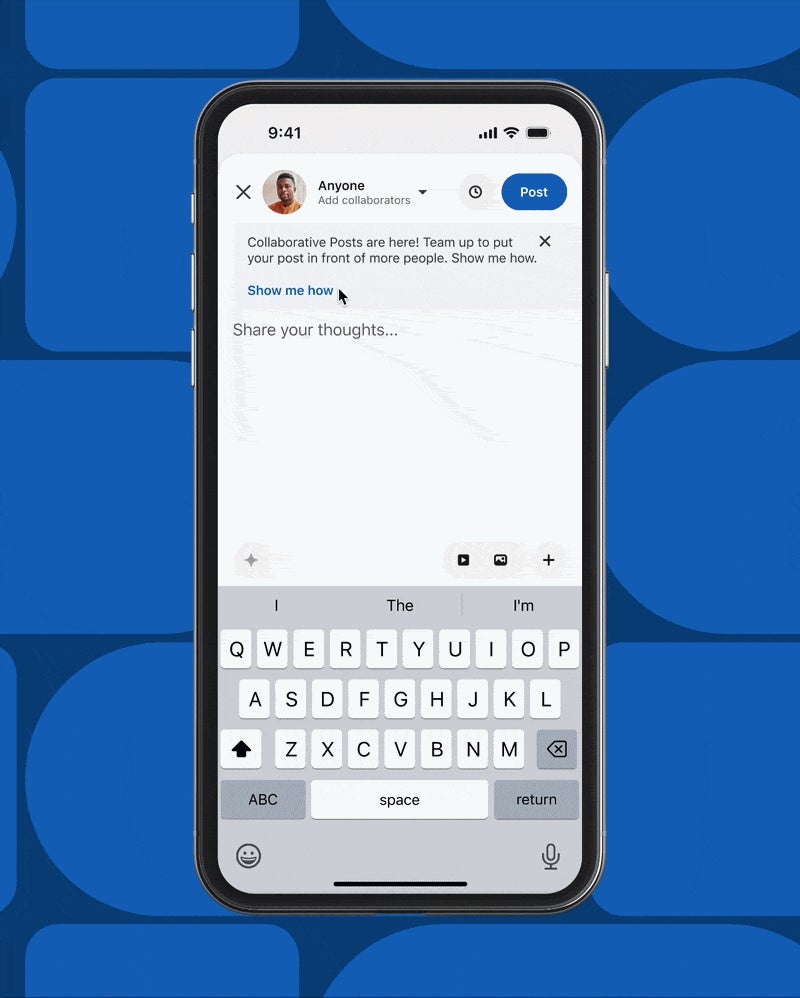
How to schedule a new post on LinkedIn
If the list is empty, you haven't scheduled anything yet. Adding a post to it uses the same editor.
- Click Start a post and write your post as usual, with any media you want.
- Click the clock icon at the bottom of the editor instead of posting.
- Pick a date and time in the Schedule post pop-up, then confirm it.
In the app, it's the same idea: tap Post, write, tap the clock icon, and choose the date and time.
The new post then joins the Scheduled posts page, where every tool described below applies to it.
How to edit a scheduled LinkedIn post
Spotted a typo in a post that goes out tomorrow? You can fix it without starting over.
On the Scheduled posts page, click the More icon in the upper right of the post, then choose Edit post. Make your changes and save them.
The post keeps its scheduled time. Only the content changes.
This is the moment to reread the whole thing, not just the line you came to fix. A post written days ago often reads differently once the news or your week has moved on.
How to change the date or time of a scheduled post
Rescheduling uses the same menu. Click the More icon on the post and choose Modify schedule, then pick the new date and time.
The mobile app offers the same actions from its Scheduled posts screen.
Rescheduling is handy when something else is dominating attention on the day you picked. Pushing a post back a day costs nothing, and it spares you publishing into a crowded feed.
How to delete a scheduled post
To cancel a post entirely, click the Delete icon next to it on the Scheduled posts page. LinkedIn asks Delete scheduled post?, and you confirm with Delete.
A deleted scheduled post never publishes. If you only want to hold it back, reschedule it further out instead, so you keep the draft.
Deleting is the right call for posts tied to something that changed, such as a launch that slipped or an event that moved. Rewriting them later is usually easier than salvaging the old version.
How far ahead you can schedule a LinkedIn post
LinkedIn sets a window for scheduling. The time you pick must be within 10 minutes to 3 months from the current time.
You can pick a time in 30-minute increments, or type an exact time if the half-hour slots don't suit you.
Two practical consequences follow:
- You can't queue a post for next year's anniversary today. Anything past three months has to wait.
- A post for "right now" has to go out normally. Scheduling needs at least a ten-minute gap.
Scheduled times and time zones
LinkedIn's help page notes that scheduled times are standardized in UTC.
In practice, that's a reason to double-check the time you see after scheduling, especially if you travel or you're writing for readers in another region.
Check the time shown on the Scheduled posts page, not the one you remember typing. A post meant for 9 a.m. local time is only useful if it actually lands at 9 a.m. for the people you're writing to.
Posts LinkedIn won't let you schedule
Not every post type has a clock icon. LinkedIn says scheduling isn't supported for these:
- Events.
- Jobs.
- Services posts.
If you're announcing one of these, you'll need to publish it at the moment you want it seen. A workaround is to schedule a regular text or image post that points people to the event or job once it's live.
Scheduled posts on a LinkedIn Page
Company and organization Pages have their own scheduling flow, separate from personal profiles. LinkedIn covers it on its page about scheduled posts for LinkedIn Pages.
Two differences stand out. On a Page, the window runs from an hour from the current time to three months in advance, and scheduling is for super admins and content admins.
If you manage both a personal profile and a Page, keep that in mind when you go looking for a post. A Page post won't appear in your personal queue.
Who sees a scheduled post is decided when you schedule it
Every LinkedIn post has an audience: Anyone, Connections only, or a Group. For scheduled posts, that choice is made while you're creating the post.
LinkedIn says scheduled posts publish with the visibility you chose at creation. It also says you can't change a post's visibility once it's shared.
So the audience is worth checking before you confirm the date and time, not after. A post meant for your connections that goes out to Anyone can't be pulled back into a smaller circle later.
Choosing when a LinkedIn post should go out
Scheduling solves the "when" only if you know what "when" you want. The right slot depends on where your readers are and when they actually open LinkedIn.
If you're still deciding, start with what's known about the best time for posting on LinkedIn, then adjust to your own audience.
Your own results are the better guide over time. Schedule a few posts at different times, then compare how they did before you settle on a routine.
What happens when a scheduled post goes live
At the scheduled time, the post publishes like any post you'd share by hand. It leaves the Scheduled posts page and becomes part of your normal activity.
For a post shared with Anyone, LinkedIn says it can show up in your connections' feeds, in your followers' feeds, in content search and on your Activity page. It can also reach 2nd and 3rd-degree members when your connections engage with it.
That first hour is where scheduling can backfire. The post is live, people start commenting, and nobody's there to answer.
Plan to be around when it goes out, or at least soon after.
Don't overfill the queue
Scheduling makes it easy to line up a week of posts in one sitting. It's worth pacing them.
LinkedIn says it may limit the visibility of content for excessive posting or for the use of automation tools, and it may cap the number of posts in a period of time.
A steady rhythm usually serves readers better than a burst. Spread your scheduled posts out, and leave room for replies to comments, which a queue can't do for you.
What to check before a scheduled post goes live
A scheduled post goes out whether or not you're watching. That's the point, and also the risk.
Before you close the editor, check:
- The text fits LinkedIn's 3,000-character limit for a post.
- Any mentions point to the right people.
- The audience setting is the one you intended.
- The date and time on the Scheduled posts page match your plan.
For anything longer than a post allows, LinkedIn suggests writing an article instead.
Your scheduled post checklist
Before you log off, run through this:
- Open Start a post, the clock icon, then View all scheduled posts.
- Read each queued post once more, and fix anything dated with Edit post.
- Use Modify schedule for any post that now lands at a bad time.
- Delete posts tied to plans that changed.
- Confirm the audience of anything you schedule from now on before you save it.
Then set a reminder to check back on each post the hour it goes live, so the comments don't sit unanswered.
Scheduled post questions
Can I schedule a post in the LinkedIn mobile app?
Yes. Tap Post in the navigation bar, then the clock icon, and pick a date and time. The same Schedule pop-up is where you tap View all to see the queue.
Why don't I see a clock icon for my event post?
LinkedIn doesn't support scheduling for Events, Jobs, or Services posts. Those have to be published when you want them to appear.
Do scheduled posts publish if I'm logged out?
LinkedIn publishes them at the time you set. You don't need to be online for a scheduled post to go out.