How to copy your LinkedIn URL on a computer or phone
Copy your LinkedIn URL from Public profile & URL on your profile page; in the app, open Contact info and copy it from Your Profile.

To copy your LinkedIn URL on a computer, open your profile and copy the link shown under Public profile & URL on the right. In the LinkedIn app, tap More next to Add section, open Contact info, and copy the link under Your Profile. If no link appears, your profile isn't public yet.
Below: the exact taps on each device, how to check the link before you paste it, and what to do when it won't copy cleanly.
How to copy your LinkedIn URL on a computer
The link LinkedIn wants you to share sits in its own panel, which makes it the cleanest thing to copy.
- Click the Me icon at the top of your homepage.
- Click View Profile.
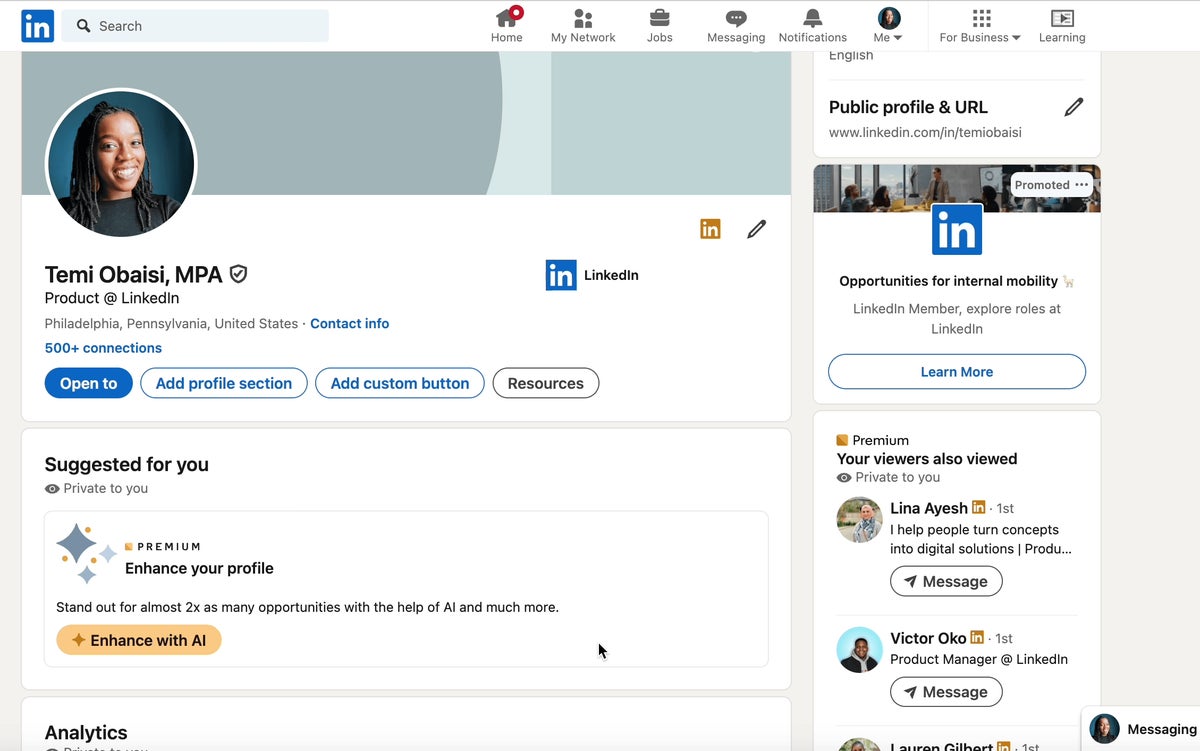
- Find Public profile & URL in the right pane.
- Select the link and copy it with Ctrl+C on Windows or Cmd+C on a Mac.
LinkedIn's page on finding your public profile URL points to that same panel and tells you to copy and paste the link from there.
The link starts with www.linkedin.com/in, followed by your name or a unique string of characters.
Copying it from the browser's address bar instead
When you're on your own profile, the address bar shows a link to it too. Click the bar, copy, and paste.
That works, but it isn't the route LinkedIn documents.
The address bar sometimes carries extra characters after your profile name, such as a question mark followed by tracking text.
If you copy from the address bar, trim it. Everything up to and including your name after /in/ is the part that matters.
The Public profile & URL panel gives you that clean version without any trimming.
How to copy your LinkedIn URL in the app
The app tucks the link one level deeper than the desktop site:
- Tap your profile photo, then tap it again to open your profile.
- Tap the More icon next to the Add section button.
- Tap Contact info.
- Press and hold the link under Your Profile, then choose your phone's copy option.
If your phone doesn't offer to copy, the share route below gets the link out in a different way.
Copying your link through Share via…
LinkedIn's app has a share route for your own profile, and it's often the fastest way to get the link onto the clipboard.
Tap your profile picture, then View Profile, scroll to the Contact section, tap Your Profile, and choose Share via…. LinkedIn's help page on sharing a profile describes this path.
Your phone then opens its own share sheet. On most phones, that sheet includes a copy option alongside messaging and email apps. Tap it, and the link is ready to paste anywhere.
How to copy it in a mobile browser
If you use LinkedIn in Safari or Chrome on your phone instead of the app, the link sits in a slightly different place.
Tap your profile photo, scroll to the Contact section, and look under LinkedIn. Press and hold the link, then copy it the way your browser offers.
This route is handy when you're filling in a job application on your phone's browser. You stay in one app and paste straight into the form.
Check the link before you paste it anywhere
A copied link is only useful if it opens the right page for the person receiving it. Take ten seconds to test it.
Open a private or incognito browser window, where you're signed out, and paste the link into the address bar. You should land on your public profile.
Then check three things:
- The address starts with www.linkedin.com/in, or a country version of it.
- It opens your profile, not someone else's with a similar name.
- The public version shows what you want a stranger to see.
Why you can't find a URL to copy
If there's no link under Public profile & URL or Your Profile, the usual reason is that your profile isn't public. LinkedIn notes that the URL won't appear if you don't have a public profile.
In that case, there's nothing to copy yet. Changing your public profile visibility is what makes the link appear.
Until you do, people you share it with would have nothing to open anyway, so fix visibility before you hunt for the link.
Why your copied link starts with a country code
Some members copy a link that begins with two letters instead of www, for example ca.linkedin.com/in/…. LinkedIn uses these country prefixes in some countries.
The prefix is attached automatically. If you change the country on your profile, LinkedIn changes the prefix too, and old URLs still work.
So a country-coded link is fine to paste. It opens the same profile as the www version.
Clean up the link before you copy it
A default URL often ends in a string of letters and numbers. That's fine for a quick message, less so on a resume or business card.
You can edit the last part of the link from the same Public profile & URL panel on desktop, using the Edit icon beside it. Do that first, then copy the new version.
If you change it, update anywhere you've already pasted the old custom link. Custom URLs are first come, first served, so a name you give up can be taken.
Pasting your LinkedIn URL into a resume or form
Where you paste the link changes how you should format it.
- Resume or PDF: paste the full link, including https://www., so it stays clickable in most PDF readers.
- Email signature: use the full link behind short text such as your name or "LinkedIn profile."
- Application forms: paste exactly what the field asks for; most accept the full link.
Always click the link once in its final place. A PDF export or signature editor can quietly break a link that worked in your browser.
Keep the link handy so you only copy it once
If you paste your LinkedIn URL into applications every week, copying it from your profile each time gets old fast.
Save it once somewhere you can reach in two taps:
- A pinned note on your phone and computer.
- A keyboard text shortcut, if your device supports one, that expands a few letters into the full link.
- Your email signature, where it's always one copy away.
Update the saved copy whenever you edit your custom URL. A stale link in your notes is easy to forget and easy to paste into the wrong form.
Why your copied link looks different from last time
Two things change a LinkedIn URL without you noticing much.
The first is a custom URL edit. If you or someone helping with your profile changed the last part, older copies carry the previous version, and LinkedIn's help pages don't promise that an old custom link keeps working.
The second is a country change. LinkedIn switches the two-letter prefix automatically, but old URLs still work in that case.
When in doubt, copy it fresh from Public profile & URL and replace the saved copies.
Copying someone else's LinkedIn URL
Sometimes you need another member's link, to refer them or save a contact.
On a computer, open their profile and copy the link from the address bar, trimming any extra characters after their name.
Remember that a person you send it to sees that member's public profile if they're signed out, which may show less than you see.
When sending beats copying
Copying is best for documents. For a person you're already talking to on LinkedIn, sending the profile directly is faster.
On desktop, click Resources on your profile, then Send profile in a message, and pick the person. LinkedIn fills in the link for you.
That skips the clipboard entirely, and the other person gets a tappable link inside the conversation.
Copying your LinkedIn URL, in short
On a computer, copy the link from Public profile & URL on your profile page. In the app, copy it from Contact info, under Your Profile, or use Share via… and your phone's copy option. In a mobile browser, it's under LinkedIn in the Contact section.
Test every copied link in a signed-out window before you rely on it. Then paste it once into your resume, signature and job profiles, and you won't need to copy it again.
Questions about copying your profile link
Why won't my LinkedIn URL copy on my phone?
Some screens don't offer copy on a long press. Use Share via… from your profile's Contact section instead, then choose your phone's copy option in the share sheet.
Is the address bar link the same as my public profile URL?
It usually leads to the same profile, but it can include extra characters after your name. The link under Public profile & URL is the clean version to share.
Does copying my LinkedIn URL notify anyone?
No. Copying a link happens on your own device. LinkedIn is only involved when someone opens the link.