How to remove a connection on LinkedIn without them being notified
Remove a connection on LinkedIn from their profile: click More, then Remove Connection. They aren't notified, but endorsements go.


Remove a connection on LinkedIn from their profile: click More, then Remove Connection.You can also do it from My Network, under Connections, with the More icon next to the person.LinkedIn doesn't notify the person you remove.Any recommendations or endorsements between you are withdrawn, and they don't come back if you reconnect.
The full steps for desktop and the app follow, plus what changes afterwards and when unfollowing is the better choice.
How to remove a connection on LinkedIn from their profile
The profile route is the quickest when you already know who you want to remove. LinkedIn's page on removing a connection gives the steps:
- Open the connection's profile.
- Click More in their introduction section.
- Select Remove Connection.
That's it. The status on their profile changes to Connection Removed, which confirms it worked.
Check you're on the right profile before you click. People with common names often have lookalike profiles.
How to remove connections from your connections list
If you're reviewing several people, the connections list is easier. You can work down the list without opening each profile.
- Click the My Network icon at the top of your homepage.
- Click Connections on the left, under Manage my network.
- Click the More icon next to the person you want to remove.
- Select Remove connection.
- Click Remove in the Remove Connection pop-up to confirm.
LinkedIn's page on viewing your connections describes the same list, including its sort options.

How to remove a connection in the LinkedIn app
The app offers the same two routes.
From a profile:
- Open the connection's profile.
- Tap the More button.
- Tap Remove connection, then tap Remove connection again in the pop-up to confirm.
From your list, tap My Network, then Manage my network, then Connections. Tap the More icon next to the person, choose Remove connection, and confirm.
The change applies to your account everywhere, so you only need to do it once.
Does the person know you removed them?
No. LinkedIn says plainly: "When you remove a connection, they won't be notified."
There's no email, no alert and no message. Nothing in their notifications points to you.
What they may notice, eventually, is the absence. If they visit your profile, you'll no longer show as a 1st-degree connection. If they had endorsed you or recommended you, they may spot that it's gone.
Most people never check. For someone you rarely interact with, removal is about as quiet as LinkedIn gets.
What changes after you remove a connection
LinkedIn lists the effects. The person will no longer be a 1st-degree connection, and they won't appear in your Contacts section.
The messaging change is the one you'll feel. On a free account, you can only message people you're connected with directly. Reaching them again would take a new invitation, or InMail on Premium.
The other change is covered in the next section, and it's the one that can't be undone.
Their profile and yours both stay live. Removal only ends the connection between you.
Recommendations and endorsements disappear for good
This is the consequence most people miss. LinkedIn says any recommendations or endorsements between you and the person are withdrawn when you remove the connection.
They won't be restored if you reconnect later. A glowing recommendation from a former manager is gone the moment you click.
That works in both directions. Endorsements you gave them disappear from their profile too.
Before removing someone who once recommended you, ask whether the recommendation matters more than the tidier network. For a former colleague you've drifted from, it often does.
What removing a connection doesn't do
Removal is not a block. It ends the connection, and that's all.
LinkedIn's help pages on blocking describe a longer list of effects that removal doesn't claim. A block stops profile access, messaging and shared content between you. Removal ends the 1st-degree connection, and LinkedIn doesn't list any of those other effects.
So if the goal is distance from someone who keeps contacting you, removal alone may not be enough. They could still view your profile or send you a new invitation.
For unwanted contact, blocking is the right tool. For a quiet tidy-up, removal is.
Unfollowing instead of removing a connection
Often the problem isn't the person. It's their posts filling your feed.
LinkedIn lets you unfollow a connection. You stay connected, but their posts stop appearing in your feed. Look for the unfollow option on their profile or in the menu on one of their posts.
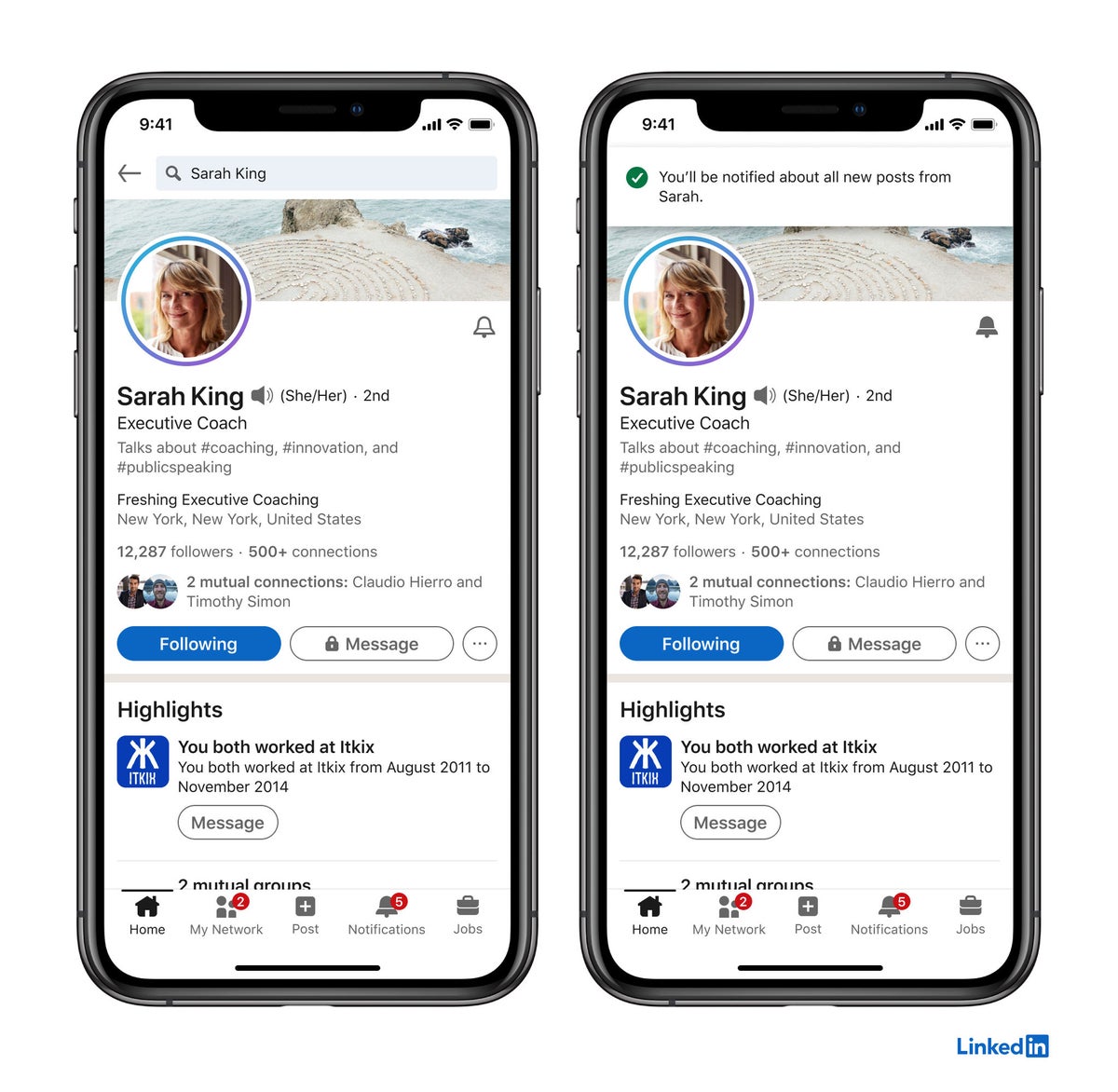
Unfollowing keeps everything removal takes away:
- Your 1st-degree connection and the ability to message them directly.
- Any recommendations or endorsements between you.
- A contact who may matter again for a job, referral or introduction.
If the problem is their content, unfollow. If the problem is the connection, remove it.
Removing a connection vs blocking someone
The three options sit on a scale:
- Unfollow: you stay connected and stop seeing their posts.
- Remove connection: you're no longer connected, and they aren't told.
- Block: you're disconnected, and you can't view each other's profiles or message each other.
LinkedIn's block overview adds that blocking also removes endorsements and recommendations and stops suggesting you to each other.
Pick the lightest option that solves the problem. You can always go further later.
Finding one person in a long connections list
If you have hundreds of connections, finding one person can take longer than removing them.
The connections list has a Sort by menu with Recently added, First name and Last name. Sorting by last name is usually fastest when you know who you're looking for.
You can also search within your connections. LinkedIn notes that these search results are limited to 100 pages or 1,000 results, so a precise name works better than a broad term.
For most removals, though, the profile route is simplest. Search for the person in the main search bar, open their profile and remove them from there.
Cleaning up many connections
LinkedIn's help page describes removing connections one at a time. It doesn't document a way to remove several at once.
If you're doing a larger clean-up, work through your connections list sorted by name, and give yourself a clear rule before you start. That keeps you from second-guessing every row.
A data download helps you plan. On a computer, go to Me, Settings & Privacy, Data privacy, then Get a copy of your data, and request your connections.
The Connections file lists each connection's name, company, position and connection date. Sort it by date or company, mark who to remove, then work through the list.
Save a recommendation before you remove its author
If the person you're removing once wrote you a recommendation, it disappears from your profile with the connection. Reconnecting won't bring it back.
Before you click, open the recommendation on your profile and copy the text somewhere safe. A document on your computer is enough.
You can't restore it to LinkedIn, but you keep the words. That's useful for a portfolio, a job application or a personal website, where a quote from a former manager still carries weight.
If the recommendation is strong and recent, that's also a good moment to reconsider. Unfollowing gives you the quiet feed without losing it.
Who to remove, and who to keep
A connection costs you nothing to keep, so removal is only worth it when it helps.
Reasonable reasons to remove someone:
- You don't know who they are and never interacted.
- Their activity crowds out the people you want to hear from, and unfollowing hasn't helped.
- The connection feels uncomfortable, for example after a bad work experience.
- You're reshaping your network toward a new field and want suggestions to follow.
Keep people who could plausibly matter later: former colleagues, managers, clients and classmates. A dormant connection can still produce a referral years from now.
Reconnecting after you remove someone
Removal isn't permanent. You can send a new invitation later, as you would to anyone.
Two things are different the second time. The recommendations and endorsements you had won't come back. And the person decides again whether to accept.
If you add a note, keep it honest and short. LinkedIn's page on personalizing invitations says free members can add a personalized message to up to three connection requests per month, each up to 200 characters.
Objections to removing a connection, answered
"Won't they be offended?" They aren't told. Most people never notice.
"What if I need them later?" You can send a new invitation. You'll lose any recommendations or endorsements between you, so weigh those first.
"Isn't it easier to just ignore their posts?" Yes, and that's what unfollowing does. If their posts are the only issue, unfollow and keep the connection.
"Will it stop them contacting me?" Not on its own. If that's the goal, block instead.
If none of these holds you back, open their profile, click More, and remove the connection.
Removing connections FAQ
Can I remove several LinkedIn connections at once?
LinkedIn's help page describes removing connections one at a time and doesn't document a bulk option. The connections list is the fastest way to work through several.
What does "Connection Removed" on a profile mean?
It's the status LinkedIn shows on a profile after you remove that person from your connections. It confirms the removal went through.
Will a removed connection still appear in my contacts?
No. LinkedIn says a removed connection won't appear in your Contacts section.