
How to contact company employees on LinkedIn without coming across as spam
Unsure how to reach someone at a company? Contact company employees on LinkedIn via the Page's employee list and a short, honest note.

How do I contact a company's employees safely on LinkedIn?
Find them by clicking the employee count on the company's LinkedIn Page, or by filtering People search by Current company, then send a connection request with a short, personal note that says why you're reaching out. On a free account, notes are capped at 200 characters and three personalized invitations a month, so choose who you contact carefully.
Below: how to find the right person, what to write, and what LinkedIn's rules say about cold outreach.
The problem with contacting people at a company you don't know
You want to learn what it's like to work somewhere, ask about a team or understand a role before you apply. The people who know are the employees.
The trouble is, they don't know you.
Reach out badly and the message looks like every other cold pitch in their inbox. Reach out well and many people are happy to help.
The difference comes down to three choices: who you contact, how you find them and what your first message says.
LinkedIn gives you the tools for all three. It also sets limits and rules that shape how you should use them, especially on a free account.
How to see a company's employees from its LinkedIn page
Many guides send you to a "People" tab on a company's Page. LinkedIn's help documentation describes a different route.
According to LinkedIn's page on members associated with a Page, the employee count shown on an organization's LinkedIn Page is clickable. Click it and you'll see a list of employees associated with the organization.
From there, you can open profiles and narrow down to the people whose roles match your question.
If the list is long, move to People search instead. Its filters give you far more control than scrolling a list of hundreds or thousands of names.
Why the employee list isn't always complete
The list on a company Page isn't an HR record. It's built from members' own profiles.
LinkedIn explains how it works:
- Employees are members who picked that organization in the Experience section of their profile.
- Only members who are currently associated appear.
- The count can take up to 30 days to update.
- Mis-associations happen, for example when someone picks the wrong organization with a similar name.
So some employees won't appear, and a few people who appear may not work there. Before you write to someone, check their profile to confirm their current role.
How to find company employees with people search
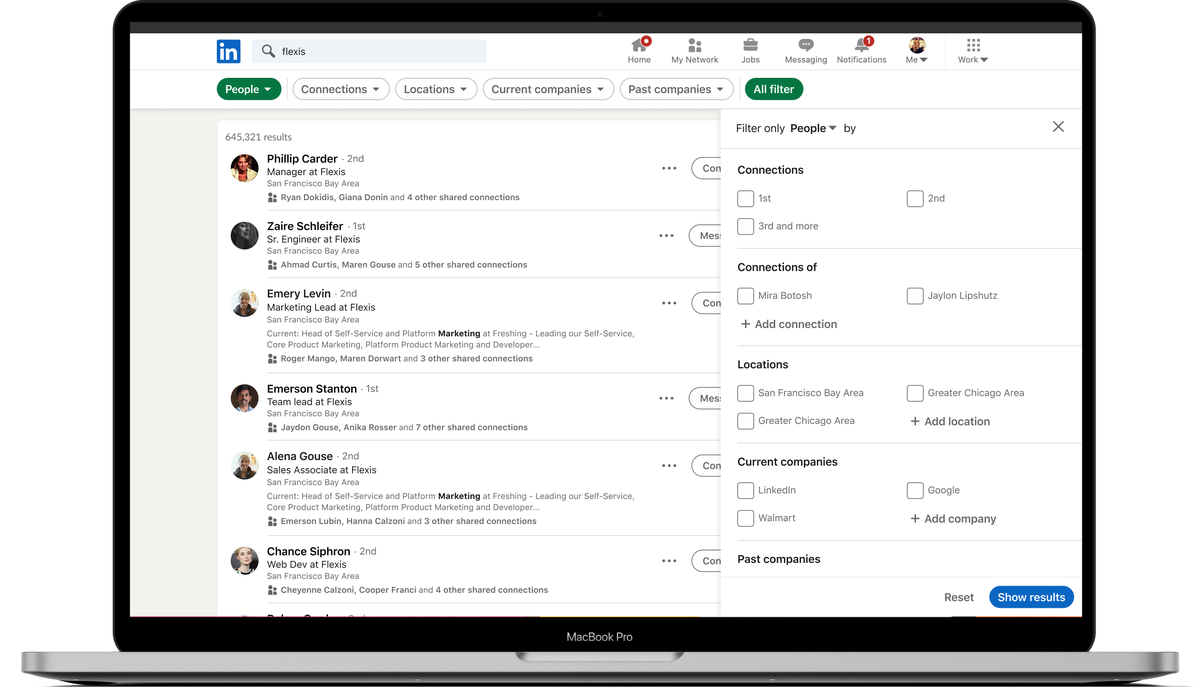
LinkedIn's People search help page documents the filters that make this precise:
- Type the company name or a plain-language query in the Search bar.
- Click See all results.
- Select the People filter.
- Open All filters and set Current company to the organization.
From there, add Locations to find people in a particular office, or Keywords to narrow by team or job title.
Current company is the filter that matters most. It limits results to people who list the organization as their present employer.
Searching in plain language
LinkedIn also supports natural-language queries. You can describe the people you want rather than building filters one by one.
LinkedIn's own example is "People I know who work at LinkedIn". Swap in the company you're interested in to start from people in your own network.
Don't put quotes around a natural-language search. LinkedIn says not to use them there.
Plain-language search is especially handy when you're not sure of exact job titles. Describe the team or function and let LinkedIn match it.
Choosing the right person to contact
Finding employees is the easy part. Choosing who to write to decides whether you get a reply.
A few principles help:
- Match your question to their role. Ask an engineer about engineering, not about the benefits package.
- Prefer people close to your level. A peer is often more approachable than a senior executive.
- Look for a shared link. A common school, former employer or mutual connection gives you a natural opening.
Resist writing to many people at the same company at once. Colleagues talk, and a burst of near-identical requests can reach the whole team.
Start with people you already share something with
LinkedIn's filters can surface the people most likely to respond: those with whom you already have something in common.
Useful filters for this:
- Degree of connections, to find 2nd-degree connections you can reach through someone you know.
- School, to find alumni of your university at the company.
- Past company, to find former colleagues who moved there.
- Connections of, to see who a specific contact knows at the company.
A shared school or former employer isn't a guarantee, but it answers the first question anyone asks about a stranger's message: "Why me?"
If a mutual connection is close to you, consider asking them for an introduction instead of writing cold.
How to send a connection request with a note
On desktop:
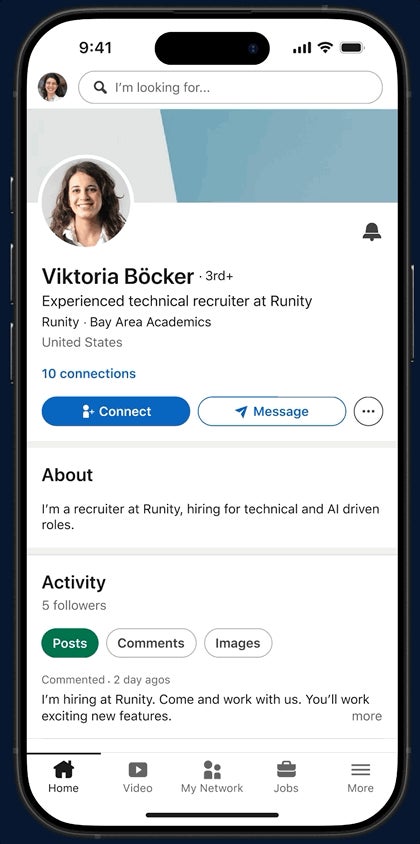
- Open the employee's profile.
- Click Connect.
- Click Add a note, then type your message.
- Click Send invitation.
In the LinkedIn app, open the profile, tap the More icon, choose Personalize Invite, write your note and tap Send Invitation.
Always add a note when you're contacting someone at a company for a reason. A blank request from a stranger gives them nothing to go on.
The limits on personalized invitations
LinkedIn's page on personalized invitations sets the current limits for free accounts:
- Each note can be up to 200 characters.
- You can personalize up to three connection requests per month.
- Premium members can send unlimited personalized invitations.
Older advice often says 300 characters, and an older LinkedIn page mentions different monthly numbers. The newer page is the one to follow.
Three notes a month changes your approach. Treat each personalized invitation as scarce, and spend it on the person most likely to help, not the first name you find.
What to write to an employee you don't know
LinkedIn's guidance for invitation notes asks for a few things: how you found the person or what you have in common, why you'd like to connect now, and a clear and polite tone. It also recommends keeping the message short and specific.
Within 200 characters, that looks like:
"Hi Sam, I'm a fellow Bristol grad applying for data roles. I'd value your view on what the analytics team at your company is like, if you're open to it."
That note says who you are, why this person and what you'd like, and it leaves them an easy way to say no.
Keep the ask small. A few minutes of their perspective is a reasonable request from a stranger. A referral isn't.
What not to put in your first message
LinkedIn's Professional Community Policies are direct: "Do not use our invitation feature to send promotional messages to people you don't know or to otherwise spam people."
The same policies describe spam as "untargeted, irrelevant, obviously unwanted, unauthorized, inappropriate commercial or promotional, or gratuitously repetitive messages".
For a first message to an employee, that rules out:
- A sales pitch or a link to your product.
- A copy-and-paste note sent to many people.
- An immediate request for a referral or an introduction to the hiring manager.
Those can come later, once there's a conversation. In the first message, they read as using the person rather than getting to know them.
Can you message company employees without connecting?
Only with InMail, and InMail is a Premium feature. If you have a Basic (free) account, you can only message LinkedIn members you're connected to directly.
LinkedIn's page on InMail and personalized invitations covers the difference between the two. A connection request with a note is the free route; InMail is the paid one.
For most people contacting employees, a connection request is enough. It's free, it builds a lasting connection, and it feels less formal than a paid message.
If you already have Premium, InMail can help when someone rarely accepts invitations. The same rules on spam still apply.
What happens after you send the request
The person sees your invitation and your note. They can accept, ignore it or indicate that they don't know you.
If they select "We don't know each other", LinkedIn may prompt them to send you a message. That's one more reason your note should explain the connection clearly.
Many people take time to respond, and some rarely check invitations. Silence isn't necessarily a no.
If they accept, reply promptly with a thank-you and your question. Don't make them ask what you wanted.
Following up without being pushy
If someone accepts and then doesn't answer your question, one short follow-up after about a week is reasonable.
Make it easy:
- Restate your question in one line.
- Offer a specific, small option, such as a few questions by message.
- Thank them either way.
If there's still no reply, stop. Try someone else at the company rather than sending a third message.
And if someone does help you, tell them what happened next. People like knowing their advice mattered, and it keeps the connection alive.
Objections to reaching out cold
"Isn't it awkward to contact a stranger at a company?" A little, but it's a normal use of LinkedIn. A short, honest note removes most of the awkwardness.
"Won't they assume I want a job?" They might. Say plainly what you're asking for, and they'll take it at face value.
"What if nobody replies?" Some won't. Pick well, write well and try more than one person over time.
"Is three notes a month too few?" It's enough if you choose carefully.
Open the company's Page, click the employee count and pick the one person you'll write to first.
Common questions about reaching employees
Can the employee reply without accepting my invitation?
Yes. LinkedIn lets the recipient reply to your note without accepting the connection request.
Can I personalize an invitation from People You May Know?
Not in the mobile app. LinkedIn says invitations sent from People You May Know in the app can't be personalized, so open the person's profile first.
Will every employee receive my InMail?
Not necessarily. Members can opt out of receiving InMail, so a connection request with a note may be the only way to reach some people.