How to cancel LinkedIn Premium on desktop, iPhone or Android
Still charged after trying to cancel LinkedIn Premium? Cancel where you bought it: LinkedIn on desktop, the iPhone app, or Google Play.
Cancelling in the wrong place is how people keep paying for a plan they thought they'd ended.
Short answer: to cancel LinkedIn Premium on a computer, click Me, then Premium features, then Manage subscription, and choose Cancel subscription in the Admin Center. The catch: you have to cancel through the same channel you paid through, so an Apple App Store subscription is cancelled on an Apple device, not on the LinkedIn website.
Below: the steps for each payment channel, what you keep until the billing date, and what happens to a free trial.
Where you bought Premium decides where you cancel it
LinkedIn Premium can be paid for in three ways: directly on LinkedIn, through Apple's App Store, or through Google Play.
Each channel has its own cancel route. LinkedIn's cancellation page lists them separately, and the differences matter:
- Bought on LinkedIn (desktop or mobile web): cancel on LinkedIn, from a computer.
- Bought through the Apple App Store: cancel from the LinkedIn app on an Apple device.
- Bought through Google Play: cancel from LinkedIn on desktop, the LinkedIn app, or Google Play on desktop or in the app.
If you're not sure which one you used, check your receipts. An Apple receipt email means Apple billed you; a card statement line from LinkedIn means LinkedIn did.
How to cancel LinkedIn Premium on a computer
This is the route for anyone who subscribed on the LinkedIn website.
Open your subscription
- Click the Me icon at the top of your LinkedIn homepage.
- Select Premium features from the dropdown.
- Click Manage subscription in the left pane, under Plan Details.
LinkedIn then sends you to the LinkedIn Admin Center, where your purchases are managed.
Cancel it in the Admin Center
- Click Purchases.
- Select your active subscription.
- Click Cancel subscription under Actions.
- Click Confirm cancel to finish.
The Admin Center page can look unfamiliar the first time. It's the right place, even though it doesn't say "Premium" in large letters.
How to cancel LinkedIn Premium in the mobile app
On the LinkedIn app, the path is shorter:
- Tap your profile photo.
- Tap Premium features, then Manage your subscription.
- Tap Cancel subscription on the Manage Premium account settings page.
- Follow the prompts to confirm.
One exception trips people up. If you bought Premium on an iPhone through the mobile browser, not the App Store, LinkedIn says you have to cancel on desktop, not in the iOS app.
Cancelling a Premium plan billed by Apple or Google
When Apple or Google collects the payment, LinkedIn can't end the billing on its own website.
For an Apple App Store subscription, cancel from the LinkedIn app on an Apple device, as LinkedIn's page describes.
For a Google Play subscription, you can cancel from LinkedIn on desktop or in the app, or from Google Play itself.
Whichever route you use, look for a confirmation afterwards. If you don't get one, the subscription is probably still active in the store's own subscription list.
Cancel at least a day before you're billed
Timing matters more than most cancellation guides admit.
LinkedIn asks you to cancel your plan at least one day before your next scheduled billing date. Cancelling on the billing day itself can be too late to stop that charge.
If your renewal is tomorrow, cancel today. Set a reminder two or three days before the renewal date if you're deciding whether to keep it.
What you keep after cancelling LinkedIn Premium
A paid plan doesn't stop the moment you cancel. You keep Premium features until the end of the billing cycle you already paid for, then the account drops back to free.
LinkedIn's cancellation FAQ lists what goes at that point:
- Any InMail credits you've built up, which can't be credited back.
- The full Who's viewed your profile list.
- LinkedIn Learning access.
- Premium job and applicant insights.
- Unlimited people browsing, where a commercial use limit may apply instead.
Your profile, connections and data stay exactly as they were. Cancelling Premium never deletes your account.
Cancelling a LinkedIn Premium free trial
Free trials follow different rules, and the difference is easy to miss.
When you cancel a trial, access ends immediately. You don't keep Premium until the date the trial would have converted.
You also won't be eligible for another free trial for at least 12 months.
If you want to keep testing features, wait until the last day or two before the trial converts, then cancel.
Downgrading instead of cancelling
If the price is the problem, not the product, a smaller plan may be enough.
LinkedIn lets you downgrade Premium instead of cancelling, but only on desktop.
That keeps your account on a paid plan with fewer features, rather than dropping it to the free version.
Think about which features you actually used. If InMail was the reason you paid, check whether the smaller plan still includes it before you switch.
Why you might lose your current price
Promotional prices don't come back.
LinkedIn notes that cancelled promotions and discontinued plans can't be repurchased at the same price. If you're on an old or discounted rate, cancelling ends it permanently.
That's worth weighing before you cancel for a single quiet month. Resubscribing later often costs more than keeping the plan through a slow patch.
When you can't sign in to cancel
Some members lose access to the account that holds the subscription, for example an old work email.
LinkedIn's page notes that in Germany and the United States, some subscriptions can be cancelled without signing in, through a form. Outside those cases, recovering access to the account is the first step.
If you have two LinkedIn accounts, check which one the plan is on. Cancelling on the wrong account changes nothing on the paid one.
Use your InMail credits before the plan ends
Unused InMail credits are the one thing people regret after cancelling. LinkedIn is clear that accumulated credits disappear when Premium ends, and they can't be credited back.
So the days between cancelling and the end of the billing cycle are worth using. If there are recruiters, hiring managers or prospects you meant to contact, send those messages now.
Conversations you've already started don't vanish when the plan ends. The messages stay in your inbox like any other.
What changes is your ability to start new InMail conversations with people outside your network. After that, you're back to connection requests and messages to your existing connections.
A short list helps here. Write down the three or four people you'd most regret not contacting, and reach out to them before the renewal date.
How to check that your LinkedIn Premium cancellation worked
A cancel button that seemed to work isn't proof. The confirmation is what counts, and it's worth checking in two places.
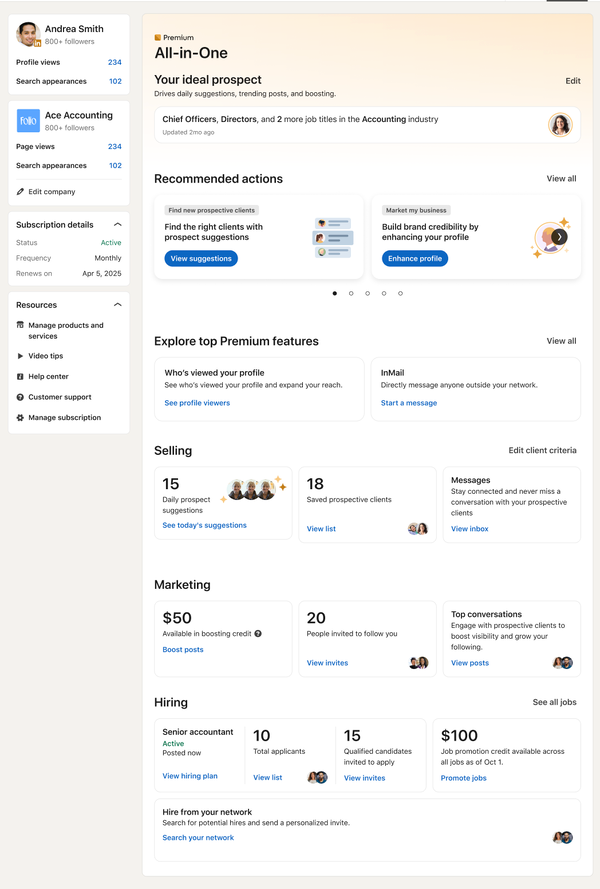
First, go back to the subscription area where you cancelled. A cancelled plan should no longer show an upcoming charge; it shows when Premium access ends instead.
Second, if Apple or Google billed you, open that store's subscription list too. That's where the billing actually lives, so that's where the cancellation has to show.
If either place still shows a renewal, the cancellation didn't go through. Try again through the channel that billed you, and keep a screenshot of the confirmation this time.
Screenshots sound fussy, but they settle billing questions quickly if a charge appears later.
Coming back to LinkedIn Premium later
Cancelling isn't a permanent decision. Many people keep Premium only while they're job hunting or running an outreach push, then drop it again.
When you come back, you subscribe again at whatever price is offered then. The discounted rate you had before won't return, as LinkedIn's page notes.
Your account history carries over, because the account itself was never closed. Your profile, connections and messages are all where you left them.
The free trial is the part that doesn't reset. If you've had one recently, expect to pay from the first day.
Which cancellation route is yours?
Work through it in this order:
- Did Apple bill you? Cancel from the LinkedIn app on an Apple device.
- Did you pay on the iPhone's mobile browser? Cancel on desktop.
- Did Google Play bill you? Cancel from LinkedIn or Google Play.
- Did LinkedIn bill you directly? Use Me, Premium features, Manage subscription on a computer.
- Only want a cheaper plan? Downgrade on desktop instead.
Once you've cancelled, check the next billing date has disappeared from your subscription details. That's the proof the charge won't come.
Premium cancellation FAQ
Does LinkedIn Premium stop the moment I cancel?
Not for a paid plan. Cancelling stops the next charge, and you keep Premium features until the end of the period you already paid for, rather than losing them at once.
Do I lose my connections or messages when Premium ends?
No. Your profile, connections and data are kept. Only the Premium features, such as InMail credits and the full viewer list, go away.
Can I start a new free trial after cancelling one?
Not straight away. LinkedIn says you won't be eligible for another free trial for at least 12 months after cancelling one.