Does LinkedIn have read receipts, and how do you turn them off?
Does LinkedIn have read receipts, and how do you turn them off?


Does LinkedIn have read receipts?
Yes. When someone reads your message, a small profile photo appears next to it. You can turn LinkedIn read receipts off under Settings & Privacy, Data privacy, Delivery and typing indicators, but then nobody in the conversation, including you, sees whether messages were read.
Below: how the indicators work, where they don't appear, and the exact steps on desktop and mobile.
How LinkedIn read receipts work
LinkedIn Messaging shows you when a message you sent has been read. LinkedIn's read receipts help page describes the signal: a small profile photo appears next to the message.
That tiny photo is the whole receipt. There's no "Seen at 3:42 pm" timestamp and no separate label. The recipient's thumbnail appears under the last message they've read.
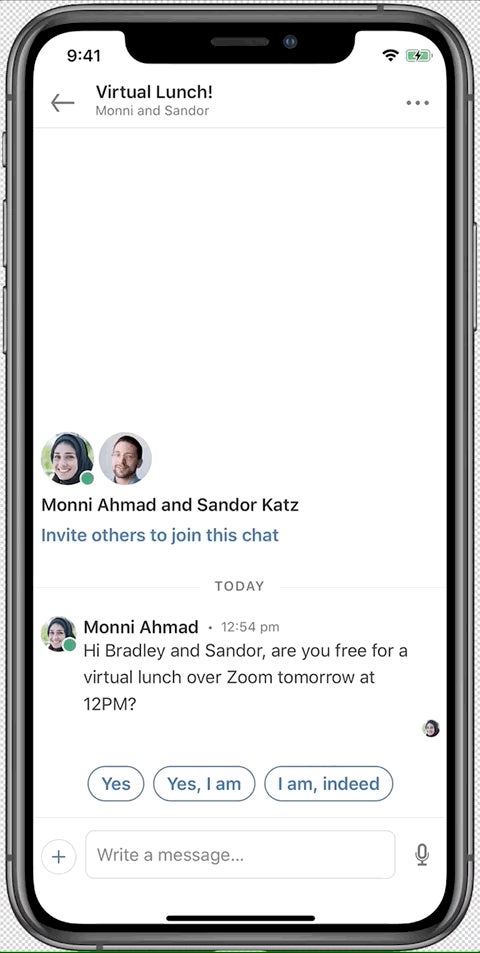
Read receipts come as a pair with typing indicators, the moving dots that show the other person is writing a reply. LinkedIn treats both as one setting.
The three message statuses you'll see
LinkedIn's page on message indicators lists the statuses a sent message goes through:
- Sending message: it's on its way.
- Message sent: it reached LinkedIn's servers.
- Message read: the recipient opened it, shown by their small profile photo.
If the other person has turned read receipts off, your message stays at Sent. It never moves to read, even after they've opened it.
That's the key thing to remember. "Sent" doesn't mean "unread." It can simply mean the other person has receipts switched off.
How to turn off read receipts on LinkedIn on desktop
- Click the Me icon at the top of your LinkedIn homepage.
- Select Settings & Privacy.
- Click Data privacy in the left pane.
- Under Messaging experience, click Delivery and typing indicators.
- Switch the toggle off.
The setting's name has changed over time. Older guides call it "Read receipts and typing indicators." The current label is Delivery and typing indicators, and it sits in the same place.
How to turn them off in the LinkedIn app
On iPhone or Android:
- Tap your profile photo.
- Tap Settings.
- Tap Data privacy.
- Under Messaging experience, tap Delivery and typing indicators.
- Switch the toggle off.
The change applies to your account, so you only need to do it once, on one device.
The trade-off: it works both ways
Turning read receipts off isn't a one-way privacy shield.
LinkedIn is clear on this. When the indicators are off, no one in the conversation, including you, can see whether messages have been read.
So you gain privacy and lose information:
- People who message you won't know when you've read their message.
- You won't know when people read yours.
- Typing indicators disappear too, in both directions.
If you rely on read receipts to know when to follow up with a recruiter or client, switching them off costs you that signal.
Read receipts are on by default
If you've never touched this setting, it's on. LinkedIn notes the feature is on by default.
That surprises some members. They assume LinkedIn behaves like email, where nobody knows when you've opened a message.
In fact, anyone you message with may be able to see that you read their note and didn't reply.
When the indicators are on, LinkedIn says they show for all messages sent between you and your connections.
Where LinkedIn read receipts don't appear
There are two cases where read receipts don't show, even with the setting on.
InMail. LinkedIn says read receipts and typing indicators don't appear to senders of InMail messages. If you send an InMail to someone you're not connected with, you won't see when they read it.
Message requests. For message requests, read receipts only appear after the recipient accepts. Until then, there's no read signal.
This matters for job seekers and salespeople in particular. The messages you most want to track, cold outreach to people outside your network, are exactly the ones that don't show a read status.
Can you read a LinkedIn message without the sender knowing?
With the setting on, not really. Opening the conversation marks the message as read, and the sender sees your photo next to it.
The reliable way is to turn off Delivery and typing indicators before you open the message. The sender then sees Sent, not read.
Notification previews can show part of a message on your phone's lock screen or in an email notification. Whether that counts as opening depends on your device, and LinkedIn doesn't document it, so don't rely on it.
The unread badges on your side
Read receipts are what the sender sees. You also see badges for messages you've received.
LinkedIn uses two:
- A red badge on the Messaging icon shows how many new messages you haven't seen yet.
- A blue badge on a conversation shows how many unread messages sit inside it.
The badges are for you only. They don't tell the sender anything.
Should you turn read receipts off?
It depends on how you use LinkedIn.
Keep them on if:
- You're job hunting or selling and want to know when someone has read your message.
- You reply to most messages quickly anyway.
Turn them off if:
- You get lots of messages and don't want people to see which ones you've opened and left.
- You want time to think before replying without the sender watching the thread.
Neither choice is rude. Plenty of professionals switch receipts off simply because their inbox is busy.
What to do when your message shows "read" but no reply
A read receipt with no reply is the most frustrating signal on LinkedIn. It's also usually less personal than it feels.
People often read messages on their phones between meetings, mean to reply later, and forget. The read signal means they saw it, not that they decided against you.
A reasonable approach:
- Wait a few working days before following up.
- Send one short follow-up that adds something new: a link, a date, a clearer question.
- Stop there if there's still no reply. A third nudge rarely helps.
Your follow-up doesn't need to mention that you saw they'd read the first one. That tends to put people on the defensive.
How typing indicators fit in
Typing indicators are the other half of the same switch. When someone in the conversation is writing a reply, you see an animated signal that they're typing.
They're useful in a live back-and-forth. If you can see the other person typing, you know to wait a moment rather than sending a second message on top of theirs.
They can also create the same pressure as read receipts. A typing signal that appears and disappears without a message tells the other person you started a reply and stopped.
Because LinkedIn bundles the two, you can't keep one and drop the other. Turning off Delivery and typing indicators removes both, in both directions.
Using read receipts in a job search
For job seekers, read receipts are one of the few pieces of feedback LinkedIn gives you between applying and hearing back.
They're most useful with people you're already connected to: a former colleague you asked for a referral, a recruiter who reached out to you first, a hiring manager who accepted your invitation.
A few practical habits help:
- Read the signal as timing, not interest. A quick read means your message arrived at a good moment, nothing more.
- Follow up on reads, not on silence. If a message was read and a week has passed, a short follow-up is reasonable.
- Remember cold outreach is invisible. InMails and unaccepted message requests won't show a read status, however long you wait.
If you're the one receiving lots of recruiter messages, the reverse applies. Turning receipts off lets you read every offer without signaling interest in any of them.
When the status seems stuck on Sent
If a message stays at Sent for days, the likeliest explanations are:
- The recipient has turned off delivery and typing indicators.
- It was an InMail, which never shows read receipts to the sender.
- It went as a message request that hasn't been accepted.
None of these means your message failed. It may have been read. You just can't see it.
Your choice, either way
LinkedIn read receipts are simple once you know the rules. They're on by default, they work both ways, and they never appear on InMail.
Leave them on if the signal helps you. Turn them off if the pressure doesn't. You can change your mind at any time, and the switch takes effect for every conversation.
Read receipt FAQ
Do LinkedIn read receipts show the time a message was read?
No. LinkedIn shows a small profile photo next to the read message. It doesn't show a separate read timestamp.
If I turn off read receipts, can I still see when others read my messages?
No. LinkedIn says that with the setting off, no one in the conversation, including you, can see whether messages have been read.
Why can't I see if someone read my InMail?
LinkedIn doesn't show read receipts or typing indicators to InMail senders, regardless of either person's settings.