How to check DMs on Instagram, including requests and hidden messages
To check DMs on Instagram, tap Messages at the bottom of the app, or click Messages at instagram.com. New senders go to Requests.


Instagram messages can land in more places than one inbox. Your main chats, message requests, a spam folder and, on business accounts, separate tabs all hold messages, and a missed one is usually sitting in one of them.
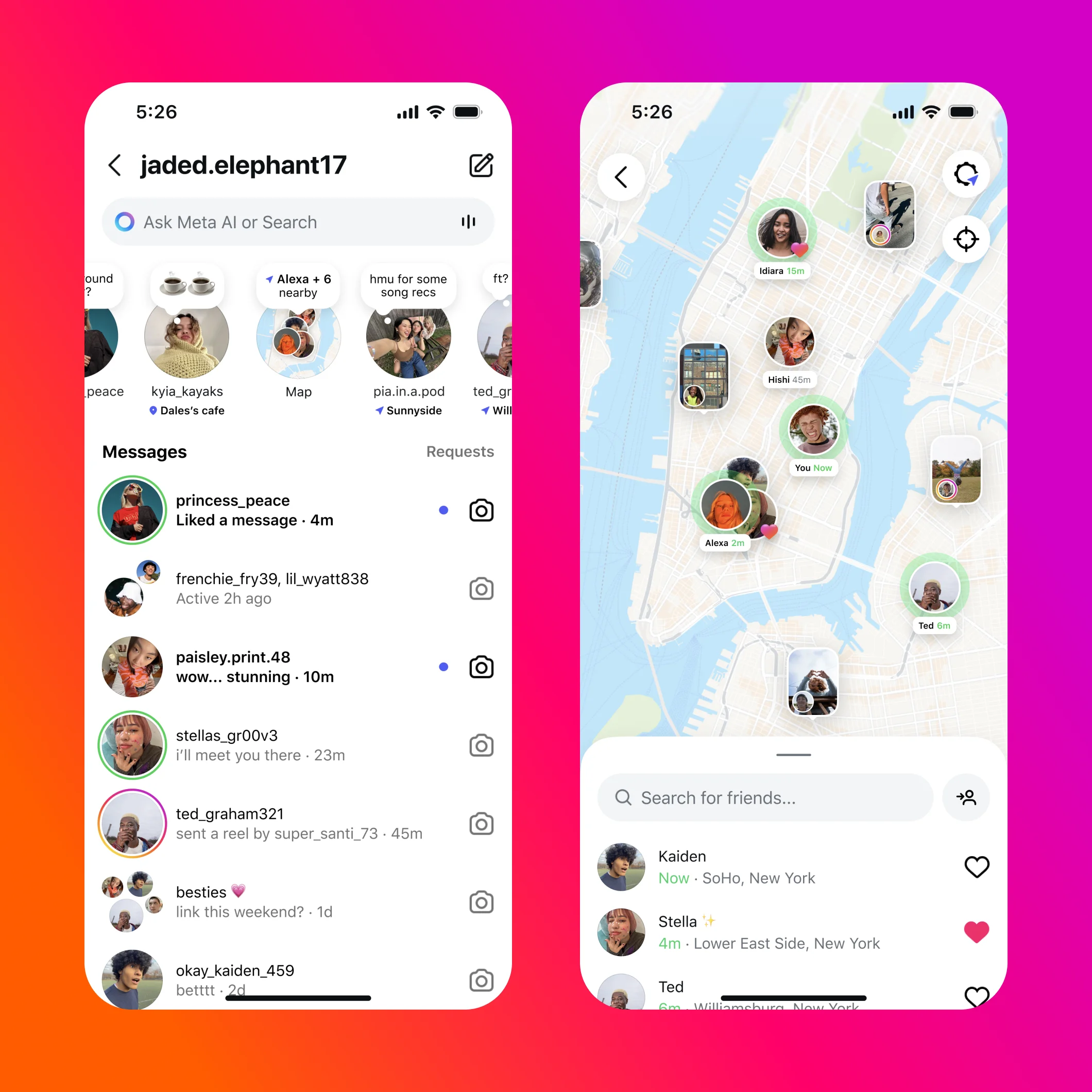
To check DMs on Instagram, tap Messages at the bottom of the app to open your inbox, then tap Requests for messages from people you don't follow.Your chats list shows ongoing conversations, with notes and the map along the top.Messages from people you don't follow arrive in Requests, where you can accept or delete them.Messages filtered as possible spam go to a separate Spam folder inside Requests.
Below: where each kind of message lands, how to check on a computer, and what to do when a message seems to be missing.
How to check DMs on Instagram in the app
Instagram's messaging help, including its page on reacting and replying to messages, starts every flow the same way: tap Messages at the bottom of the app.
That opens your inbox. From there:
- Tap a conversation to open it and read the messages.
- Scroll the chats list to find older conversations.
- Tap Requests to see messages from people you don't follow.
Instagram explains the split plainly: if someone you follow sends you a message, it appears in your inbox; if someone you don't follow sends one, it appears as a message request.
If you're looking for a message from someone new, check Requests first.
What else sits in your inbox
The inbox isn't only a list of chats. A few other things appear along the top.
Notes. Instagram's page on notes says your note, and notes shared by people you follow, appear at the top of your inbox for up to 24 hours.
The map. Instagram's page on location sharing says the Instagram map sits at the top of your inbox, where people who share their location with you appear.
Activity status. Instagram's page on seeing who's active explains that your inbox shows people's most recent activity, such as Active 25m ago, Active yesterday, Seen or Typing, when both of you have activity status on.
How to check DMs on a computer
At instagram.com, Instagram's page on sending and managing messages describes the desktop version:
- Click Messages on the left.
- Click the conversation you want to view.
To start a new chat on a computer, click Compose, choose who to message, click Chat, type and send. You can also message someone you follow by going to their profile and clicking Message.
Your conversations are the same on phone and computer, because they belong to your account rather than the device.
How to check and manage message requests
Message requests hold messages from people you don't follow. Instagram's reply page explains how to handle them:
- Tap Messages at the bottom.
- Tap Requests.
- Open a message, then tap Accept or Delete.
When you accept, the person's future messages go straight to your inbox.
To clear all requests at once, tap Edit in the top right of the requests list, then Delete All.
Instagram also notes a limit on the sender's side: a message to someone who doesn't follow them, or isn't otherwise connected, arrives as a request and can only contain text until it's accepted.
Check your Spam folder too
Some requests are filtered further. Instagram's page on spam messages says message requests that may be offensive, unwanted or spam, or that match your Hidden Words preferences, appear in a separate Spam folder.
To check it:
- Tap Messages, then Requests in the top right.
- Tap Spam.
- Open a message to block, delete or accept it.
Instagram says you won't receive notifications for spam, which is exactly why real messages can sit there unnoticed.
Accepting one moves the conversation to your main messages folder.
Business and creator accounts have extra tabs
Professional accounts organize messages differently. Instagram's page on professional accounts says they get an inbox with Primary, General and Requests folders, which you can use to organize messages and control notifications.
They can also sort requests by received date or by top accounts.
For a business handling customer messages, checking General as well as Primary is part of a daily routine, since the folders exist to separate messages and their notifications.
Group chats and group requests
Group chats appear in your chats list alongside one-to-one conversations. Who can add you to a new group is a setting, and Instagram's page on managing message requests describes the two choices.
With Everyone selected, group chats from accounts you've already connected with appear in your chats list, and all other group chats go to your Message Requests folder. With People you follow selected, only people you follow or have messaged before can add you to groups.
If a friend says they added you to a group you can't see, check Requests. It's usually waiting there.
Story mentions and replies arrive as messages
Not every message is typed in a chat. Instagram's page on story mentions explains that when someone you follow mentions you in their story, you get a direct message with a preview of it. If you don't follow them, the mention appears as a message request.
Replies to your own stories and notes arrive in your inbox too, attached to the story or note they're about. So a busy inbox after posting a story is normal: those are people responding to it.
Report or block from the inbox
Unwanted messages can be dealt with where they land. In the Spam folder, Instagram says you can open a message and choose Block, Delete or Accept.
Instagram adds that reports of spam messages are anonymous, except for intellectual property reports, and the account you report won't see who reported them.
For someone who keeps messaging you, blocking stops their messages from reaching you at all.
Choose who can message you
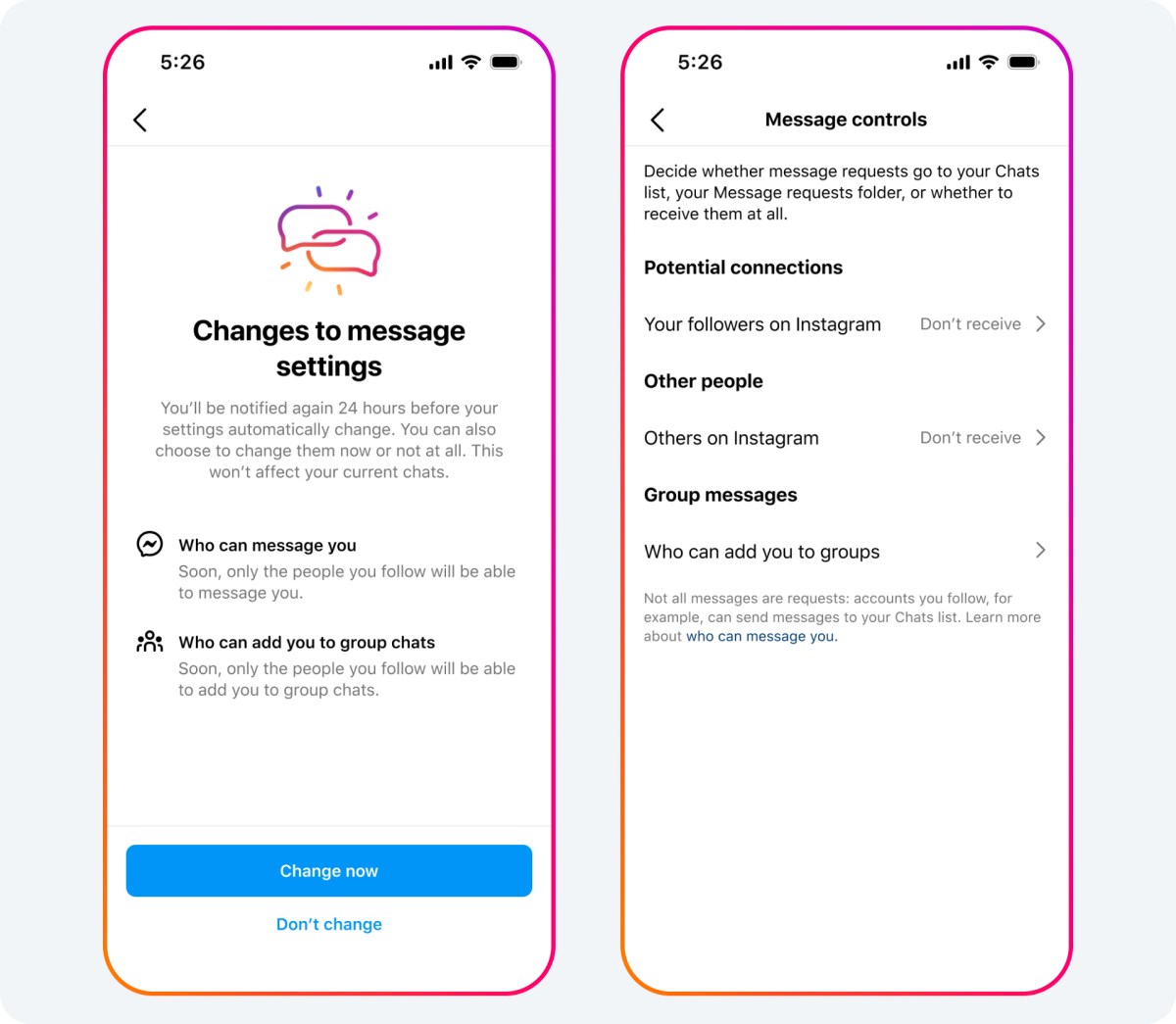
If your requests are flooded, you can change who reaches them. Instagram's page on managing message requests gives the route:
- Open the menu on your profile.
- Tap Messages and story replies, below "How others can interact with you."
- Tap Message requests and choose whether requests go to your Message Requests folder or whether to receive them at all.
The same screen lets you choose who can add you to group chats: everyone, or only people you follow. Instagram notes that accounts you've blocked can't send you requests or add you to groups.
Why a message might seem to be missing
If someone says they messaged you and you can't find it, work through these places:
- Requests, if you don't follow the sender.
- Spam inside Requests, if the message was filtered.
- General, on a business or creator account.
- Your message request settings, in case requests are turned off.
Some causes are on the sender's side. They may have unsent the message, which Instagram says removes it for everyone, or you may have restricted them. Instagram says a restricted person's chat moves to Message Requests, and their future messages go there too.
Instagram also keeps a troubleshooting page for problems seeing direct messages, which is the next stop if a message still doesn't appear.
Reply to a specific message
Once you've found a message, you can answer it directly. Instagram's reply page explains: open the conversation, tap and hold the message, and tap Reply.
Your answer then appears with a quote of the original message above it, which keeps busy chats easy to follow.
From the same menu you can react with an emoji, add a sticker, forward the message or translate it.
Keep your inbox manageable
A few habits make checking messages faster:
- Mute noisy chats. Instagram lets you mute messages and calls in a chat without blocking anyone.
- Clear requests regularly with Delete All, after accepting the ones you want.
- Use Hidden Words so offensive requests are filtered into Spam automatically.
- Turn off read receipts if you'd like to read messages without showing "Seen."
Checking your Instagram DMs, in summary
Tap Messages at the bottom of the app, or click Messages on the left at instagram.com, to open your inbox. Messages from people you don't follow wait in Requests, filtered ones in the Spam folder inside Requests, and on professional accounts some chats sit in General.
If a message seems to be missing, check those places and your message request settings before assuming it never arrived.
Instagram DM questions
Why don't I get notifications for some messages?
Instagram says you won't get notifications for messages in your Spam folder. Muted chats, and messages in a professional account's General tab, can also arrive quietly.
Can someone who doesn't follow me send me photos?
Not at first. Instagram says a message from someone you're not connected with arrives as a request and can only contain text until you accept it.
Can I check Instagram DMs without the app?
Yes. At instagram.com, click Messages on the left to open your inbox in a browser.