
How to change your Instagram password, and what to do right after
To change your Instagram password, open Settings, go to Accounts Center > Password and security, tap Change password and enter a new one.
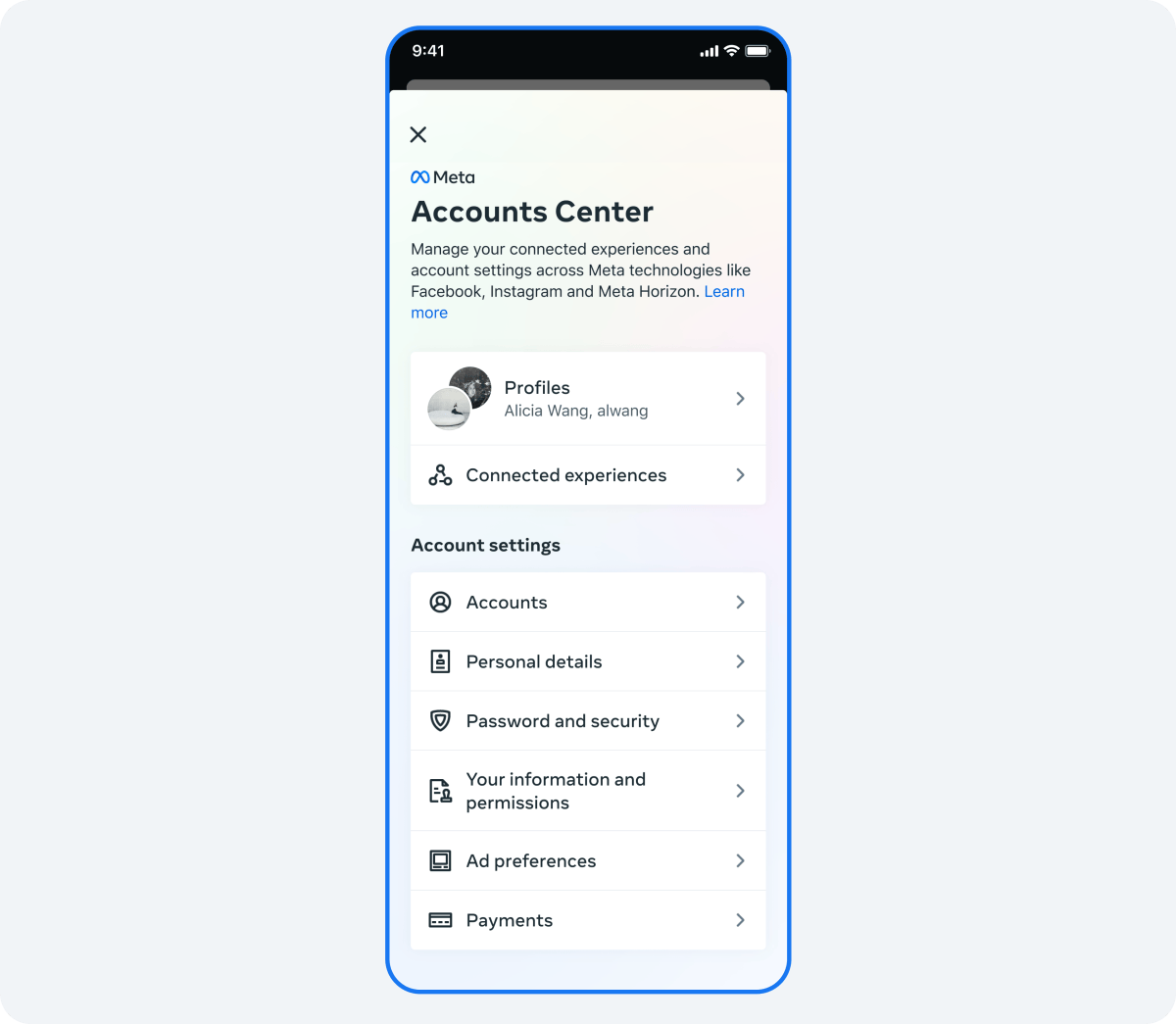
To change your Instagram password, open your profile menu, go to Settings and privacy > Accounts Center > Password and security, and tap Change password.Choose your Instagram account from the list.Enter your current password, then your new password twice.Tap Change password to confirm.
Forgot the current one? Tap "Forgot password?" on the login screen to get a reset link by email or text. The full steps, a strong-password checklist and the security steps worth doing at the same time are below.
How to change your Instagram password in the app
If you can log in and you know your current password, the change takes under a minute. Instagram's page on changing your password lists the steps.
Open the password settings
- Tap Profile or your profile picture in the bottom right to go to your profile.
- Tap the menu (three lines) in the top right.
- Tap Password and security. On some accounts this sits inside Accounts Center, or its newer name, Meta Account.
Set the new password
- Tap Change password, then tap the Instagram account you want to change.
- Enter your current password, type your new password, retype it, and tap Change password.
The new password works immediately. Next time you log in on another phone or browser, you'll need it.
If you manage several accounts in the same Accounts Center, the list in step 4 shows each of them. Make sure you pick the right one, especially if a business and a personal account share the same login screen.
How to change your Instagram password on a computer
The same setting is available at instagram.com:
- Click More in the bottom left, then click Settings.
- Click Accounts Center, then click Password and security.
- Click Change password, then click the account you want to change.
- Enter your current password and your new one, retype it, and click Change password.
The change applies to your account everywhere, so you don't need to repeat it in the app.
If you use a password manager on your computer, update the saved entry at the same time so it doesn't autofill the old one next time.
If you've forgotten your current password
Changing a password needs the old one. If you don't have it, reset it instead.
Instagram's page on resetting your password explains how:
- On the login screen, tap Forgot password? above Log in.
- Enter your username, email or phone number, and tap Continue.
- Open the link Instagram sends to your email or phone, and follow it to set a new password.
If none of those details work, Instagram says to visit instagram.com/hacked in a browser to secure your account. That page is built for people who can't reset their password the normal way.
Resetting is for when you're locked out. Changing is for when you're in and want a new password.
What makes a strong Instagram password
Instagram's own guidance sets the minimum: use a combination of at least six numbers, letters and punctuation marks, like ! and %.
Six is the floor, not the goal.
A few habits make a password far harder to guess:
- Make it long. Twelve characters or more beats any clever trick at six.
- Make it unique. Never reuse a password from another app or site. If that site is breached, your Instagram is next.
- Avoid personal details. Birthdays, pet names and your username are the first guesses.
- Use a passphrase. Four unrelated words with a number and a symbol are easy to remember and hard to crack.
A password manager, built into most phones today, can create and remember a strong password for you, which removes the temptation to reuse an old one.
Turn on two-factor authentication while you're there
A new password protects you until it leaks. Two-factor authentication protects you even if it does.
Instagram's page on two-factor authentication explains that it requires a code whenever someone tries to log in from a device Instagram doesn't recognize.
To switch it on:
- Open the menu on your profile and tap Accounts Center.
- Tap Password and security, then Two-factor authentication.
- Select your account and choose a security method, then follow the on-screen steps.
You're already in the Password and security menu when you change your password, so it's the natural moment to set this up too.
Check where you're logged in
Changing your password is often a reaction to something: an odd notification, a login alert, a message you didn't send.
If that's why you're here, check which devices have access. Instagram's page on login activity shows how.
- Open the menu on your profile and tap Password and security.
- Tap Where you're logged in to see recent logins across your accounts.
- Tap your account, then Select devices to log out, choose any you don't recognize, and tap Log out.
On some accounts the older route still appears: tap Security, then Login Activity. There, you can tap This Wasn't Me next to an unfamiliar login and follow the steps to reset your password and secure the account.
When a password change isn't enough
If someone else has already changed your password or email, you won't be able to change it back from settings. Instagram's page on hacked accounts lists the recovery steps.
Start with your email. If you received a message from security@mail.instagram.com saying your email address was changed, Instagram says you may be able to undo it by selecting "secure my account" in that message.
If that doesn't work, request a login link: tap Forgot password? on the login screen, enter the username, email or phone number on the account, complete the captcha, and choose where to receive the link.
If you no longer have access to those details, tap Can't reset your password? and follow the instructions.
Instagram also points everyone in this situation to instagram.com/hacked, which walks through recovery from a browser.
Spot fake "change your password" messages
Password changes attract scammers. A common trick is a message or email saying your account will be deleted unless you "confirm" your password through a link.
Instagram's hacked-account page names the address its real security emails come from: security@mail.instagram.com.
A message about your password or email that comes from any other address, or arrives as a DM from an account claiming to be Instagram, deserves suspicion.
A few rules keep you safe:
- Change your password only from inside the app or at instagram.com, never through a link someone sends you.
- Don't type your password on a page you reached from a message, even if it looks like Instagram.
- If a message worries you, open the app yourself and check Password and security directly.
The safest habit is simple.
Instagram never needs you to send it your password, so any message asking for it isn't from Instagram.
Revoke apps that know your old password
A new password stops anyone using the old one.
It's also worth checking which apps you've connected to your account, since some use access tokens rather than your password.
Instagram's page on connected apps and websites gives the route: open the menu, tap Website permissions, then Apps and websites, then Active, and tap Remove next to anything you don't use or don't trust.
Instagram also warns specifically about apps that offer likes or followers in exchange for your login details. If you ever gave your password to one, changing it is Instagram's recommended fix.
When to change your Instagram password
You don't need a calendar reminder, but some moments call for a new password straight away:
- You get a login alert or security email you don't recognize.
- You shared your password with anyone, including an app or a former employee.
- You logged in on a shared or public device and can't confirm you logged out.
- A site where you used the same password reports a data breach.
Outside those moments, a strong, unique password with two-factor authentication on is enough.
Won't changing my password log me out everywhere?
It's a fair worry if you use Instagram on several devices. The good news is that the extra log-ins are a small price for knowing the old password no longer works.
If you want to be certain every other device is signed out, use Where you're logged in to log out the devices you don't use. Then log back in on the ones you do, with your new password and, ideally, a two-factor code.
Instagram password FAQ
Why am I getting password reset emails I didn't request?
Someone may have typed your username or email into the reset form. The email alone doesn't give them access, since the link goes to you. Ignore it, and consider turning on two-factor authentication.
Can I change my Instagram password without knowing the old one?
Not from settings. Use Forgot password? on the login screen to reset it with a link sent to your email or phone.