How to find your LinkedIn URL on desktop, the app and mobile browser
Find your LinkedIn URL under Public profile & URL on your profile's right side; in the app, it's in Contact info under Your Profile.

Your profile link is easy to find once you know which corner of the page it lives in.
To find your LinkedIn URL on a computer, click Me, then View Profile, and look under Public profile & URL on the right side of the page. It starts with www.linkedin.com/in/. In the LinkedIn app, it's in your Contact info, under Your Profile.
Below: the steps for every device, what the link looks like, and how to make it cleaner.
Where your LinkedIn URL lives
Every LinkedIn member with a public profile has a public profile URL. It's the web address anyone can use to open your profile, and it's the link you paste into a resume, an email signature or a job application.
LinkedIn's public profile URL page says the link starts with www.linkedin.com/in, followed by a name or a string of characters unique to you.
It shows up in three places, depending on your device:
- Desktop: the right side of your profile, under Public profile & URL.
- LinkedIn app: your Contact info, under Your Profile.
- Mobile browser: the Contact section of your profile, under LinkedIn.
How to find your LinkedIn URL on a computer
- Click the Me icon at the top of your LinkedIn homepage.
- Click View Profile.
- Look at the right pane for Public profile & URL. Your link is shown there.
That's the official spot. It's also where you go to change the link, which we'll cover below.
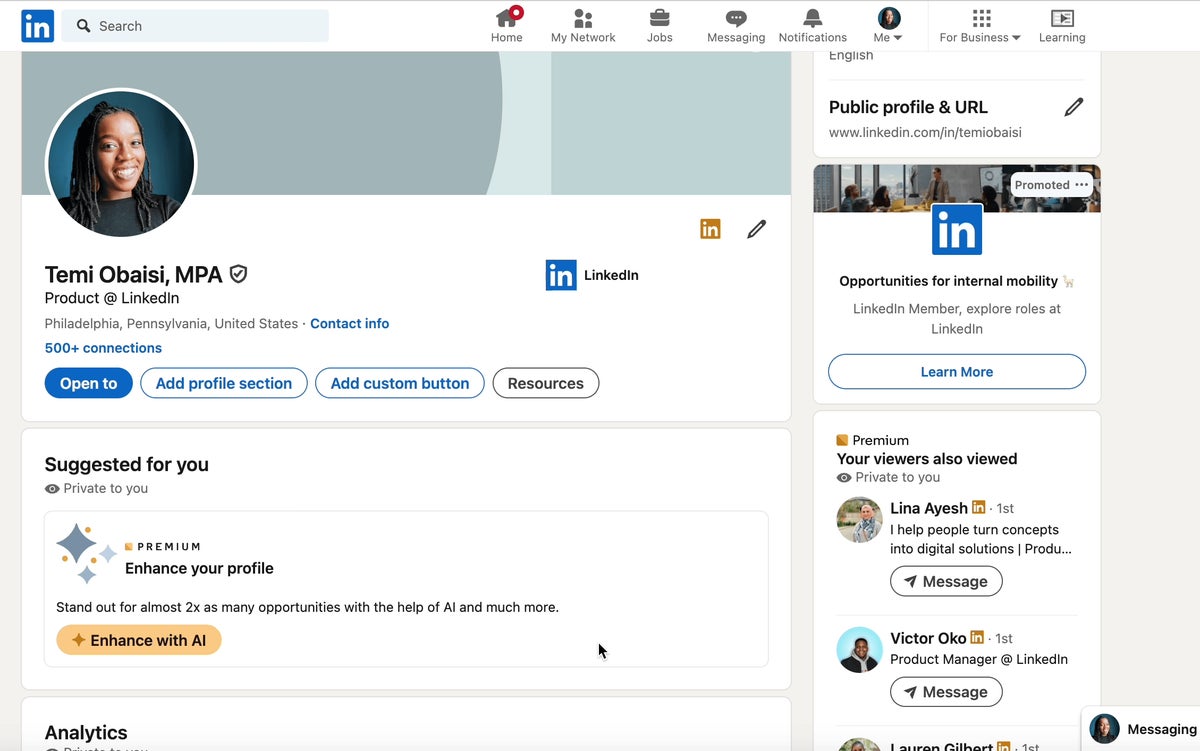
While you're on your own profile page, the browser's address bar shows a link to it too. The Public profile & URL panel is still the better source, because it shows the clean public version LinkedIn wants you to share.
How to find your LinkedIn URL in the app
In the LinkedIn app on iPhone or Android:
- Tap your profile photo, then tap it again to open your profile.
- Tap the More icon next to the Add section button.
- Tap Contact info.
- Find your URL under Your Profile.
The app hides it one level deeper than the desktop site, which is why people often think the app doesn't show it at all.
How to find it in a mobile browser
If you use LinkedIn in Safari or Chrome on your phone, not the app:
- Tap your profile photo to open your profile.
- Open the Contact section.
- Look under LinkedIn for your profile URL.
This is handy when you're filling in an application form on your phone and don't want to switch apps.
What a LinkedIn profile URL looks like
A default URL often mixes your name with numbers or letters, for example www.linkedin.com/in/jane-smith-4b2a91. Those extra characters are how LinkedIn keeps each link unique.
Some members see a different start. LinkedIn notes that in some countries the URL begins with a two-letter country code, such as ca.linkedin.com/in/.
That prefix can change if you change the country on your profile. LinkedIn says your old URL keeps working, so links you've already shared won't break.
Why you might not have a LinkedIn URL
If you can't find a public profile URL anywhere, check your public profile visibility.
LinkedIn says you won't have a public profile URL if you don't have a public profile. Members who've turned their public profile off can still use LinkedIn, but there's no public web address for others to open.
To fix it, go to your public profile settings and turn public visibility back on. The URL appears once the public profile exists again.
How to customize your LinkedIn URL
The default link works, but a clean one is easier to type, remember and trust.
LinkedIn's page on managing your public profile URL explains the steps:
- Click Me, then View Profile.
- Click the Edit icon next to Public profile & URL on the right.
- Under Edit your custom URL, click the Edit icon next to your current URL.
- Type the last part of your new URL in the text box.
- Click Save.
The change takes effect right away. Your new link is what LinkedIn shows from then on.
LinkedIn's rules for custom URLs
A custom URL has to follow a few rules, and knowing them saves failed attempts:
- It must be 3 to 100 characters long.
- It can't contain spaces, symbols or special characters.
- It can't contain the word "LinkedIn".
- It's not case sensitive, so capitals don't matter.
Custom URLs are also first come, first served. If someone already has your exact name, try adding a middle initial, your profession or a short suffix.
You can hold only one custom URL at a time.
Choosing a good custom URL
The best custom URLs are boring in the right way.
A few patterns that work well:
- firstname-lastname, when it's available.
- firstnamelastname, if the hyphenated version is taken.
- firstname-middleinitial-lastname, for common names.
- firstname-lastname-role, such as jane-smith-design, when you want the field in the link.
Avoid nicknames, birth years and jokes. The link will sit on formal documents for years, and "jsmith1987" invites a guess at your age that you didn't intend to share.
What happens to your old URL after you change it
Here's the catch with changing a custom URL: you can hold only one at a time, so the new one replaces the old one.
LinkedIn softens that with a grace period. An old custom URL stays linked to you for six months after a change, unless you unlink it, so people following your previous link still reach you in that time.
There's also a cap: LinkedIn allows up to five changes within six months. That's enough to fix a typo, not a reason to keep experimenting.
That's why it's worth choosing carefully once, rather than changing it several times.
Use the six months to update everywhere the old link appears: printed business cards, your resume, your email signature and your personal website.
Sharing your profile without typing the URL
Sometimes you don't need the written link at all.
In the LinkedIn app, the QR code icon in the search bar opens a code for your profile. Someone standing next to you scans it with their phone camera and lands on your profile, which is faster than spelling out a URL at an event.
On a computer, you can send your profile to a connection directly. On your profile, click Resources, then Send profile in a message, and pick the person.
Both options save you from copying and pasting. The written URL is still the one to use on documents, where nobody can scan or tap.
Finding another member's LinkedIn URL
The same idea works for other people's profiles. Open the person's profile on a computer, and the browser's address bar shows their profile link.
That's the link to paste into a referral form or a note to a colleague. If you're sharing it with someone who isn't signed in, remember they'll see that member's public profile, which may show less than you see.
Where to put your LinkedIn URL
Once you have the link, use it wherever someone might want to check your background:
- The header of your resume or CV, next to your email address.
- Your email signature.
- Your portfolio or personal website.
- Online job applications that ask for a profile link.
On a resume, you can drop the "https://www." part. linkedin.com/in/jane-smith is cleaner and still works when typed.
Checking what people see when they open the link
Before you share your URL widely, open it the way a stranger would. Log out, or use a private browser window, and paste the link in.
What loads is your public profile. It can show less than your full profile, depending on your public visibility settings.
If key sections are missing, such as your current role, adjust what your public profile shows. The link is only useful if what's behind it helps you.
Your URL, found and ready
You now know where the link sits on every device, and how to make it cleaner if you want to.
You don't have to customize it. A default URL with a few extra characters works perfectly well on an application.
But if you'll print it on a resume or say it out loud in an interview, a short custom URL is worth the two minutes. Pick one you'd be happy to keep for years, and then leave it alone.
LinkedIn URL FAQ
Is my LinkedIn URL the same as my username?
Close, but not always. Your public profile URL ends with a custom part, and that's the piece you edit. It isn't the same as the name shown on your profile.
Can I change my LinkedIn URL more than once?
Yes, up to five times within six months. Only one custom URL is active at a time, and each old one stays linked to you for six months unless you unlink it.
Why does my LinkedIn URL start with a country code?
In some countries, LinkedIn adds a two-letter prefix, such as ca.linkedin.com. It can change if you update your country, and LinkedIn says old URLs still work.