How to find someone on LinkedIn ethically, without scraping or fake profiles
How you find someone on LinkedIn decides how your first message lands. A search that feels like tracking turns a warm introduction cold before you've said a word.


How do I find someone on LinkedIn ethically?
Use LinkedIn's own People search and its filters, such as current company, past company, school and location, then send a connection request with a short, honest note. Scraping tools, bots and fake profiles break LinkedIn's User Agreement, so leave them out entirely.
Below: the search steps, the filters that narrow a common name, the note limits on a free account and what to write.
Why the way you search matters
To find someone on LinkedIn ethically, you need two things: a method LinkedIn allows, and a first contact the other person would be glad to receive.
The first part is a rules question. LinkedIn bans scraping, bots and false identities outright, and every member has agreed to those rules by signing up.
The second part is a human question. People can often tell when a message came from a list rather than from genuine interest. A request that says "I found you through our shared school" reads very differently from one that clearly came out of a bulk export.
Get both right and you'll rarely need anything beyond the tools LinkedIn already gives every member. The search is free, the filters are powerful, and the note you attach does most of the work.
How to find someone on LinkedIn with people search
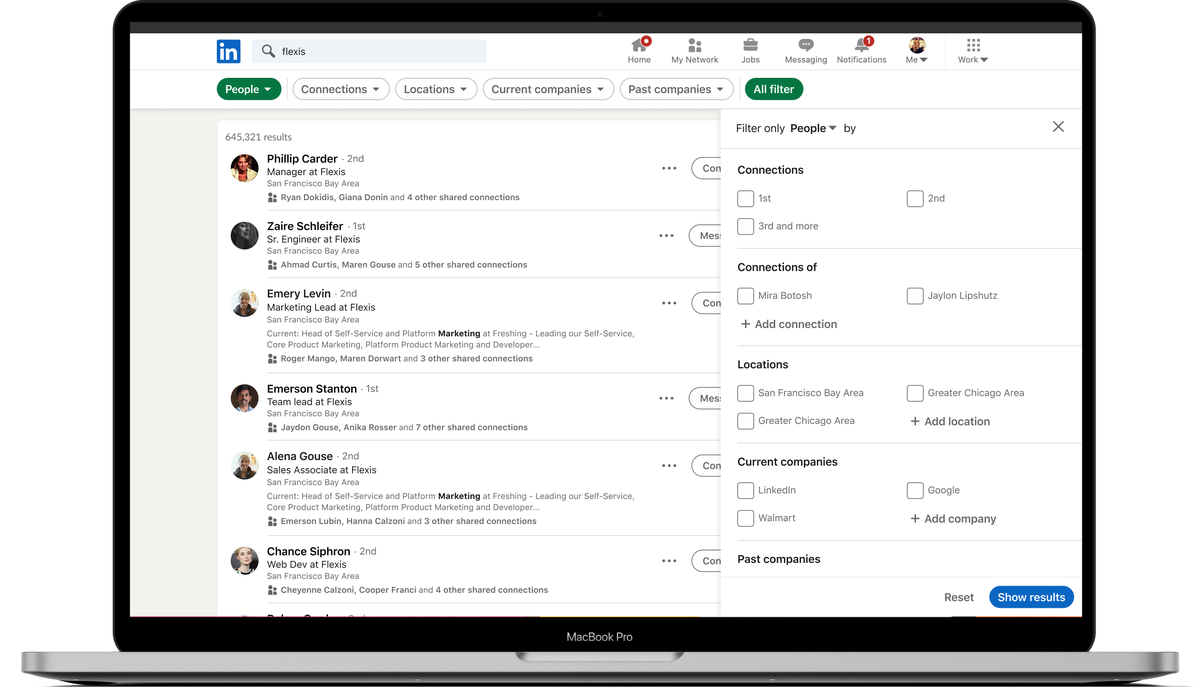
LinkedIn's People search help page documents the route on desktop:
- Type a name, keywords or a plain-language description in the Search bar at the top of LinkedIn.
- Click See all results at the bottom of the suggestions.
- Select the People filter so only member profiles show.
- Open All filters to narrow the list by company, school, location and more.
That's the whole process. Everything after it is refinement, and the filters below are where a vague search becomes a precise one.
If the person is already one of your connections, their name usually appears in the suggestions as you type. If they aren't, the full People results are the place to look.
The search filters that narrow your results
The All filters panel is where ethical searching gets precise. It lets you find the right person from facts they chose to put on their own profile.
The most useful filters for finding one specific person:
- Current company, when you know where they work now.
- Past company, when you met them at a previous job.
- School, for classmates and alumni.
- Locations, to rule out people with the same name in other cities.
- Connections of, to see who a mutual contact knows.
LinkedIn also lists Degree of connections, Followers of, Industry, Profile language, Open to volunteering, Service categories and Keywords. There's an Actively hiring filter too, marked as a Premium feature.
Two or three filters together usually cut hundreds of matches down to a handful.
Searching in plain language instead of exact keywords
LinkedIn now accepts natural-language queries in the Search bar. You can describe the person rather than naming them.
The help page gives "Finance leaders at nonprofits in Boston" as an example. That kind of query works well when you're looking for a type of person, like a hiring manager in a certain team, rather than a specific name.
One detail trips people up.
Don't put quotes around a natural-language search. LinkedIn says quotes don't belong there; if you need exact matching, use Boolean search instead.
Plain-language search is also a good ethics check. If you can't describe who you're looking for and why in one sentence, you may not have a reason to contact them yet.
How to find someone with a common name
Common names are where most searches stall. A search for a frequent first-and-last name can return pages of profiles.
LinkedIn's advice for someone who isn't already a connection is to open the full people results and apply filters. In practice, the filters that work best are the facts you actually share with the person:
- The company where you worked together.
- The school you both attended.
- The city where you met.
Stack those and the list shrinks fast. If you still see several candidates, compare photos, headlines and job histories before you click Connect.
Sending an invitation to the wrong person with the same name is an easy mistake. It's also an avoidable one, and it makes the right person harder to reach later if the note gets forwarded or joked about.
What LinkedIn's rules say about scraping and fake profiles
This isn't only etiquette. LinkedIn's User Agreement spells out what's off limits in its list of "Don'ts".
Among them, members agree not to:
- "Create a false identity on LinkedIn".
- "Develop, support or use software, devices, scripts, robots… to scrape or copy the Services, including profiles".
- "Use bots or other unauthorized automated methods to access the Services, add or download contacts, send or redirect messages".
That covers the usual shortcuts: a secondary profile to look someone up without being seen, a browser extension that exports search results, and a tool that sends invitations on a schedule.
LinkedIn's Professional Community Policies go a step further and ban content that sells "scraped data". If a list of profiles is for sale, it came from somewhere LinkedIn says it shouldn't.
Why automation shortcuts are a bad trade
Automation promises speed. What it delivers is risk to your account and messages that read as automated.
Think about who you're trying to reach. If it's one person, or a few dozen, the native search handles it in minutes.
If it's thousands, you're no longer finding someone. You're building a list, and that's exactly the activity the User Agreement is written to stop.
There's a quieter cost too. Mass invitations tend to get ignored or declined, because nothing in them tells the reader why they were chosen.
The ethical route and the effective route are the same one here. A few well-chosen searches and personal notes beat a large automated run on almost every measure that matters.
Is it okay to look someone up on LinkedIn before contacting them?
Yes. Looking at someone's profile is how LinkedIn is meant to be used, and most professionals expect it before a meeting or an introduction.
What changes the ethics is how you use what you find. Checking someone's current role so your note is accurate is considerate. Combining their profile with other sources to build a detailed picture of their life is not.
Keep in mind that viewing is not always invisible. Depending on your profile viewing setting, the person may see your name and headline in their list of who viewed their profile.
A simple rule works: only look at what you'd be comfortable mentioning in your message. If you'd feel odd saying "I saw that on your profile," you've probably looked further than you need to.
How to send a personalized connection request
Once you've found the right person, the invitation is your introduction. LinkedIn lets you attach a note to it.
On desktop:
- Open the person's profile.
- Click Connect.
- Click Add a note and type your message.
- Click Send invitation.
In the mobile app, open the profile, tap More, then Personalize Invite, write your note and send it.
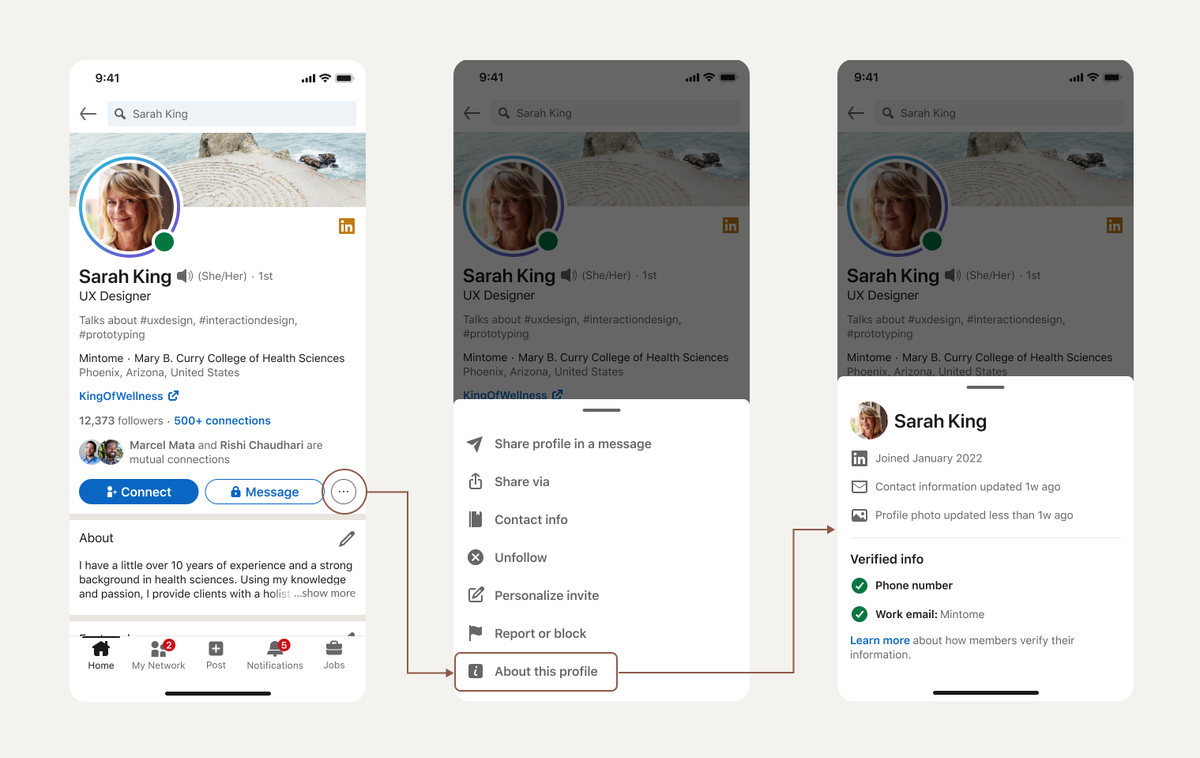
One catch on mobile: invitations sent from the People You May Know list in the app can't be personalized. If you want to add a note, go to the person's profile first.
The note limits on a free LinkedIn account
Free accounts have tighter limits than most people expect. LinkedIn's page on personalized invitations sets them out:
- Each note can be up to 200 characters.
- You can personalize up to three connection requests per month.
- Premium members can send unlimited personalized invitations.
Older advice often says 300 characters. That's out of date for free accounts, and a note that's too long won't send in full.
The monthly cap changes how you should plan. Save your personalized notes for the people who matter most, and send them from their profile, not in a rush from a suggestion list.
What to write in a first note
LinkedIn's own guidance for the note is short: say how you found the person or what you have in common, why you'd like to connect now, and use a clear and polite tone.
Two hundred characters leaves room for about two sentences. That's enough. For example:
"Hi Dana, we overlapped at the Leeds office in 2019. I'm moving into supply chain and would value staying in touch."
That note names the shared context, gives a reason and asks for nothing heavy. It passes the test that matters: the person knows exactly who you are and why you're there.
Keep the name spelled right and the facts accurate. A small error in a short note is very visible.
What not to send someone you've just found
LinkedIn's Professional Community Policies are direct on this: "Do not use our invitation feature to send promotional messages to people you don't know or to otherwise spam people."
So the first message isn't the place for a sales pitch, a product link or a request for a big favor. Those can come later, if the conversation goes somewhere.
Other habits that tend to backfire:
- Copying the same note to many people with only the name changed.
- Mentioning details from their profile that feel personal rather than professional.
- Sending a second invitation soon after the first was ignored.
The policies define spam partly as messages that are "untargeted, irrelevant, obviously unwanted". A note written for one person avoids all three.
When the person doesn't accept your request
Silence is normal. Many people don't check invitations often, and some only accept people they've met.
The recipient can also reply to your note without accepting the invitation, so check your messages before assuming nothing happened.
If they choose "We don't know each other", LinkedIn may prompt them to send a message, which is another reason your note should explain the connection clearly.
If you have a Basic (free) account, you can only message members you're connected to. Reaching someone outside your network directly takes InMail, which is a Premium feature, and members can opt out of receiving it.
Respect the no. One invitation and, at most, one follow-up through another channel you legitimately share is enough.
A respectful search checklist
Run through these five points each time you look someone up:
- Know your reason. Say who you're looking for and why, in one sentence.
- Stay native. Use the Search bar, the People filter and All filters, nothing else.
- Narrow honestly. Filter common names by the company, school or city you actually share.
- Invite from the profile. Add a note of 200 characters or fewer.
- Explain, don't ask. Say how you found them and why now, and save any request for later.
Work through that list and you'll find the right person, stay inside LinkedIn's rules, and give them a reason to say yes.
Questions about finding people respectfully
Is it okay to connect with someone I've never met?
Yes, as long as your note explains the context. LinkedIn's own advice is to say how you found the person or what you share and why you want to connect now.
Can I use a browser extension to export LinkedIn search results?
LinkedIn's User Agreement prohibits software, scripts and robots that scrape or copy the Services, including profiles. Exporting search results with an extension falls into that category.
Why can't I add a note to my LinkedIn invitation?
On a free account you may have used your three personalized notes for the month. Invitations sent from People You May Know in the mobile app also can't be personalized, so open the person's profile instead.