How to block someone on LinkedIn, and what they can still see afterwards
Someone bothering you? Block someone on LinkedIn from their profile: More, Report/Block, Block. They get no notice and you disconnect.

How do I block someone on LinkedIn?
Open their profile, click More below the profile picture, choose Report/Block, then Block [name], and confirm with Block. LinkedIn doesn't notify them, and you're disconnected straight away.
The rest of this page covers the app steps, exactly what a block hides, and what it doesn't.
When blocking is the right tool on LinkedIn
Most people look up how to block someone on LinkedIn after one message too many: a recruiter who won't take no, an ex-colleague who keeps commenting, or a stranger whose attention feels off.
LinkedIn gives you several ways to create distance, and blocking is the strongest. It cuts off messaging, profile access and the connection itself in one step.
That's exactly right when you want someone gone from your LinkedIn life. It's more than you need when you only want fewer notifications from them.
We'll cover the lighter options further down, so you can pick the one that fits.
How to block someone on LinkedIn from a computer
- Go to the person's profile.
- Click More (the button below their profile picture).
- Select Report/Block.
- Choose Block [member name] in the Report or block pop-up.
- Click Block to confirm, or Back if you change your mind.
LinkedIn's block and unblock page lists the same steps for every device.
The whole thing takes about ten seconds, and it's reversible.
How to block someone in the LinkedIn app
On an iPhone:
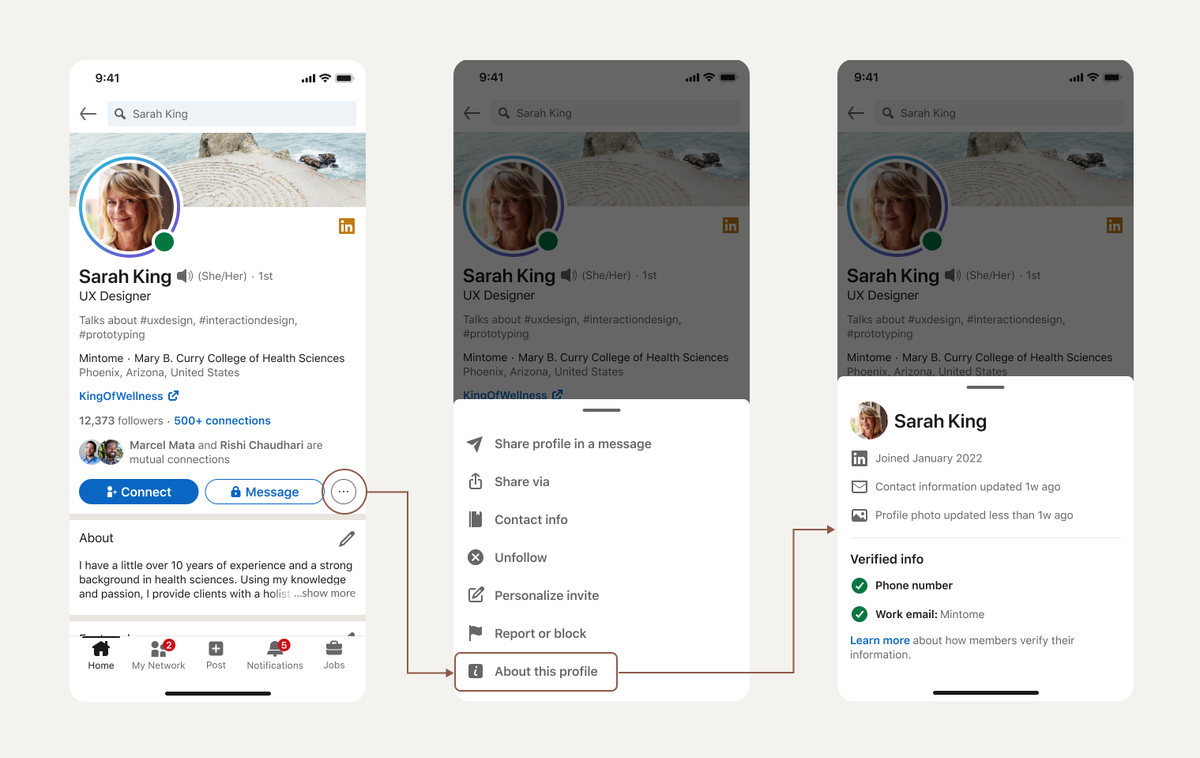
- Open the member's profile.
- Tap the More icon at the top right.
- Tap Report or Block, then Block [member's name].
- Tap Block in the confirmation pop-up.
On Android, the labels are almost identical: tap More, then Report/Block, then Block [member's name], then Block.
In a mobile browser, it's More, then Report or block, then Block [member name], then Submit.
Does the person know you blocked them?
No. LinkedIn says the member you block won't receive any notification.
LinkedIn's overview does add "in most cases", because there are rare exceptions tied to shared Recruiter accounts. For an ordinary member-to-member block, nothing is sent.
What they may eventually notice is absence. Your profile stops loading for them, your messages thread goes quiet, and you disappear from their connections.
That's the honest limit of a silent block. It isn't announced, but it isn't invisible forever.
What blocking on LinkedIn stops
LinkedIn's block overview lists what changes the moment you confirm.
Contact and access:
- You can't view each other's profiles.
- You can't message each other.
- You can't see each other's shared content.
- If you were connected, you're disconnected.
Traces between you:
- You won't appear in each other's Who's Viewed Your Profile lists.
- Endorsements and recommendations from that person are removed.
- LinkedIn stops suggesting you to each other in People You May Know and People also Viewed.
Smaller effects matter too. You stop getting Event notifications about them, and if you subscribed to their newsletter, that subscription stops.
What blocking on LinkedIn doesn't hide
This is the part most people miss, and it's why a block sometimes feels like it "didn't work."
Some content stays visible:
- Your public profile, the version people see when logged out or through a search engine.
- Public group discussions you both take part in.
- Public posts, which mutual connections can still reshare into their feeds.
Cached data on a phone may also show old content for a short time.
So if you post publicly and share connections with this person, pieces of your activity can still reach them. If that matters, look at your public profile settings too, not only the block.
Blocking removes endorsements and recommendations for good
Here's a consequence worth weighing before you click. A block removes the recommendations and endorsements between you and that person.
If a former manager wrote you a strong recommendation, blocking them deletes it from your profile. Unblocking later doesn't restore it.
For most blocks, this doesn't matter. For a work relationship that soured but produced a recommendation you value, it might.
Lighter options than blocking
Blocking isn't the only way to get space on LinkedIn. Depending on what's bothering you, one of these may be enough:
- Remove the connection. They can no longer message you as a connection, but they can still see your public profile, and nothing else changes.
- Unfollow them. You stay connected, but their posts stop appearing in your feed.
- Report the content if someone breaks LinkedIn's rules, for example with harassment or spam. Reporting and blocking sit in the same menu.
If the problem is their posts, unfollow. If the problem is them, block. That rule covers most cases.
Blocking someone you work with
Blocking a current coworker is more delicate than blocking a stranger, because the block only covers LinkedIn.
You'll still share email, chat tools and meetings. If the problem is behavior at work, LinkedIn can't fix that, and your manager or HR team is the right route.
What a block does do is take LinkedIn out of the equation. They can't view your profile, see your job search signals or message you there. For someone keeping tabs on your career moves, that's a real change.
Two practical points apply:
- If you both belong to a company group, you may still see each other's public group discussions.
- Your public profile, including your current job title, stays visible when they're logged out.
If you're job hunting and don't want a colleague to notice, the block helps. Pair it with a check of what your public profile shows, since that part stays open.
Blocking vs reporting on LinkedIn
People often treat these as the same thing. They aren't.
Blocking is about you. It controls what that person can see and do in relation to your account, and LinkedIn doesn't review anything.
Reporting is about the platform. It tells LinkedIn that a profile, message or post may break its rules, so LinkedIn can look at it and act on the account.
That difference decides which one you need:
- A person you just don't want around: block.
- A fake profile, scam or spam message: report, and block too if it keeps coming.
- Harassment or threats: report and block, after saving screenshots.
Both options live under the same Report/Block menu on a profile, so you can do one right after the other.
Is there a limit to how many people you can block?
No. LinkedIn says there is no limit to how many members you can block.
There's one practical wrinkle. If you've blocked more than 2,000 members, LinkedIn notes you may not be able to unblock someone without contacting support.
Most people will never come close. It mainly affects accounts that block large numbers of spam profiles.
People you can't block on LinkedIn
A few situations don't allow a block:
- Private mode viewers. LinkedIn says you can't block someone who viewed your profile in private mode, because you can't see who they are.
- Group admins, while you're in their group. You'd need to leave the group first.
If someone is viewing your profile anonymously and it worries you, the realistic step is to review what your public profile shows.
How to unblock someone later
Blocks aren't permanent. You can unblock from your settings, under the Blocking section of your visibility settings, where every blocked member is listed.
Two things to know before you do:
- The block removed your connection, and LinkedIn doesn't say unblocking restores it. Expect to send a new invitation if you want to reconnect.
- LinkedIn makes you wait 48 hours before you can block the same person again.
The second point matters if you're unsure. Unblocking "just to check something" commits you to two days of openness.
What to do if blocking isn't enough
A block handles unwanted contact on LinkedIn. It doesn't handle behavior that crosses a line.
If someone threatens you, impersonates you, or keeps contacting you through new accounts, report it to LinkedIn as well as blocking. Reporting is what puts the account in front of LinkedIn's safety team.
Keep screenshots of messages before you block, too. After the block, you may not be able to reopen the conversation to capture it.
Screenshot first, report second, block third. That order keeps your evidence intact.
Weighing it up: common objections to blocking
"Won't it look petty?" They aren't told, and most people never check.
"What if I need to work with them later?" You can unblock at any time. You'd just need to reconnect, and any recommendation between you is gone.
"Isn't removing the connection enough?" For a quiet drift apart, yes. For someone who keeps messaging, viewing or commenting, no. Removing a connection doesn't stop profile views.
If the reason you're reading this is a pattern, not a single message, block.
What to know before you block someone on LinkedIn
Can a blocked person still see my LinkedIn posts?
Not while logged in to their account. But your public profile, public group discussions and public posts reshared by mutual connections can still reach them.
Will blocking someone remove their messages?
You can no longer message each other. The block stops the conversation from continuing; it doesn't give them a new way to reach you.
Does blocking someone remove them from my connections?
Yes. If you were connected, LinkedIn disconnects you as part of the block. To reconnect after an unblock, plan on sending a new invitation.