
How to announce a new job on LinkedIn with a profile update and a post
Announce a new job on LinkedIn in two steps: add the position with sharing on, then write your own post that mentions your new company.


How do I announce a new job on LinkedIn?
Add the role to your profile through Add profile section, Core, Add position, and leave sharing on so your network gets an update. Then write your own post from Start a post and use "@" to mention your new company's Page.
Below: both steps in detail, when to announce, and what to put in the post.
The two parts of a new job announcement on LinkedIn
A new job announcement on LinkedIn has two pieces, and most people only do one.
The profile update records the job. It changes your Experience section and, if sharing is on, sends your network a short automatic update.
The post tells the story. It's written by you, in your words, and it's where congratulations, comments and introductions to new colleagues happen.
The automatic update is brief and temporary. Your own post is the part people read, react to and remember.
Do both, in that order. Update the profile first, so anyone who clicks through from your post sees the new role already in place.
How to add your new job to your LinkedIn profile
LinkedIn's page on managing your Experience section gives the desktop route:
- Click the Me icon, then View Profile.
- Click Add profile section in your introduction section.
- Open the Core dropdown and select Add position.
- Fill in the Add experience pop-up with your new role's details.
- Click Save.
If your profile already has an Experience section, there's a shortcut. Click Show all experiences, then the Add icon.
The pop-up also has an Update my headline option. Tick it and your new role shows in your profile's introduction, next to your name.
Adding the new position in the LinkedIn app
On a phone, the route is shorter:
- Tap your profile photo, then tap it again to open your profile.
- Tap Add section.
- Choose Core, then Add position.
- Enter the details and tap Save.
The profile change is visible to anyone who views your profile straight away. The network update follows separately, as covered below.
Close out your previous job
Before or after you add the new role, edit your old position and give it an end date. Otherwise your profile shows two current jobs.
That matters more for a move between companies than people expect. A recruiter or new colleague who sees two current roles may wonder whether you're still working at the old one.
While you're there, check the old role's description. You no longer need to write it in the present tense, and a short summary of what you achieved there reads better than a list of duties.
Make sure your network hears about it
Whether your connections get an update depends on your sharing setting. LinkedIn's page on sharing profile updates covers both switches.
When you edit on a computer, a Share with network toggle appears in the form. Leave it on for a new job.
There's also an account-wide setting: Settings & Privacy, Visibility, then Share profile updates under Visibility of your LinkedIn activity. On mobile, it's the same path from your profile photo.
LinkedIn adds a caveat: even with sharing enabled, some types of profile edits won't generate notifications. That's one more reason your own post matters.
How long the automatic update takes and lasts
The automatic update isn't instant. LinkedIn says updates about your job may take up to two hours to be shared with your network.
It's also temporary. These profile update posts are available for up to 90 days, then deleted along with their comments and reactions. They don't appear in the Posts tab of your Recent Activity either.
So if a friend's warm congratulations comment matters to you, know that it lives on an update with an expiry date.
Comments on your own post stay as long as the post does.
When to announce a new job on LinkedIn
Timing is a judgment call, and getting it wrong can be awkward. A few rules of thumb help:
- Wait until the offer is signed and any checks are complete.
- Tell your current manager first. They shouldn't learn about your exit from their feed.
- Check with your new employer if they have plans for announcing your hire.
- Announce on or near your start date if you're unsure. It's rarely too late.
If you're leaving quietly, you can add the new role with sharing off, then post when you're ready. The profile change and the announcement don't have to happen on the same day.
How to write a new job announcement post
LinkedIn's help page on posting and sharing updates covers the tools. The flow looks like this:
- Click Start a post at the top of your feed.
- Pick the Celebrate icon if you want LinkedIn's occasion format, or write a plain post.
- Add a photo with the Add media icon, if you have one.
- Type "@" and your new company's name, then choose its Page from the list.
- Click Post, or use the clock icon to schedule it for later.
Posts can be up to 3,000 characters. A new job announcement rarely needs a third of that.
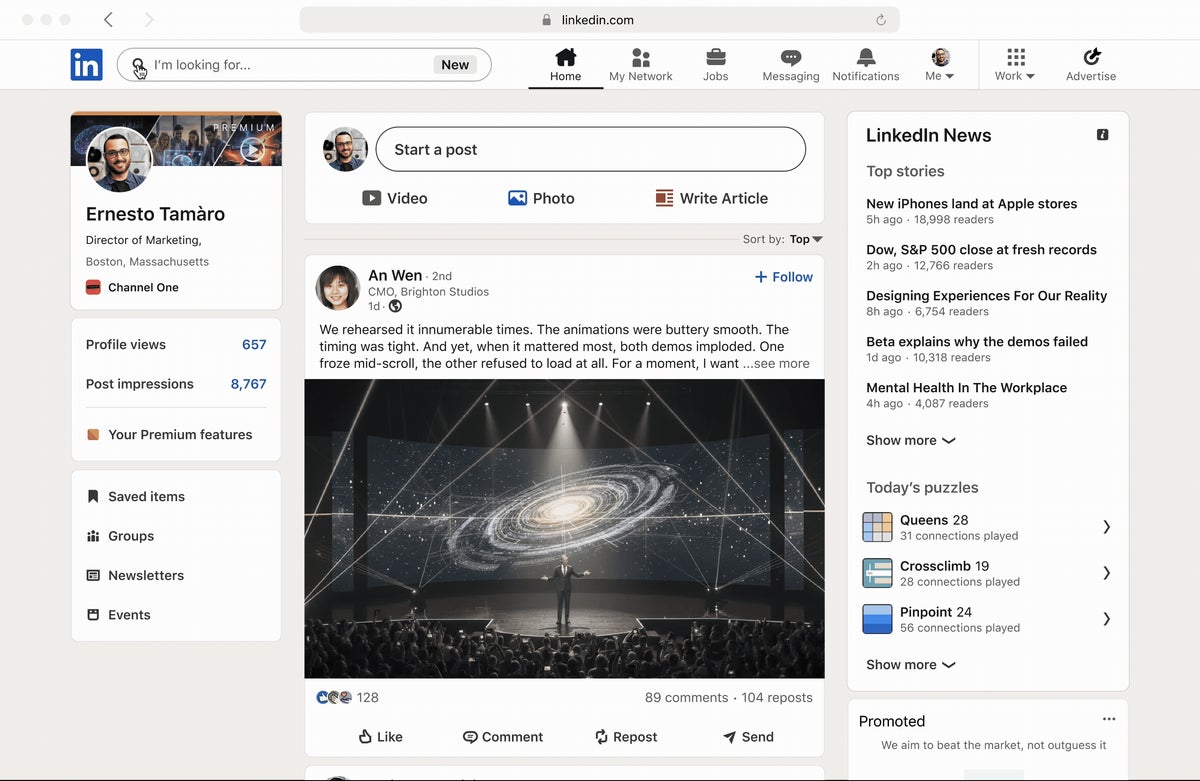
What to say in your new job post
The best announcements are short and specific. A simple structure works:
- The news in the first line: the role and the company.
- Why you chose it, in a sentence or two.
- Thanks to the people who helped you get here.
- What's next: what you'll be working on, or who you'd like to meet.
For example: "I've joined Northwind as Head of Partnerships. I've admired how they work with local suppliers for years, and I'm looking forward to building that network further. Thank you to everyone at my last team for four great years."
Skip the clichés where you can. Saying what you'll actually do in the role is more interesting than saying how excited you are.
Tagging your new company and colleagues
A mention does two jobs. It links your post to the company's Page, and it lets the right people see it.
LinkedIn's page on mentioning people in posts explains how it works. Type "@" and start typing a name, then pick from the list. Page admins can see mentions of their Page, and mentioned members get email and app notifications.
People don't need to be your connections to be mentioned, though some members turn mentions off.
For the company side specifically, these steps on how to tag a company in LinkedIn posts go into more detail.
Keep mentions to the people who matter to the story. Tagging twenty colleagues makes a post feel like a broadcast.
Choosing a photo for your announcement
A photo isn't required, but it helps a post stand out in the feed. Use the Add media icon in the composer to attach one.
Good choices include:
- Your first day at the new office or your new workspace.
- A welcome package or badge, if the company gives one.
- A simple, recent headshot if nothing else fits.
Check before you share anything from inside a new workplace. Screens, whiteboards and documents in the background can show more than your employer wants public.
Thanking your old team without burning bridges
Your former colleagues will see your announcement too. A line of thanks goes a long way.
Keep it warm and general. Name your former team or manager if you're on good terms, or simply thank everyone you worked with.
Avoid comparing the two jobs, even implicitly. "Finally somewhere that values innovation" reads as a dig at your old employer, and people remember it.
Your old colleagues are still part of your network. Many of them will be the ones who congratulate you first.
Scheduling the announcement for your start date
If you want the post to go live on your first morning, write it in advance and schedule it. The composer's clock icon lets you pick a date and time.
That saves you from writing on a busy first day. It also lets you get the wording right, and even show it to your new manager first if you'd like their input.
Make sure the profile update is saved before the scheduled time. A post about a role your profile doesn't show yet invites questions.
After you post: replies and new connections
The announcement usually brings a wave of comments, messages and invitations. How you respond is part of the announcement.
Reply to comments over the first day or two. A short thank-you to each person is enough, and replies keep the conversation going.
Accept invitations from your new colleagues, and send some yourself. The first weeks in a new role are a good moment to connect with the people you'll work with.
If you had the Open to Work feature switched on during your search, turn it off now. It no longer reflects where you are.
Announcing a new job on LinkedIn, in short
Add the new position to your profile, end your previous one, and leave sharing on so your network gets the automatic update.
Then write a short post of your own, mention your new company's Page with "@", add a photo if you have one, and thank the people who helped.
Update your headline, reply to comments, and connect with your new colleagues.
Your profile tells people where you work. Your post tells them why it matters.
New job announcement FAQ
Can I add a new job without notifying my network?
Yes. Turn off the Share with network toggle while editing, or switch off Share profile updates in your visibility settings. Your profile still shows the change to anyone who visits it.
Why didn't my connections get an update about my new job?
Either sharing was off when you saved, or the edit was one of the types LinkedIn says won't generate notifications. Updates can also take up to two hours to appear.
Should I delete the automatic update if I've written my own post?
There's no need. LinkedIn deletes automated profile update posts after up to 90 days, and your own post stays on your profile.