
How to change background color on an Instagram story in a few taps
To change the background color of an Instagram story, open Draw, pick a color, then press and hold the screen until it fills.


How do people get those clean, single-color story backgrounds with a photo floating on top? It's a hidden trick in the drawing tool, and once you know it, it takes about ten seconds.
How do you change the background color of an Instagram story?
Take or upload any photo in the story editor, tap the three dots in the top-right corner and select Draw. Pick a shade from the color palette at the bottom, or use the eyedropper to sample an exact tint, then press and hold anywhere on the screen for two to three seconds. The whole background fills with that color, and you can add photos on top with the photo sticker.
Below: the full steps, how to get an exact brand color, how to layer photos on the new background, and other ways to style a story background.
How to change the background color of an Instagram story
To change the background color of an Instagram story, you use the drawing tool as a paint bucket. The steps start with any photo, because the color will cover it.
Open the drawing tool
- Open the story creator by swiping right from your feed or tapping Create, then Story.
- Take or upload a photo. Any photo works; it will be hidden under the color.
- Tap the three dots in the top right and select Draw.
Fill the screen with color
- Pick a color from the palette at the bottom of the screen.
- Press and hold anywhere on the photo for two to three seconds until the whole screen fills.
That's the full trick. The photo underneath is now covered with a solid color, ready for text, stickers or other photos on top.
Instagram's page on story editing tips describes the drawing tool itself. You tap Draw, choose from different brushes and drawing tools at the top, adjust thickness with the slider on the left, and choose a color from the bottom of the screen.
The press-and-hold fill is the part it doesn't spell out.

How to pick an exact color
The default palette only shows a few swatches. Instagram gives you two ways to get more precise.
More colors. Instagram's help page says you can swipe left on the palette to see more colors, or tap and hold a color circle for a full range of options. Holding a circle opens a gradient where you can slide to any shade.
The eyedropper. Instagram notes that you can tap the color picker and drag it onto your photo to select a color from the image. This is how you match a background to a color in your photo, or to a brand color if you upload a photo that contains it.
A useful habit for brands: save a small image with your brand colors in your camera roll. Upload it, sample the exact color with the eyedropper, then fill the screen. Every story background then matches your palette exactly.
How to put photos on top of your color background
A solid background is usually the stage for something else. Once the color is set, you add images on top as stickers.
- Tap the Stickers icon at the top of the screen.
- Choose the photo sticker, the one showing your latest camera roll picture.
- Pick a photo and it appears as a floating image on your color.
- Pinch to resize and drag to position it.
You can repeat this to add several photos, which is how collage-style stories with a colored backdrop are made.
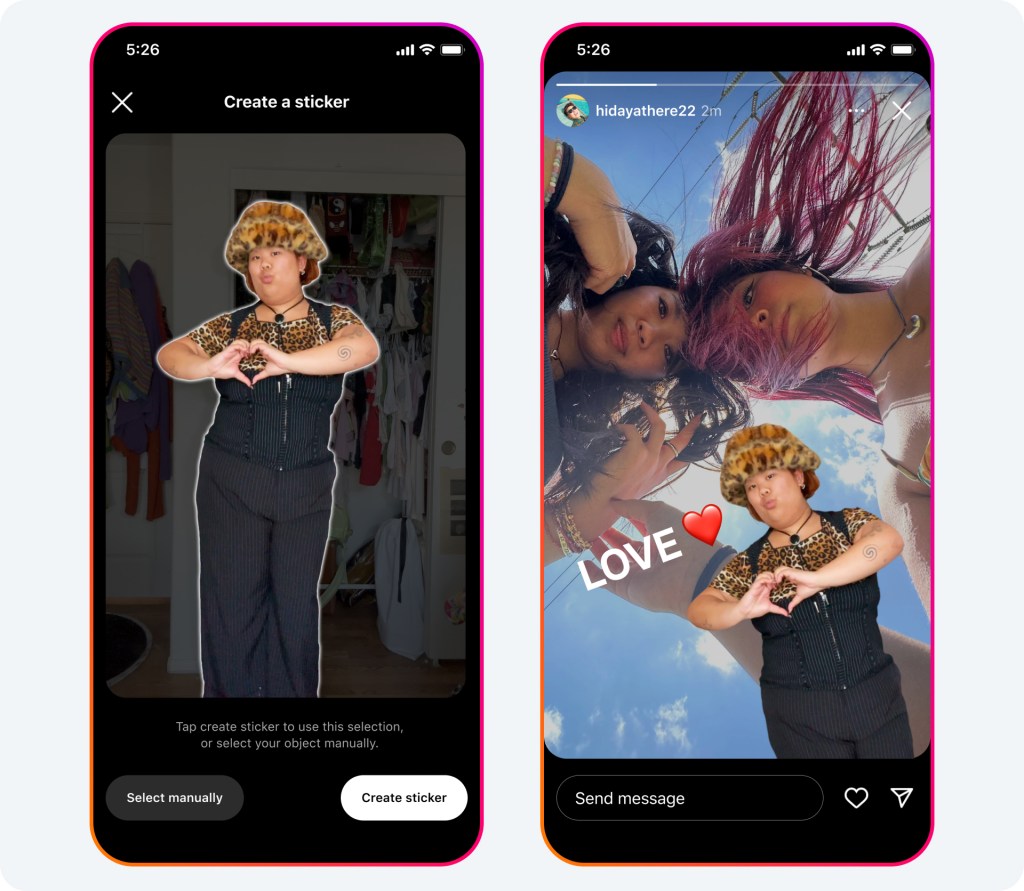
Instagram also offers Cutouts, which turns a photo's main subject into a sticker. Its page on Cutouts explains that you can create custom stickers from photos in your camera roll: select a photo with a clear subject, and Instagram generates a sticker from it automatically.
On a solid background, a cut-out subject with no box around it looks especially clean.
Other ways to style a story background
The press-and-hold fill is the most flexible method, but it isn't the only one.
Create mode. Instagram's story help mentions a Create option that lets you personalize a story without needing a photo or video to start from. You can type something, add a GIF or ask a question on a colored background right away.
Text backgrounds. When you add text, Instagram lets you add a color background to the text itself by tapping Background at the top of the screen. That gives each line of text its own colored block, rather than coloring the whole story.
AI backgrounds for reshared posts. When you share someone's post to your story, Instagram's page on AI backgrounds explains that you can tap Background and choose from options generated by Meta AI, or tap Reload for new ones.
Each method suits a different job:
- A solid fill works for announcements and collages.
- Create mode for quick text.
- Text backgrounds for readability over a busy photo.
Why a solid background helps a story
A single-color background does more than look tidy. It changes how quickly people take in the story.
Stories are viewed in a second or two. A busy photo behind text forces the eye to work; a plain color lets the words or the featured photo stand out immediately.
Solid backgrounds also help with consistency. If your story announcements always use the same color, followers recognize them before they read a word.
They're also useful for accessibility. High contrast between text and background makes a story easier to read on a small screen or in bright light.
Keep text readable on a colored background
A strong color only helps if the words on it are easy to read. A few habits keep text clear at a glance.
Pick contrast first. Dark text on a light background, or white text on a dark one, reads fastest. Mid-tone text on a mid-tone color, such as grey on teal, blurs on a small screen.
Use the text background when in doubt. Instagram's text tool can add a colored block behind the words. If your background color is busy or close to your text color, that block restores contrast without changing the whole design.
Keep text away from the edges. The top of a story carries your name and the progress bar, and the bottom holds the reply field. Text placed in the middle of the screen stays clear of both.
Go big and short. A story is gone in seconds. Five large words land better than two small sentences.
Check the finished story at arm's length before sharing. If you can read it without squinting, your followers can too.
Common problems and quick fixes
A few things trip people up the first time.
The fill doesn't happen. Make sure you're in Draw mode with a color selected, then press and hold rather than tap. A quick tap just draws a dot.
The color is slightly see-through. Some brush styles in the drawing tools are translucent. Switch to the standard pen before you press and hold.
You want part of the photo to show. After filling, some people use an eraser-style brush from the drawing tools to wipe away part of the color and reveal the photo beneath. If your version of the app offers it, it's a quick way to create a window effect.
Draw is missing. Update the app. Instagram's story help notes that if you're not seeing certain creative tools, updating to the latest version from the App Store or Google Play is the first step.
Ideas for colored story backgrounds
Once you can fill a background in seconds, a lot of simple story formats open up:
- A question or poll on a bold color, so it stands out from photo stories.
- A "new post" alert with a small preview of the post on a brand-colored background.
- A behind-the-scenes photo floating on a soft color, with a short caption.
- A countdown or event reminder on a consistent background you reuse each time.
Keep the formats simple. A clean color, one image and a few words usually beats a crowded story.
You don't need design skills for this
Colored backgrounds look designed, but they're one of the easiest things in the story editor. Draw, pick a color, press and hold, and add a photo on top.
Try it once on a story you're about to post anyway. After the first time, it becomes part of how you make stories without thinking about it.
Story background questions
Can I use a gradient background instead of a solid color?
Instagram's help center doesn't describe a gradient fill. The press-and-hold method fills with a single solid color; for a gradient, create the background image in another app and upload it.
Will the photo under the color still be visible to viewers?
No. Once the screen is filled, viewers see only the color and whatever you add on top. The original photo is hidden unless you erase part of the color.
Can I change the background color after posting the story?
Not in the story itself. Instagram doesn't offer a way to change a story's design after sharing, so delete it and post a new version with the color you want.