How to remove Open to Work on LinkedIn completely
Done job hunting? Remove Open to Work on LinkedIn from the Open to Work box on your profile: click Edit, then Delete.


To remove Open to Work on LinkedIn, open your profile, click the Edit icon in the Open to Work box at the top, and select Delete. That switches the feature off entirely, takes the #OpenToWork frame off your photo, and LinkedIn doesn't keep your saved job preferences.
Below: the desktop and app steps, the photo-frame route, and what disappears once you delete it.
How to remove Open to Work on LinkedIn from a computer
Deleting is a four-click job once you know where to look. The Open to Work box sits near the top of your profile.
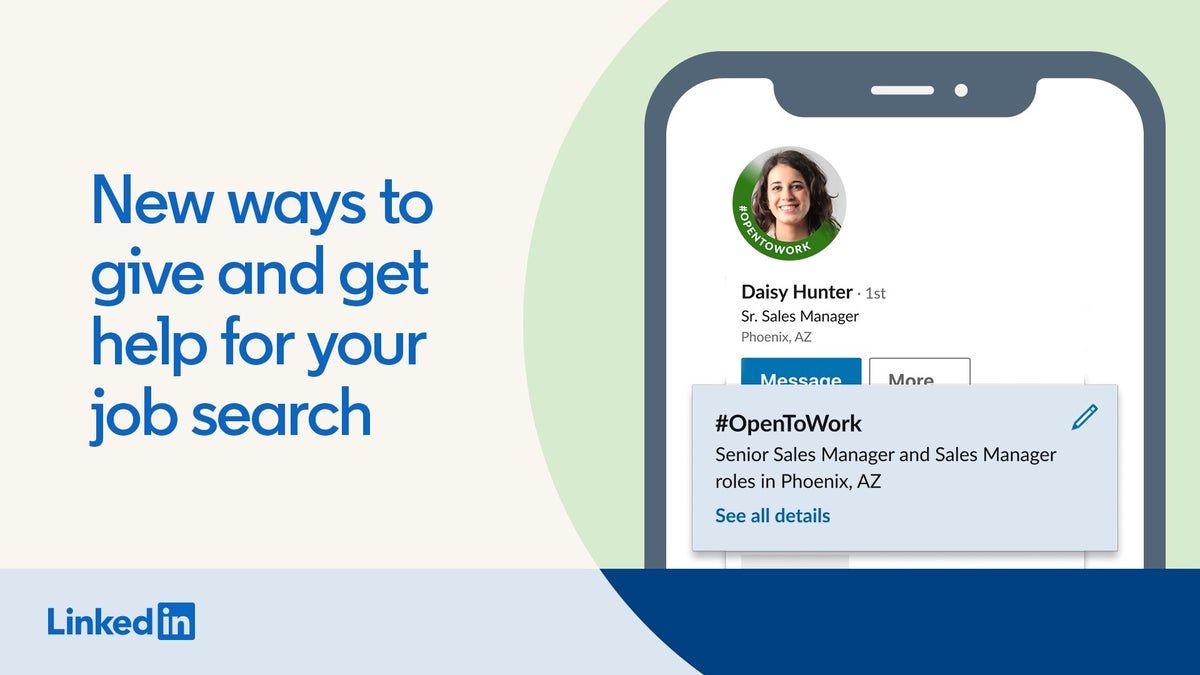
- Click the Me icon at the top of your LinkedIn homepage.
- Select View profile.
- Click the Edit icon in the Open to Work box at the top of your profile.
- Click Delete.
LinkedIn's page on letting recruiters know you're Open to Work lists these same steps.
The same pop-up also lets you edit your job preferences and click Save instead. That's the right move only if you're still looking. If you're done, Delete is the one you want.
How to remove Open to Work in the LinkedIn app
On an iPhone or Android phone, the path is almost the same, with one extra tap to reach your profile:
- Tap your profile photo.
- Tap your profile photo again to open your profile.
- Tap the Edit icon in the Open to Work box.
- Tap Delete.
The change applies to your whole account. You don't need to repeat it on desktop after removing it in the app, or the other way round.
What deleting Open to Work removes
Delete turns off the whole feature, not only the badge. That's the difference between this and the lighter options people often confuse it with.
Once you confirm, three things go:
- The Open to Work box at the top of your profile.
- The #OpenToWork frame around your profile photo, if you'd shared it with all members.
- The job preferences you'd entered: titles, locations and the other details recruiters used to match you.
Recruiters searching LinkedIn stop seeing you as open to new roles, because the signal they filter on no longer exists.
Removing Open to Work through your photo frame
There's a second route, and it starts from your profile picture rather than the Open to Work box. It's useful when the frame is what bothers you most.
On desktop:
- Click Me, then View profile.
- Click your profile photo, then Frames.
- Choose Original and click Apply.
- Pick Remove "Open to Work" from profile from the options that appear, then save.
LinkedIn's help page on profile photo frames lists that option alongside two others. One keeps the status for recruiters only. The other removes the frame and the jobs you've showcased on your profile.
In the app, tap your profile photo, then Frames, Apply and Remove.
Removing it from the Jobs tab
If you're already in the Jobs area looking at listings, you don't have to go back to your profile.
LinkedIn also lets you manage Open to Work from the Jobs tab: click Preferences, then Open to work. From there you reach the same settings, including the option to delete.
Pick whichever route is closest. All three end in the same place.
How to check that Open to Work is really gone
After deleting, look at your profile the way a stranger would. The easiest check takes a few seconds.
Open your profile and look for two things: the Open to Work box near the top, and the ring around your photo. If neither appears, the feature is off.
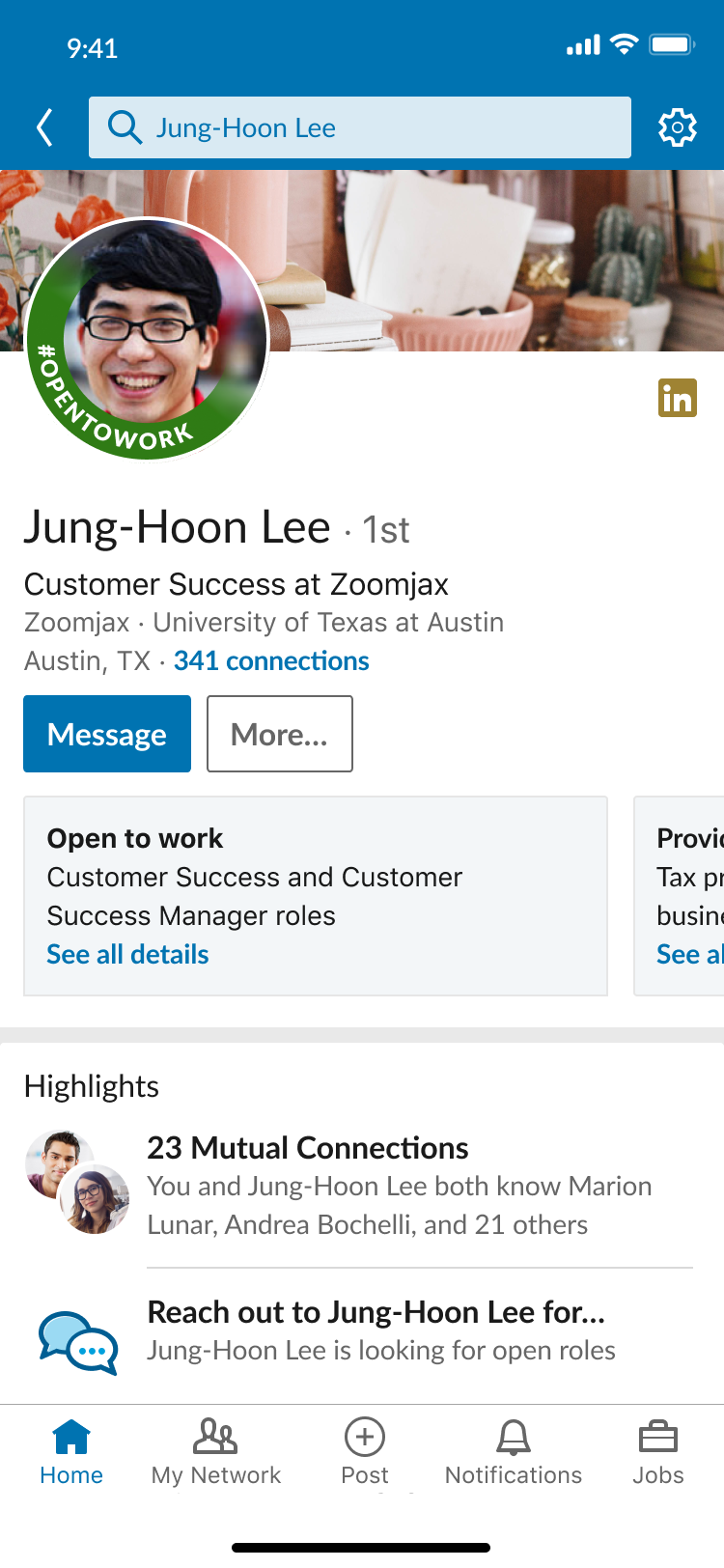
If the frame is still there, you likely used an option that only changed who sees it. Go back through the Open to Work box and choose Delete this time.
It's also worth checking your headline. Many people typed "open to opportunities" or "seeking new role" there by hand, and deleting the feature doesn't touch text you wrote yourself.
Who could see your Open to Work status before you deleted it
It helps to know what you're switching off. LinkedIn offers three visibility settings while the feature is on:
- All LinkedIn Members: adds the #OpenToWork frame, and everyone can see it, including recruiters and people at your current company.
- Recruiters only: shown to people using LinkedIn Recruiter.
- Visible only to you: a setting that keeps the preferences private to your own account.
The first option is the one people usually regret after they land a job. Deleting clears the frame and the status, whichever of the three you'd picked.
Can your current employer see Open to Work?
With All LinkedIn Members selected, yes. LinkedIn says that setting includes people at your current company.
With Recruiters only, LinkedIn tries to hide your status from recruiters who work at your current company. It also says plainly that it can't guarantee complete privacy.
That caveat is why many people delete the feature outright the day they start a new role.
Deleting is the only setting that leaves nothing for a colleague or manager to find.
Your job preferences aren't saved when you delete
This is the part that surprises people later. LinkedIn says you can re-enable Open to Work at any time, but your previous preferences won't be saved.
So when you delete, you lose:
- The job titles you'd listed.
- The locations you'd picked.
- Any other details you'd filled in.
None of that is hard to rebuild. It's just annoying if you spent time getting the titles exactly right.
Save your preferences before you delete
If there's any chance you'll search again within a year, take thirty seconds before you click Delete.
Open the Open to Work box, and copy your job titles, locations and other details into a note. A screenshot works too.
When you turn the feature back on later, you paste them in instead of starting from a blank form. It also reminds you what you were targeting, which is useful when your goals shift between searches.
Delete Open to Work or just hide it?
Deleting is the right call when the search is over: you've accepted an offer, you're staying put, or recruiter messages have become noise.
It's the wrong call when you're still quietly looking. In that case, switching the visibility to Recruiters only keeps you findable without showing the frame to everyone.
The quick test is simple. If you'd still take a call from the right recruiter next month, change who sees it. If you wouldn't, delete it.
How to turn Open to Work back on later
Nothing about deleting is permanent. You can add Open to Work again whenever you start a new search.
Add it again from your profile, or open Jobs, then Preferences, then Open to work. You'll fill in your preferences from scratch, then choose who can see the status.
That's the moment your saved note pays off. Paste in your titles and locations, pick the visibility you want this time, and you're done.
Extra fields for members in India
LinkedIn members in India see two extra fields in Open to Work: notice period and expected salary.
LinkedIn says these are visible to recruiters only, not to your wider network. They go away with the rest of your preferences when you delete the feature.
If you're in India and re-enable Open to Work later, you'll enter them again. Check the salary figure each time, since it's easy to leave last year's number in place.
What to update after you remove Open to Work
Removing the status is usually part of a bigger change, and your profile should reflect it.
The quick clean-up after landing a role:
- Headline: swap any job-seeking wording for your new title.
- Experience: add the new position so your profile matches reality.
- About section: remove lines about what you're looking for next.
Recruiters read these parts of your profile too. A deleted frame next to a headline that still says "seeking opportunities" sends a mixed signal.
Don't leave it switched on by accident
Deleting Open to Work is what protects you once the job search ends. Leave it on, and your new manager or colleagues may still see a frame that says you're looking. Recruiters keep matching you to roles you no longer want.
The fix takes a minute: profile, Edit in the Open to Work box, Delete. Save your preferences first if you might search again, then check your photo and headline to confirm nothing is still signaling that you're available.
Open to Work questions people ask
Does LinkedIn tell my connections when I remove Open to Work?
LinkedIn's help pages don't describe any notification sent when you delete Open to Work. The frame and the box simply stop appearing on your profile.
Can I remove the #OpenToWork frame but stay visible to recruiters?
Yes. In the Frames options, Share "Open to Work" with recruiter only takes the frame off your photo while keeping the status for LinkedIn Recruiter users.
Will my old job preferences come back if I turn Open to Work on again?
No. LinkedIn says you can re-enable the feature at any time, but your previous preferences won't be saved, so you'll enter them again.