
How to repost on LinkedIn, with or without your own comment
Repost on LinkedIn with the Repost button under a post: choose Repost to share it as is, or Repost with your thoughts to add a comment.


To repost on LinkedIn, click Repost under the post, then pick Repost to share it straight away or Repost with your thoughts to add your own comment on top. A few posts can't be reposted at all, including posts from LinkedIn Groups and posts that were reposted for connections only.
Below: the desktop and app steps, who sees your repost, and how to take one down.
What reposting on LinkedIn actually does
A repost puts someone else's post in front of your own network. LinkedIn's app describes it plainly: "This will create a new post with the original post attached."
So a repost is a post of yours. It carries the original post inside it, and the original author keeps the credit.
You get two versions of the same action:
- Repost shares the post directly, without prompting you to add any comments.
- Repost with your thoughts opens a composer, and your comment appears at the top of the reposted post.
Both live behind the same button. The choice is only about whether you add words of your own.
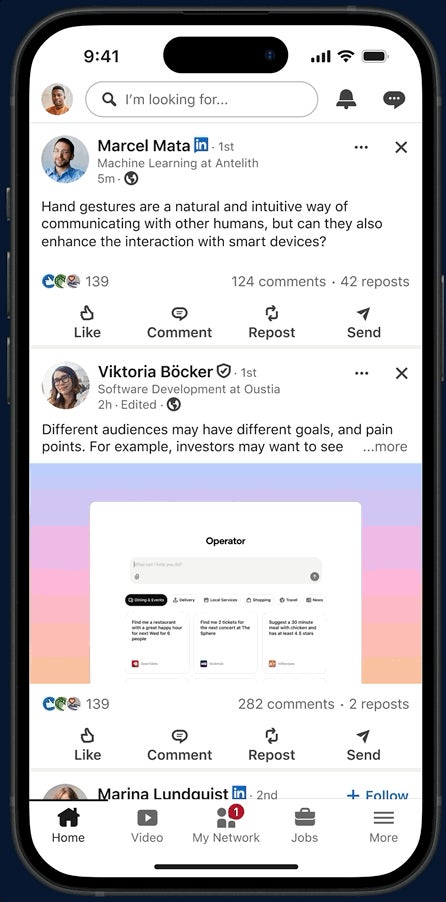
How to repost on LinkedIn from a computer
LinkedIn's repost help page lays out both routes. The first takes two clicks; the second adds a short composer step.
Repost instantly
- Click Repost under the post you want to share.
- Select Repost from the dropdown.
A confirmation appears in the lower-left corner of the screen, with a View post link if you want to check how it looks.
Repost with your thoughts
- Click Repost under the post.
- Select Repost with your thoughts from the dropdown.
- Type your comment in the pop-up. You can use "@" to mention people.
- Set the audience if you want to: open the dropdown next to your name, choose Post settings, pick an option under Who can see your post?, then click Done.
- Click Post in the lower-right corner.
Step 4 is optional. If you skip it, the repost goes out with your current default audience.
How to repost in the LinkedIn app
On a phone the flow is almost the same, with the buttons in slightly different places.
- Tap Repost below the post.
- Choose Repost to share it now, or Repost with your thoughts to write a comment first.
- Tap the Anyone dropdown next to your name if you want to change the audience, and pick an option under Who can see your post?
- Tap Post in the upper-right corner.
If you chose plain Repost in step 2, you're done after that tap. The composer steps only apply when you add your thoughts.
Repost or repost with your thoughts: which one to pick
The two options look similar, but they send different signals to the people who see them.
A plain repost says "this is worth your time." It's quick, and it keeps the spotlight on the original author.
A repost with your thoughts says "this is worth your time, and here's why." Your comment sits above the original, so it's the first thing your network reads.
Add your thoughts whenever you have something specific to say.
A plain repost is fine for a colleague's announcement or a company milestone. For industry news, research or someone's opinion, your angle is usually the reason people stop scrolling.
LinkedIn doesn't publish figures on which version performs better, so treat this as a judgment call, not a rule.
What to write when you add your thoughts
The comment on top of a repost doesn't need to be long. It needs to earn its place.
A few approaches work well:
- Add context the original leaves out: who this applies to, or why it matters now.
- Share your experience with the topic in one or two sentences.
- Disagree politely with one specific point, and say why.
- Pull out the one line your network should take away.
- Credit the author with an "@" mention, so they see your comment.
Avoid a comment that only says "Great post" or "Worth a read." It adds nothing the plain repost didn't already say.
Choosing who can see your repost
Every repost has an audience, just like a normal post. The Who can see your post? setting controls it.
On a computer, you reach it through the dropdown next to your name and Post settings. In the app, you tap the Anyone dropdown next to your name.
This choice matters beyond your own feed. LinkedIn says that if the original post was reposted for connections only, it can't be reposted by other members.
So a connections-only repost ends the chain with you. That's useful when you want to share something with your network without letting it travel further.
Reposting something that's already been reposted
LinkedIn now lets you repost a repost. You aren't forced to hunt down the original.
When you do, the chain stacks up. Your commentary sits on top, the earlier commentary appears below it, and readers can work their way back to the original post.
That has a practical upside. You can react to a colleague's take on a post, not only to the post itself. Someone reading your repost sees the whole conversation in order.
If you'd rather respond only to the original, open it from the bottom of the chain and repost it from there.
Why you can't repost some LinkedIn posts
Sometimes the option simply isn't available. LinkedIn names the cases:
- Posts from LinkedIn Groups can't be reposted.
- Posts reposted for connections only can't be reposted by other members.
- Posts from people you're not connected with may be limited, since LinkedIn says it may restrict reposting of those.
If you hit one of these, you have two workable alternatives. Send the post privately to the people who need it, or write your own post about the topic and describe it in your own words.
Sending a post privately instead of reposting
Not every useful post belongs on your feed. Sometimes one person, or a small group, needs to see it.
For that, use Send instead of Repost:
- Click Send in the lower-right corner of the post.
- Pick the recipients you want to share it with.
- Add a message if you want to explain why you're sending it.
- Click Send.
A private share doesn't appear on your profile or in your network's feed. It's the right choice for a job posting you think suits a friend, or an article that only matters to your team.
How to delete a repost on LinkedIn
You can take down a repost at any time. It's handled like any post of yours.
- Click the More icon in the upper-right corner of your repost.
- Select Delete post.
- Click Delete to confirm.
Deleting your repost removes your copy only. The original post stays exactly where it was, with its author's reactions and comments intact.
If you only regret the comment, not the share, delete the repost and share the post again with better words or as a plain repost.
Reposting a company page post as an admin
Page admins have a slightly different route. LinkedIn's help page on reposting from a LinkedIn Page explains it for super admins.
The super admin switches to View as member, then uses the Repost icon on the Page post. The post settings then add a few Page-specific options:
- Posting as, to choose which identity shares it.
- Comment control, to decide who can comment.
- Label post as brand partnership, for sponsored or partner content.
LinkedIn notes that commentary added this way appears at the top of the reposted post, just as it does on a personal repost.
Reposting etiquette that keeps your network's trust
A repost reflects on you as much as a post you wrote. A little care goes a long way.
Read the whole post before sharing it. Headlines and first lines can promise something the rest doesn't deliver, and your name is now attached.
Credit people where it's due. The original author is shown automatically, but if the post quotes someone else's work, mention that person in your comment too.
Space your reposts out. A profile that reposts five things a day starts to read like a news ticker, and your own voice disappears under other people's.
Mistakes people make when reposting on LinkedIn
Most reposting problems come from a handful of habits:
- Reposting without reading the full post or the comments under it.
- Adding a vague comment that doesn't say why the post matters.
- Forgetting the audience setting, then sharing something to Anyone that was meant for connections.
- Reposting when a private Send would have reached the right person better.
- Reposting your own posts repeatedly to push them back up, which reads as noise to your network.
Each of these is easy to avoid once you know the options. The Repost button offers more than one choice for a reason.
When your own post beats a repost
A repost borrows someone else's idea. Sometimes you'd do better to write your own post.
Write your own when you have more to say than a short comment can hold, when you want to combine several sources, or when the original post can't be reposted at all.
You can still point to the original. Mention the author with "@" and credit their idea in your own words. LinkedIn notes that members don't need to be your connection to be mentioned, though some turn mentions off.
A good test: if your comment on a repost keeps growing past a few lines, it's probably a post of its own.
Which repost option fits your situation
Work through it in order:
- Is the post from a Group, or reposted for connections only? You can't repost it. Use Send, or write your own post.
- Is it meant for one person or a small group? Use Send.
- Do you have a specific point to add? Use Repost with your thoughts, and check the audience before you post.
- Is it a colleague's news or a milestone you simply want to amplify? A plain Repost does the job.
Pick the one that matches, click Repost or Send under the post, and you're done in under a minute.
Reposting FAQ
Does a repost show up on my profile as a new post?
Yes. LinkedIn says a repost creates a new post with the original post attached, so it appears as your activity.
Can I repost on LinkedIn without adding any comment?
Yes. Choose Repost from the dropdown, and LinkedIn shares the post directly without prompting you for a comment.
Does deleting my repost delete the original post?
No. Deleting a repost removes only your copy. The original post and its reactions stay in place.